

Each entity in your suite connects separately. Repeat the steps below once for every entity that sells into the US.
Before you start
- A Numeral account with admin access
- An IES admin login with access to the entity you want to connect
- Your go-live date agreed with your Onboarding Manager (see Timeline considerations)
Connect an entity
- In Numeral, go to Connections and click Add connection.
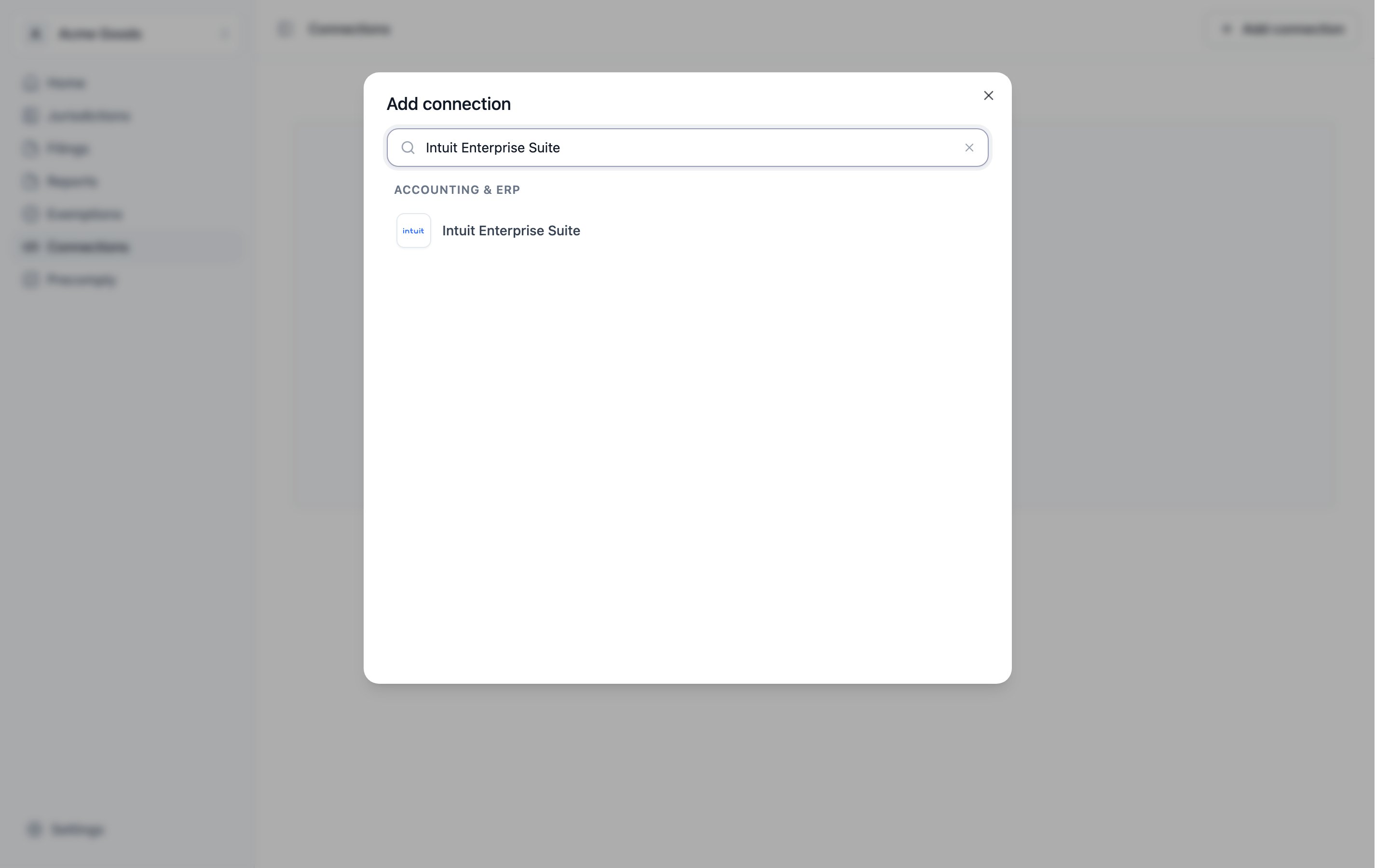
- Search for Intuit Enterprise Suite (or IES) and select it.
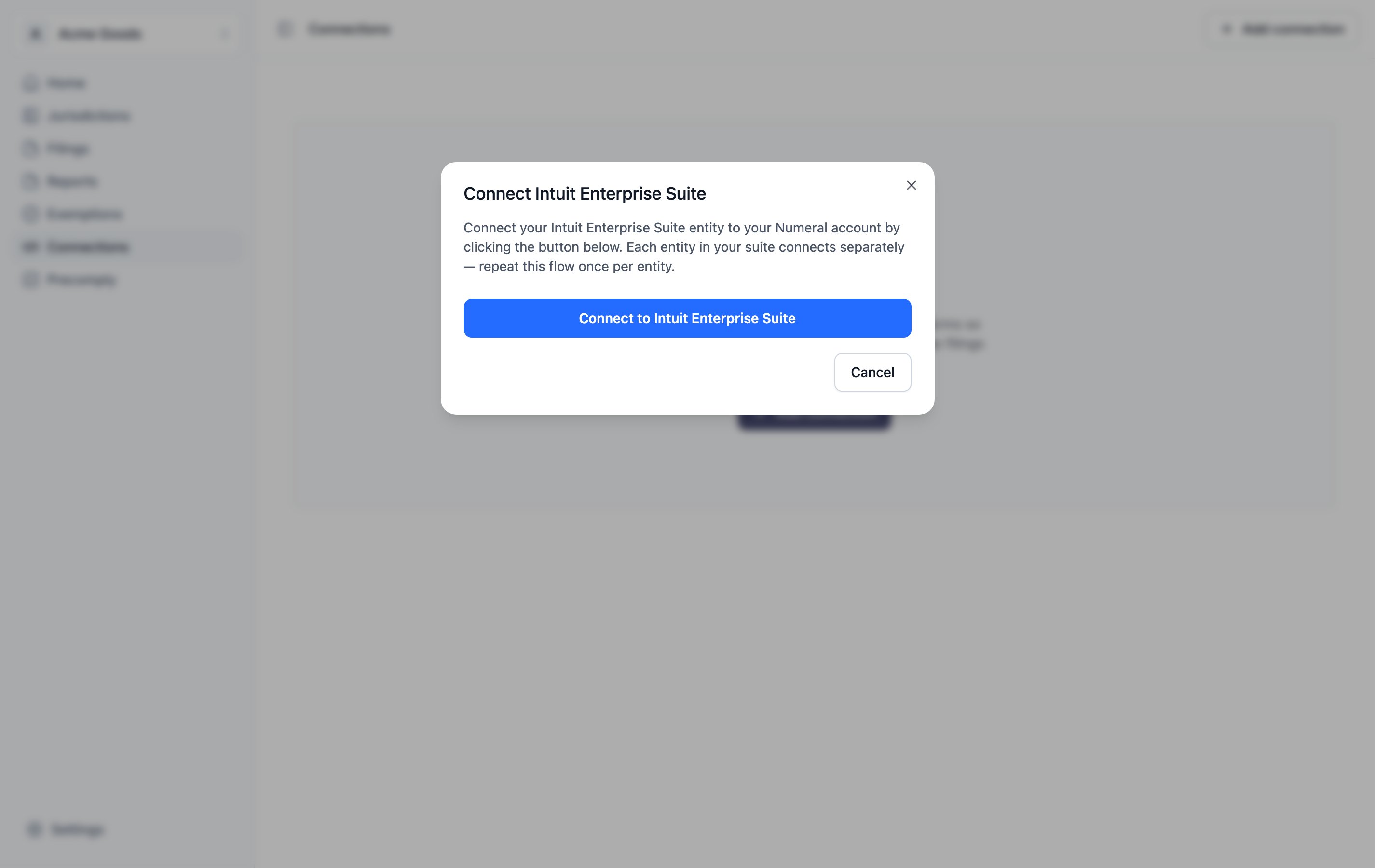
- Click Connect to Intuit Enterprise Suite.
- Your browser goes to Intuit. Sign in, choose the entity you want to connect, and approve access for Numeral.
- Intuit sends you back to Numeral, which shows Successfully Connected!
The entity appears on the Connections page with a green Syncing status. Numeral imports the entity’s products and starts importing its sales history in the background.
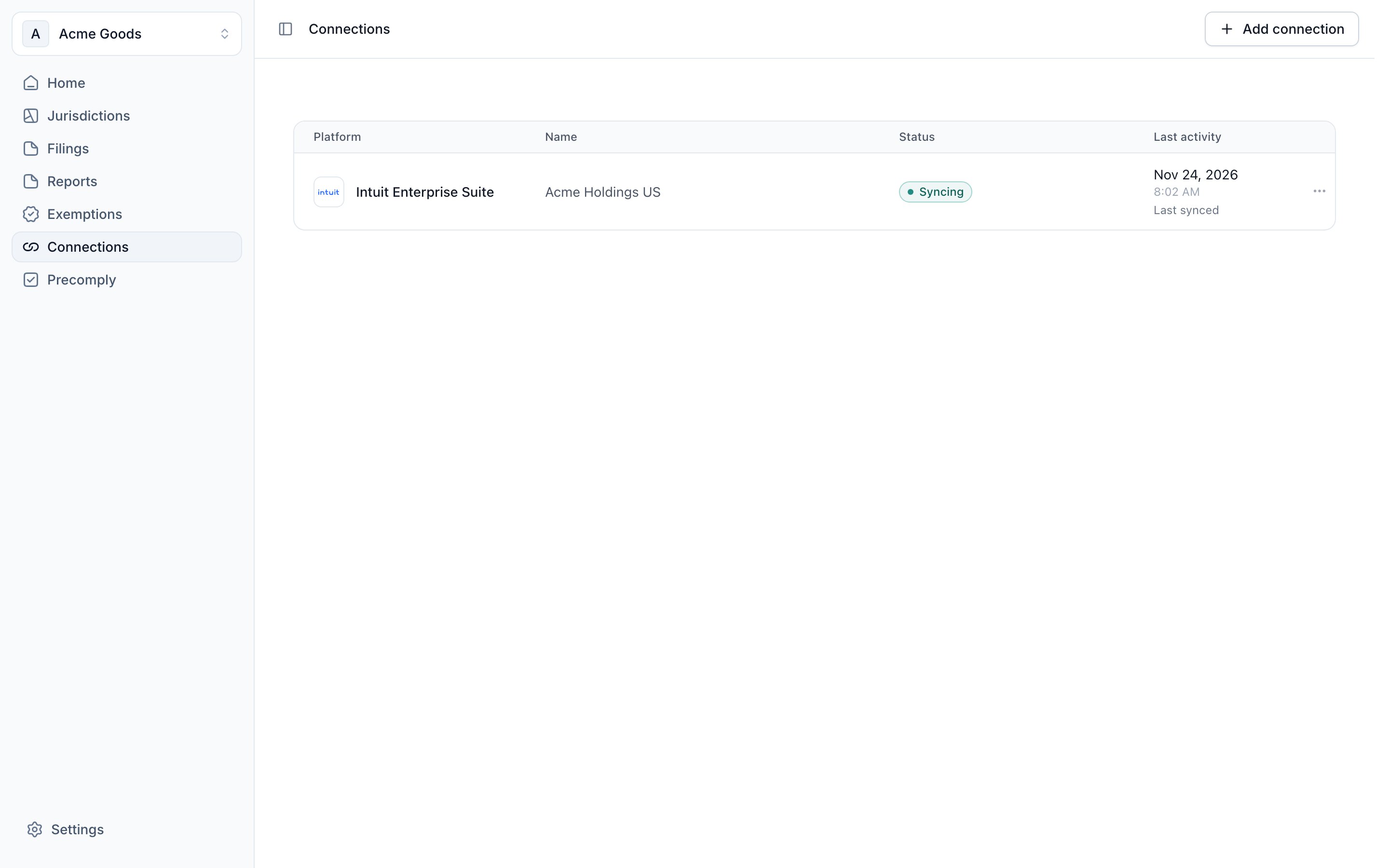
The status always shows Syncing, because Numeral keeps pulling sales data from the entity. If you see a red dot, or the connection fails, contact your Onboarding Manager or reach out through the messaging widget.
Timeline considerations
If you already apply sales tax to invoices in Intuit Enterprise Suite, agree your go-live date with your Onboarding Manager. On that date, your Onboarding Manager turns on Numeral tax for your account and confirms with you that Intuit’s own sales tax calculation is turned off, so tax is not applied twice.How the integration works
Intuit Enterprise Suite uses the same connection as QuickBooks Online, so the tax behavior is the same. When an invoice is created or changed in a connected entity, Intuit notifies Numeral. Numeral calculates the tax from the invoice’s ship-to address and products, and writes it back to the invoice. For details on how tax is added to invoices, tax-exempt customers, and product categories, see the QuickBooks Online guide. It applies to Intuit Enterprise Suite as well, with one difference: the Integrations menu on the connection (the Enable Numeral Tax toggle and Test your integration) is not available for Intuit Enterprise Suite. Your Onboarding Manager turns Numeral tax on for you.Product categorization
Correct product categorization is essential for accurate tax calculation. Product categories set in Intuit Enterprise Suite do not carry over to Numeral. Categories are set up directly in your Numeral account. During onboarding, your Onboarding Manager will help set up initial product categories in Numeral and show you how to manage them going forward.Troubleshooting
"There was an error connecting to Intuit Enterprise Suite. Please try again."
"There was an error connecting to Intuit Enterprise Suite. Please try again."
Intuit did not finish authorizing the connection, or the entity is already connected to a different Numeral account. Try again, and make sure you choose the right entity at the Intuit step. If it keeps failing, contact support with the entity’s name.
No tax is added to my invoices
No tax is added to my invoices
Check that your go-live date has passed and that Numeral tax has been turned on for your account (ask your Onboarding Manager). Then check that the invoice has a complete ship-to address and that you are registered in that state on the Jurisdictions tab.
Tax is applied twice
Tax is applied twice
Intuit’s own sales tax calculation is still on for the entity. Contact your Onboarding Manager to turn it off.
How do I disconnect an entity?
How do I disconnect an entity?
Contact your Onboarding Manager or support before disconnecting, so that tax stops being applied to your invoices on the date you choose.