

The Numeral integration must be enabled for your Maxio site by Maxio Support or your CSM before the Numeral setup card appears in your tax settings.
Overview
The Numeral integration supports real-time tax calculation, tax metadata storage, and transaction synchronization from Maxio.- Preview and committed tax quotes: Maxio calls Numeral for a soft quote when previewing taxes and commits the transaction when the charge is final.
- Automated invoice metadata: Successful Numeral calls are converted into structured metadata, including Numeral transaction IDs, version numbers, and jurisdiction breakdowns.
- Sandbox-safe testing: Sandbox credentials can be used to validate the connection and end-to-end behavior before going live.
Prerequisites
Before enabling Numeral in Maxio, confirm the following:- The Numeral integration add-on is enabled for your Maxio site (contact Maxio Support or your CSM).
- A valid tax origin address is configured in Maxio.
- Your Numeral API key is available.
- Your Numeral account has the regions and product categories you sell in configured.
- Products and components are marked taxable where tax should apply.
- Customer billing or shipping addresses are collected based on your site’s tax address setting.
Implementation Order
Follow these steps in order so product tax codes, exemptions, and required addresses are in place before tax begins calculating on live invoices.- Get a Numeral API key.
- Enable the Numeral integration in Maxio.
- Configure the tax origin address.
- Assign Numeral product tax codes to products and components.
- Apply customer exemption categories where applicable.
- Test in Sandbox, then switch to Production.
Step 1: Get a Numeral API Key
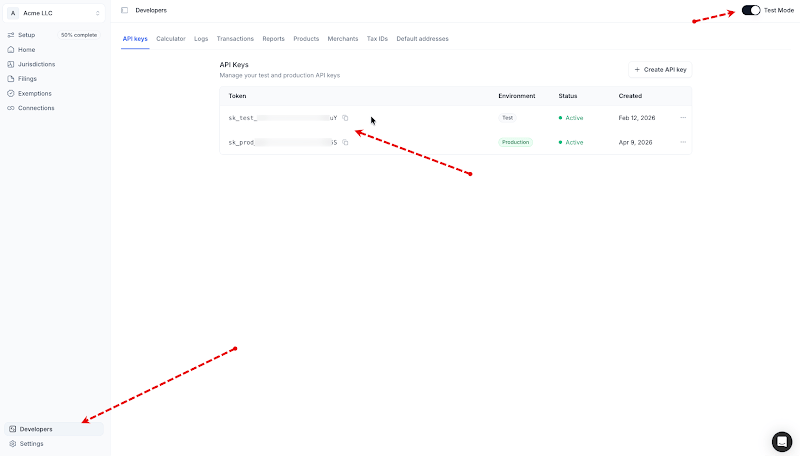
In the Numeral dashboard, go to Developers > API Keys and generate a key for the environment you intend to connect.- Test key: Use with a Maxio test site for implementation validation.
- Production key: Use only with your Maxio production site.
Step 2: Enable Numeral in Maxio
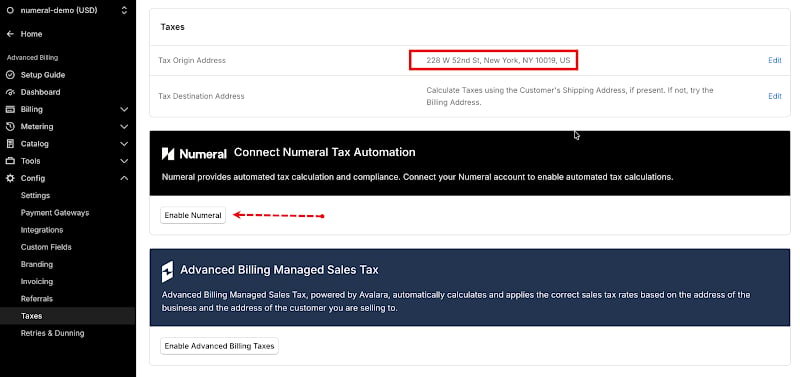
Administrators can manage the integration from Settings > Taxes in Maxio.- Go to Settings > Taxes.
-
Select Enable Numeral.
-
Enter your Numeral API key.
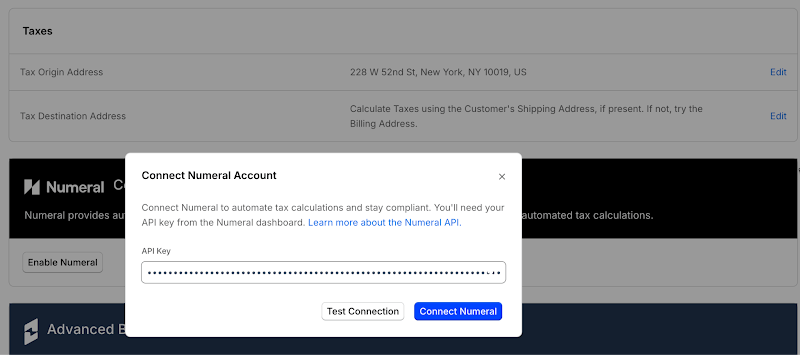
- Click Connect Numeral to save. Maxio stores the credentials and switches the site’s tax type to Numeral.
Test the connection
Click Test Connection to verify your credentials without committing them. The test validates the key format and attempts a live call to Numeral. If the test fails, Maxio displays an error so the issue can be corrected before going live.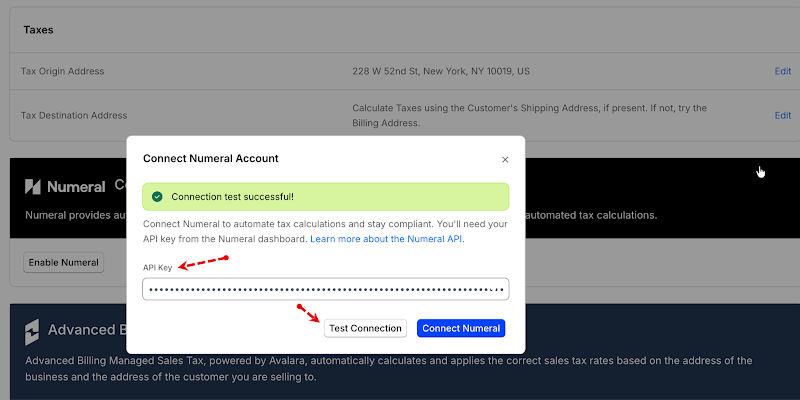
Edit or rotate Numeral keys
If Numeral is already enabled and you need to update the key, reopen the Numeral configuration modal and enter the new key. Maxio re-validates the key and keeps the site marked as Numeral-enabled after the update.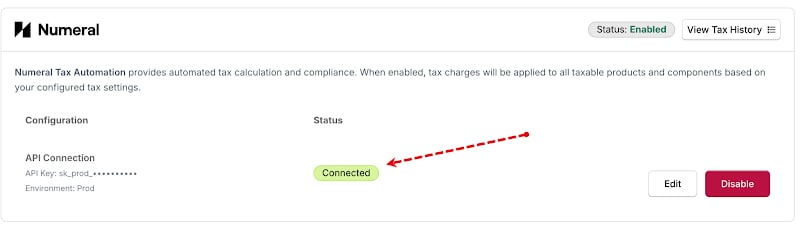
Disable Numeral
Selecting Disable Integration removes the stored credentials, reverts the site’s tax type to custom, and stops Numeral tax calls.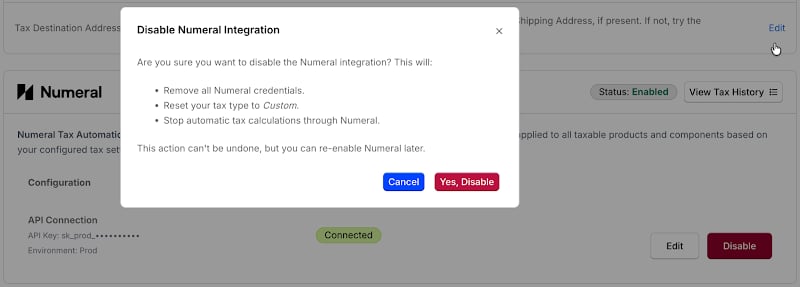
Step 3: Configure the Tax Origin Address
Your tax origin address represents where your business operates from. Numeral uses it to determine sourcing rules for each transaction. Set the tax origin address in Settings > Taxes. Without a valid origin address, Numeral calls will fail.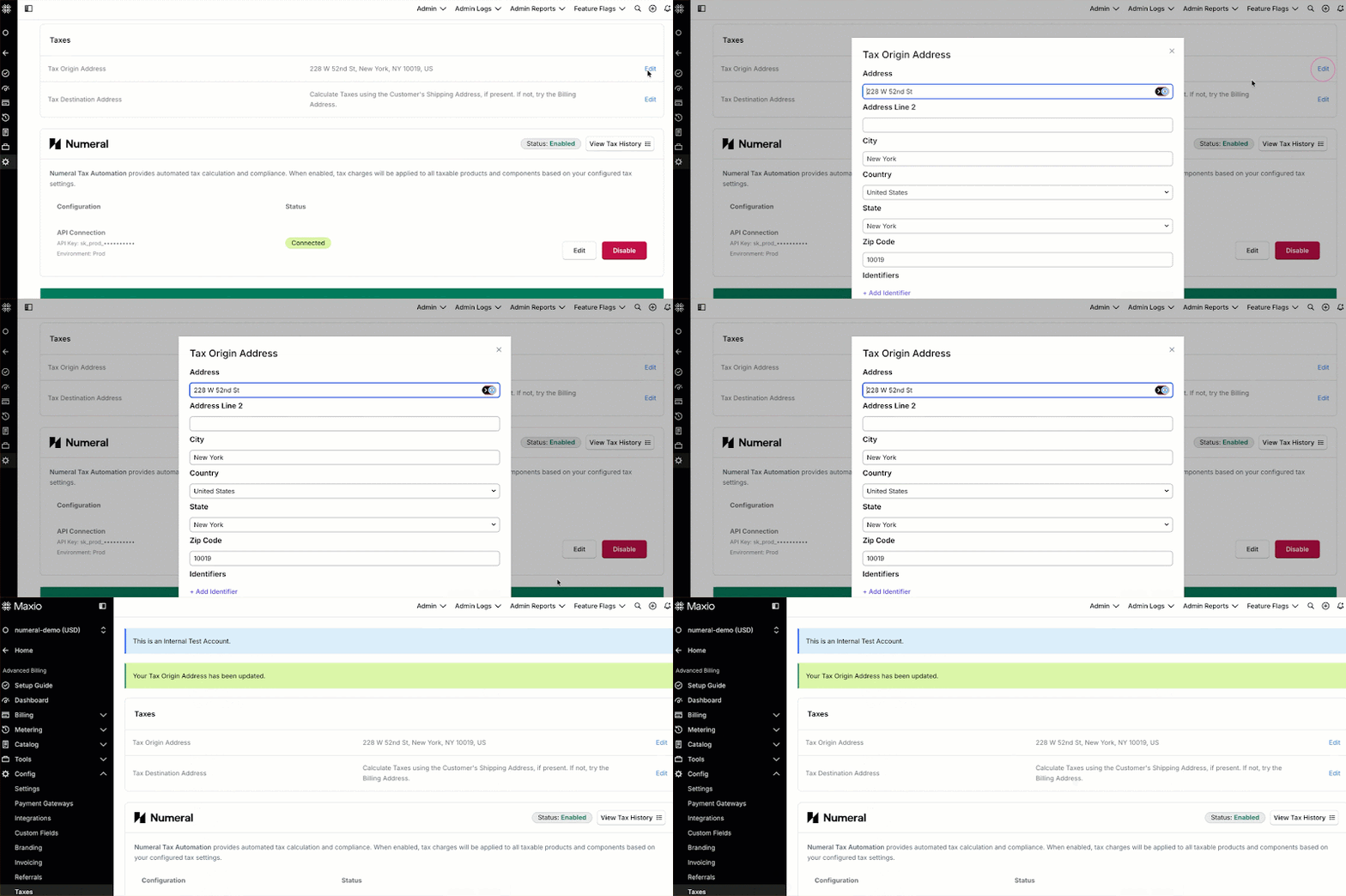
Step 4: Configure Products and Product Tax Codes
Mark products or components as taxable when sales tax should apply. If a Numeral product tax code is present, Maxio sends it as the product tax code for that line item.
For Maxio Advanced Billing: Define products or plans and mark them as taxable.
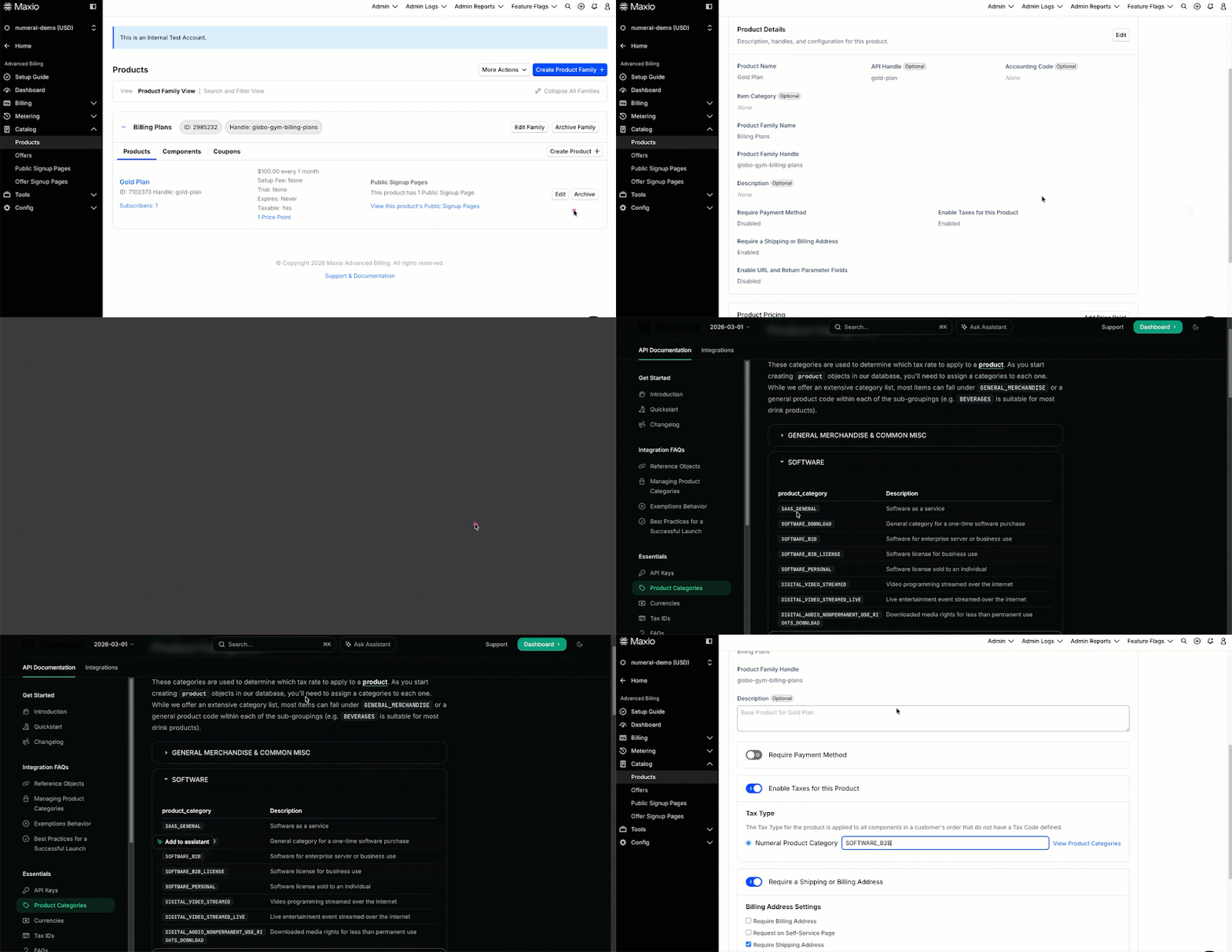
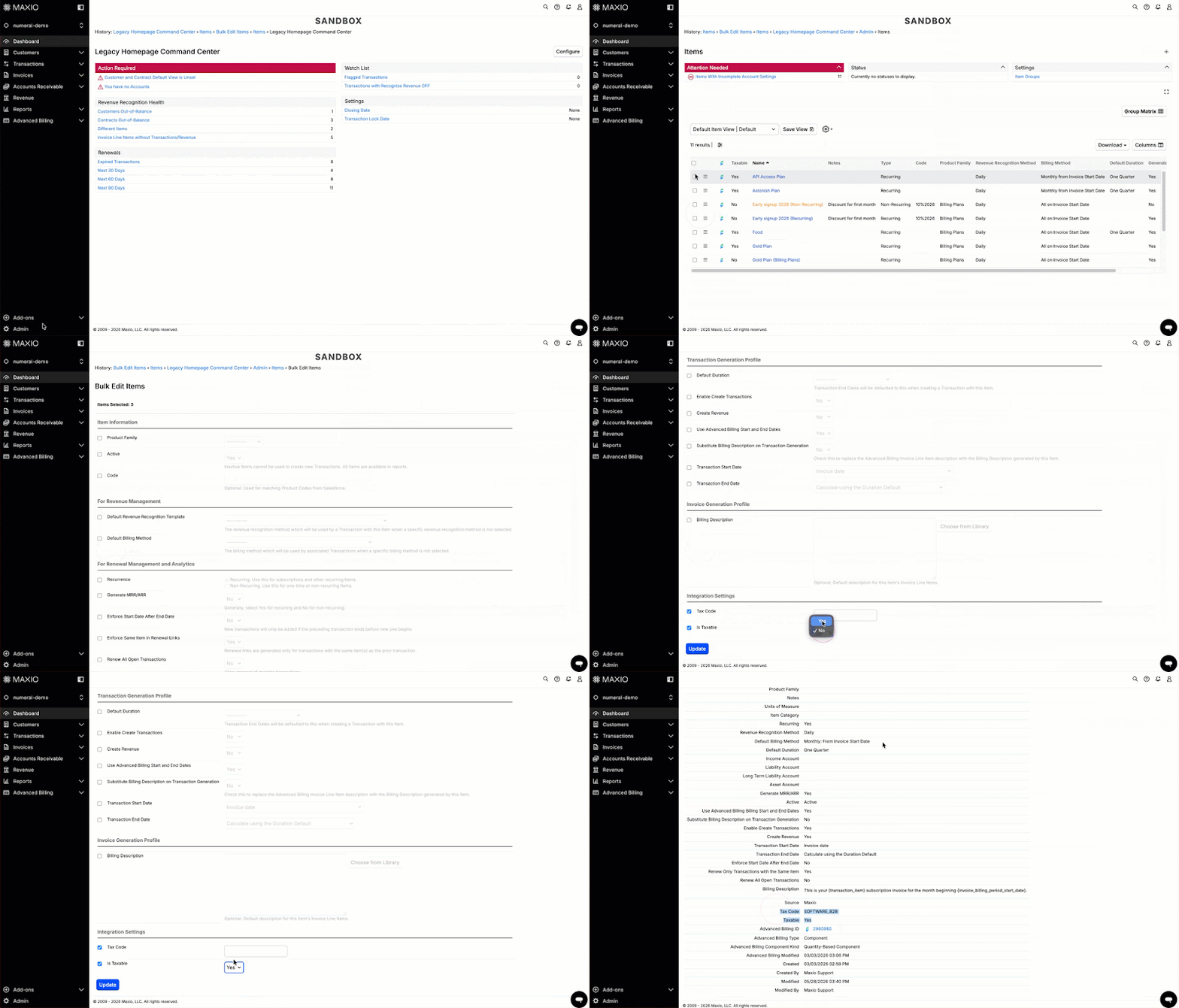
Tax codes are maintained in Numeral. Maxio passes them through on each invoice line.
Step 5: Collect Customer Addresses and Apply Exemptions
Customer addresses
Your site’s tax address option determines which address Maxio sends to Numeral.- Shipping-based: Collect a complete shipping address.
- Billing-based: Collect complete billing address details on the payment profile or signup form.
- Mixed: Keep both shipping and billing addresses complete. Maxio can retry with the alternate address if Numeral rejects the primary.
Customer exemptions
Exemption status is managed in Numeral and respected on Maxio invoices. When configuring an exempt customer:- Set the exemption category on the customer record in Numeral (e.g., wholesale, government, non-profit).
- Confirm the customer’s billing or shipping address matches the address used in Maxio so Numeral can match the transaction to the exempt customer.
Create a Taxed Subscription (Advanced Billing)
- Define products or plans in Maxio Advanced Billing and mark them as taxable. Add Numeral product tax codes where needed.
- Create the customer record with the address required by your tax address setting.
- Add taxable products or components to the subscription.
-
Preview the subscription to confirm tax is calculated before billing.
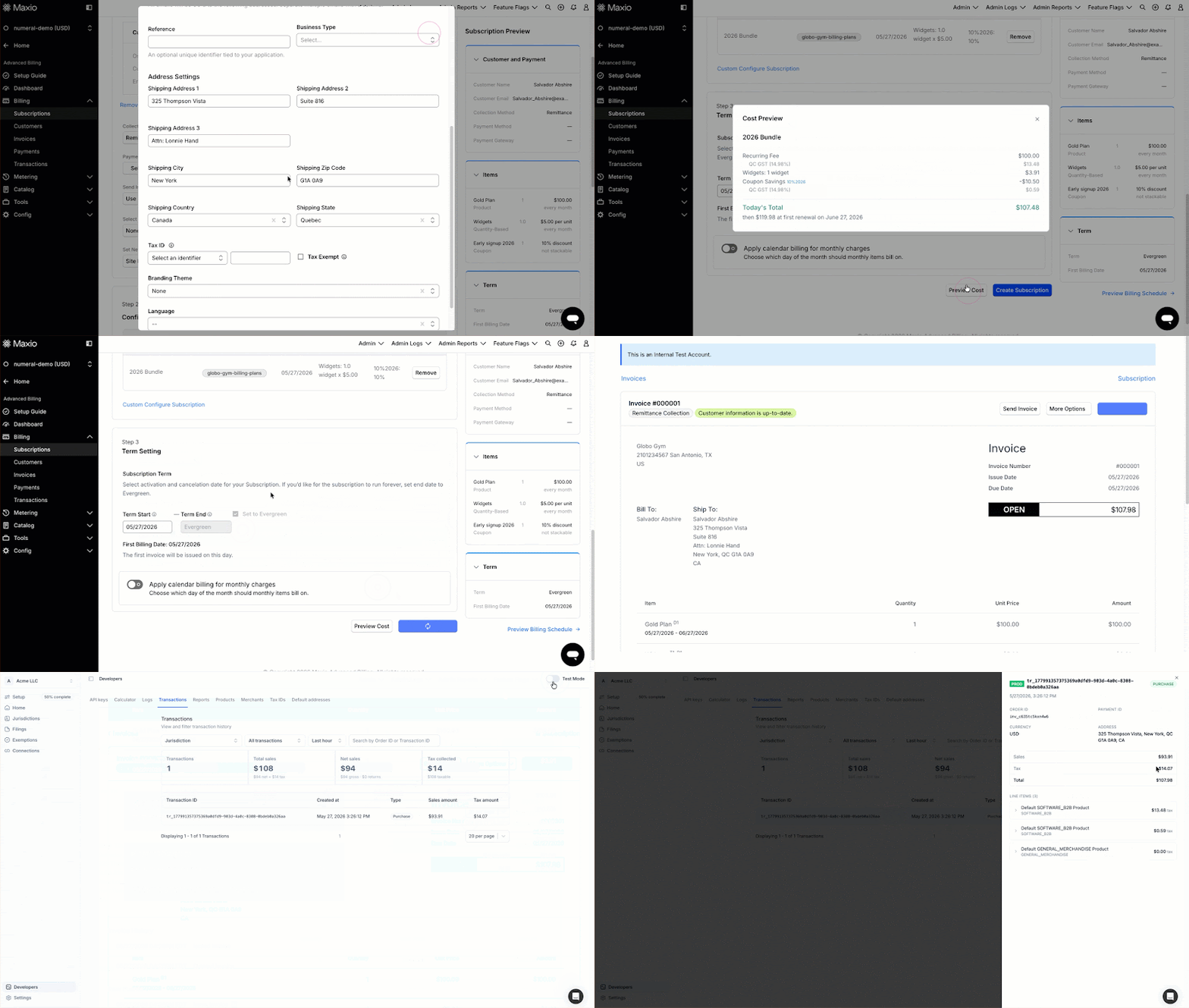
- Complete signup or issue the invoice when the tax amount looks correct.
Create a Taxed Contract (Maxio Core)
- Define items in Maxio Core and mark them as taxable. Add Numeral product tax codes where needed.
- Create the customer record with the address required by your tax address setting.
- Add taxable items to the contract invoice.
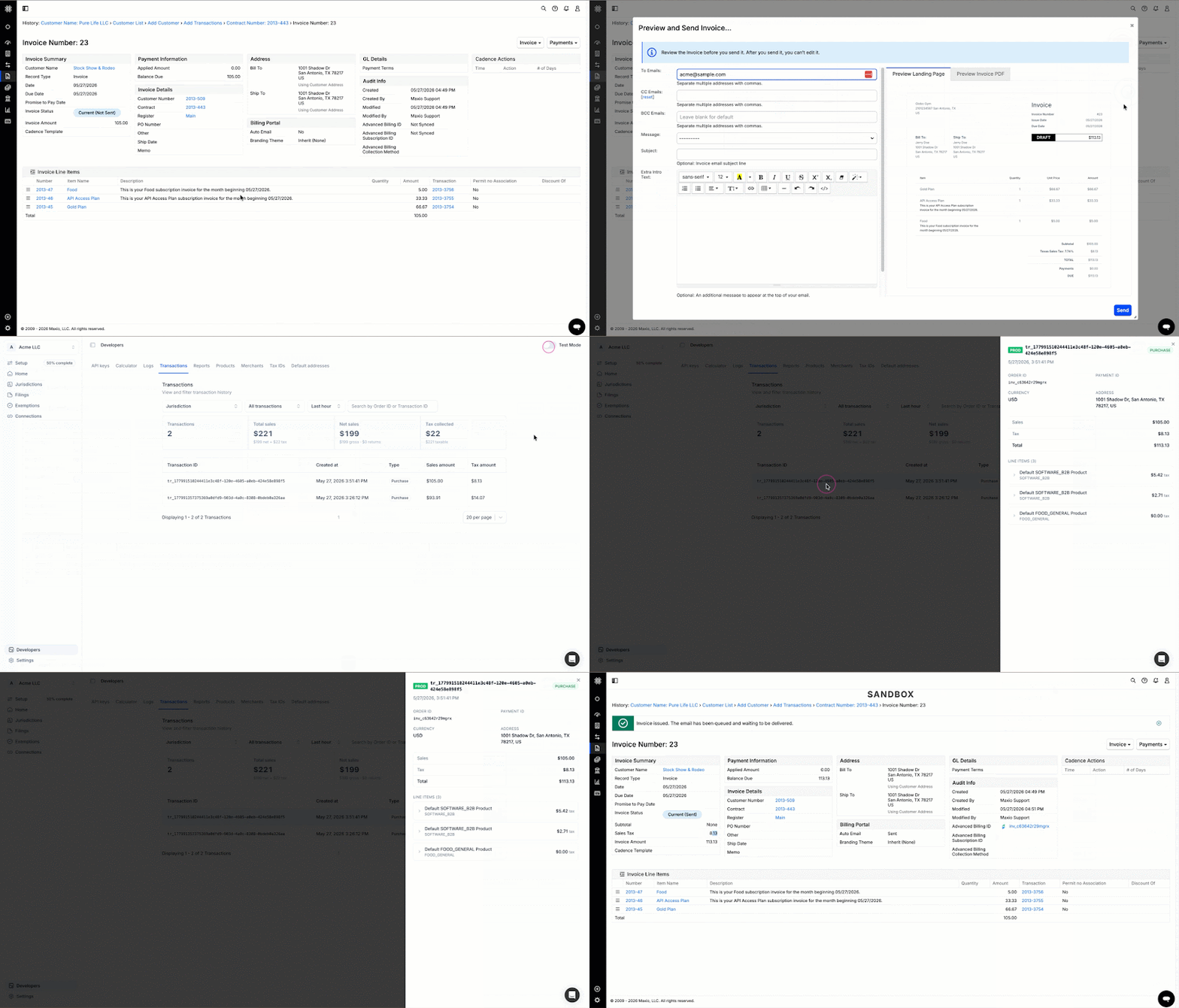
- Preview the invoice to confirm tax is calculated before billing.
- Complete sending and issuance of the invoice when the tax amount looks correct.
Testing Before Go-Live
Test the full Numeral workflow in Sandbox before using a Production key.- Connect your Maxio test site to a Numeral Sandbox account using a Sandbox API key.
- Run sample subscriptions, invoices, voids, and refunds.
- Verify tax amounts, jurisdiction breakdowns, and exemption behavior.
- Confirm Numeral metadata — including transaction ID and jurisdiction detail — is stored on invoices.
Limitations
- Only one tax provider can be active per Maxio site at a time.
- Filing and registrations are managed in Numeral, not Maxio.
- Subscription groups are not supported in the initial release.
- Maxio Core to eBill is not supported in the initial release.