Overview
The JustPaid and Numeral integration enables automated sales tax compliance for your invoicing workflow. This integration automatically calculates and applies the correct sales tax rates to your JustPaid invoices based on customer location and product categorization. What you’ll accomplish:- Connect Numeral to your JustPaid account
- Set up automated webhook communication
- Enable automatic sales tax calculations on invoices
- Track products and credit memos across both platforms
- Record transactions automatically when invoices are paid
Short video on how invoice taxation works with JustPaid
Prerequisites
Before you begin, ensure you have:- An active JustPaid account with admin access
- A Numeral account
- Permissions to generate API keys in JustPaid
Step 1: Connect Numeral to JustPaid
To establish the integration between Numeral and JustPaid, you’ll need to generate and configure an API key.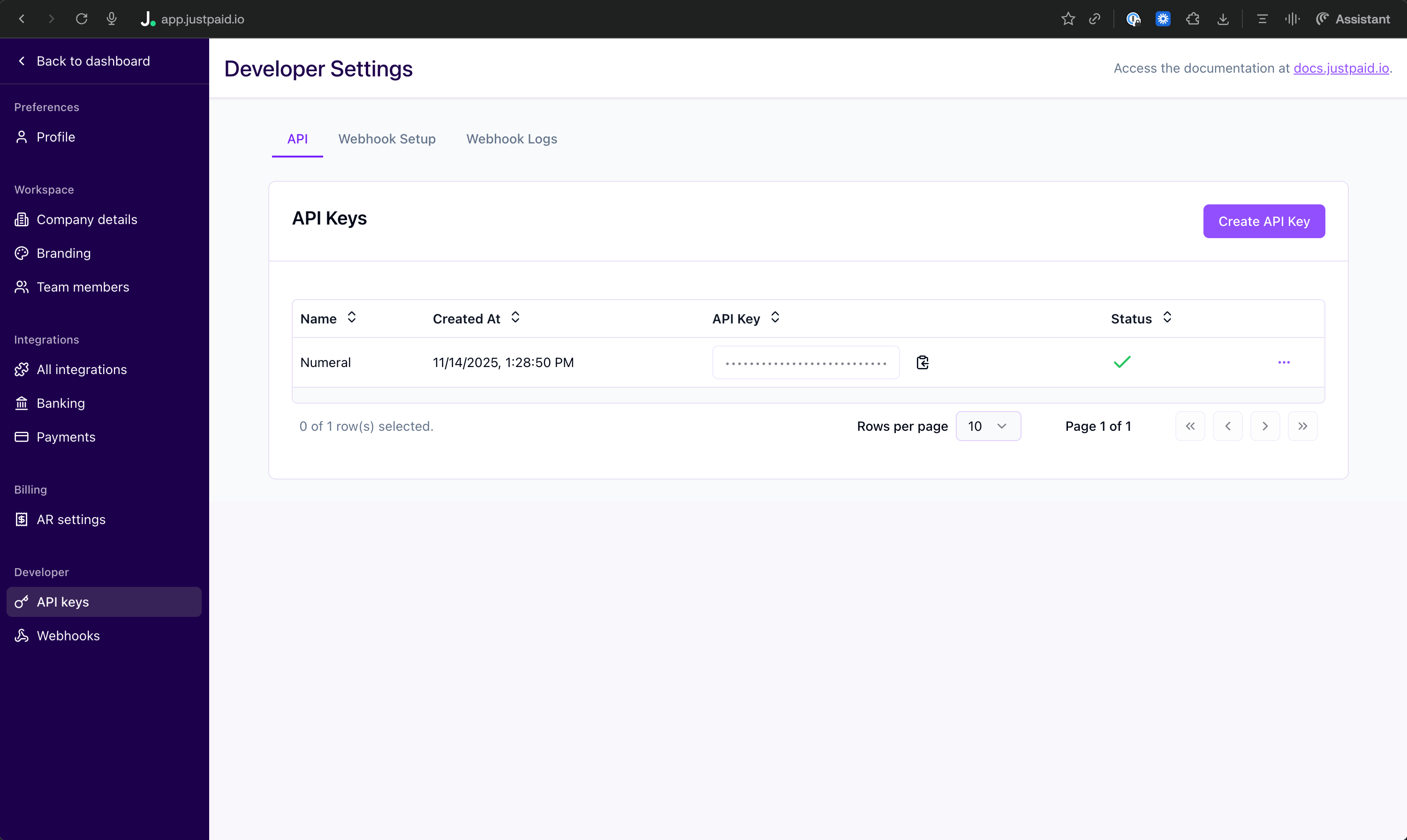
Generate a JustPaid API Key
- Log in to your JustPaid account
- Navigate to Settings > Developer > API Keys (or go directly to your JustPaid dashboard’s API settings page)
- Click Create API Key
- Copy the API key (you’ll need this in the next step)
Add the API Key to Numeral
- Log in to your Numeral account
- Go to Settings > Integrations
- Find JustPaid in the list of available integrations
- Click Connect or Configure
- Enter a name for your JustPaid connection (e.g., “Production JustPaid”)
- Paste your JustPaid API key into the appropriate field
- Click Connect
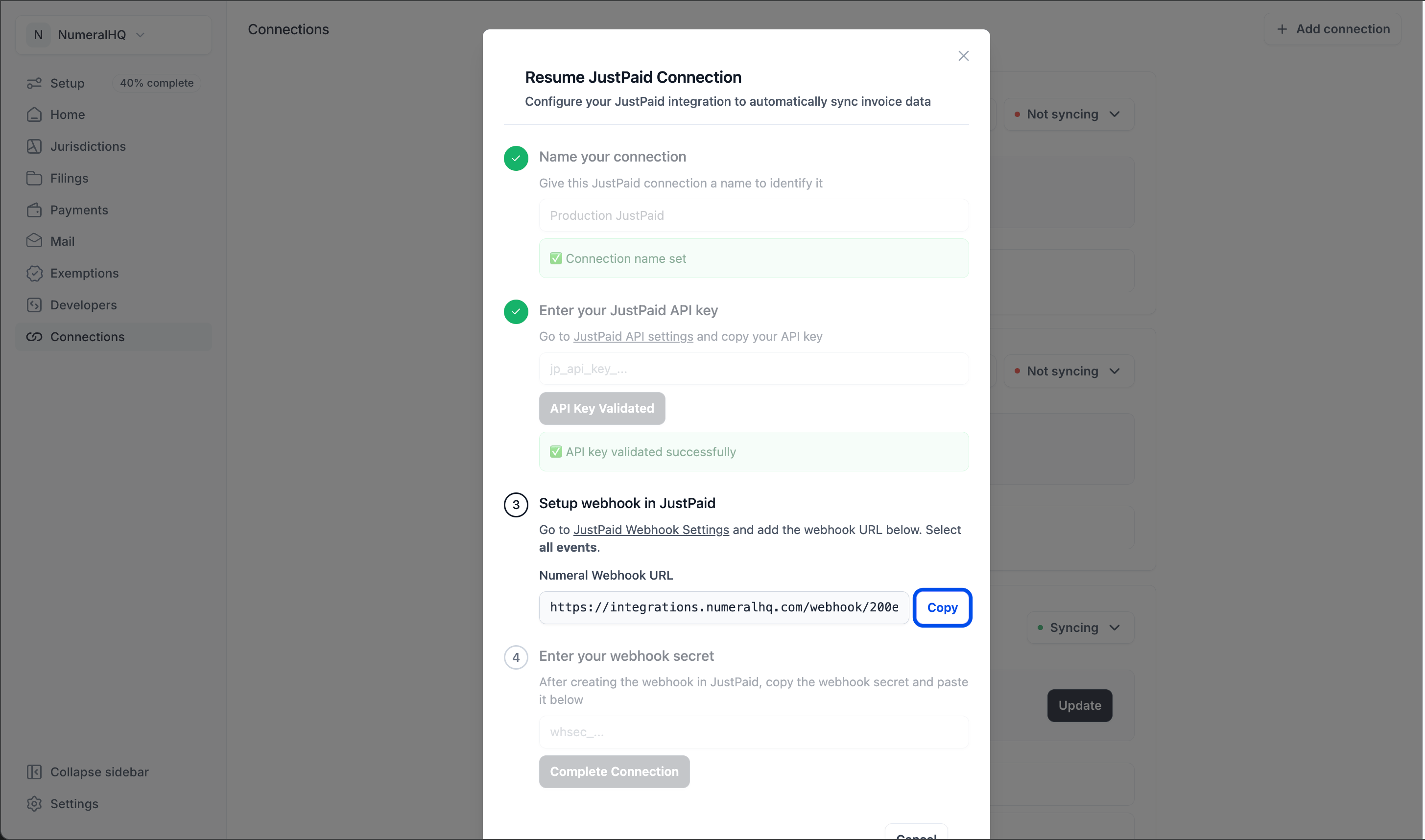
Step 2: Set Up the Numeral Webhook in JustPaid
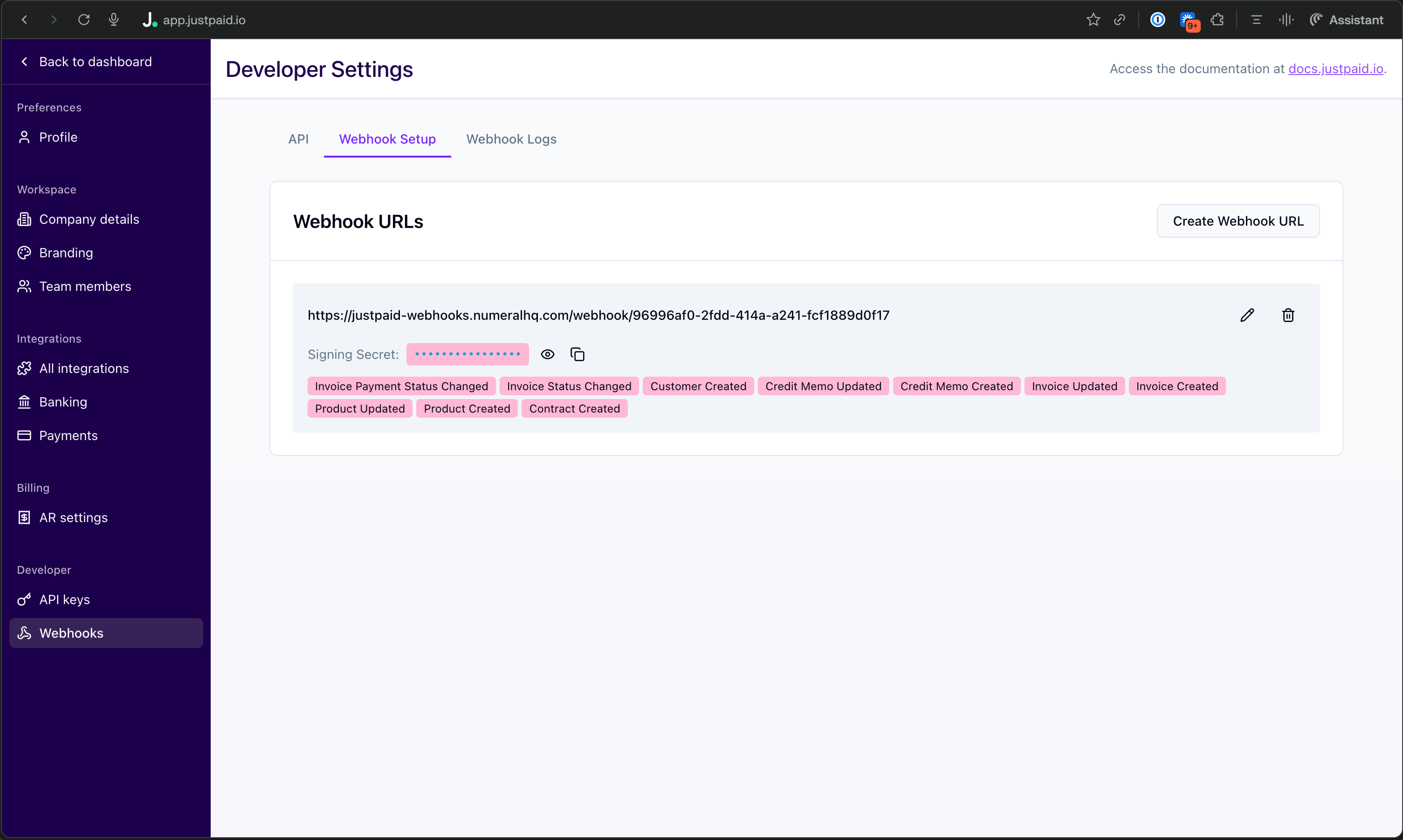
The webhook enables real-time data synchronization between Numeral and JustPaid, ensuring that invoice and product data flows seamlessly between both platforms.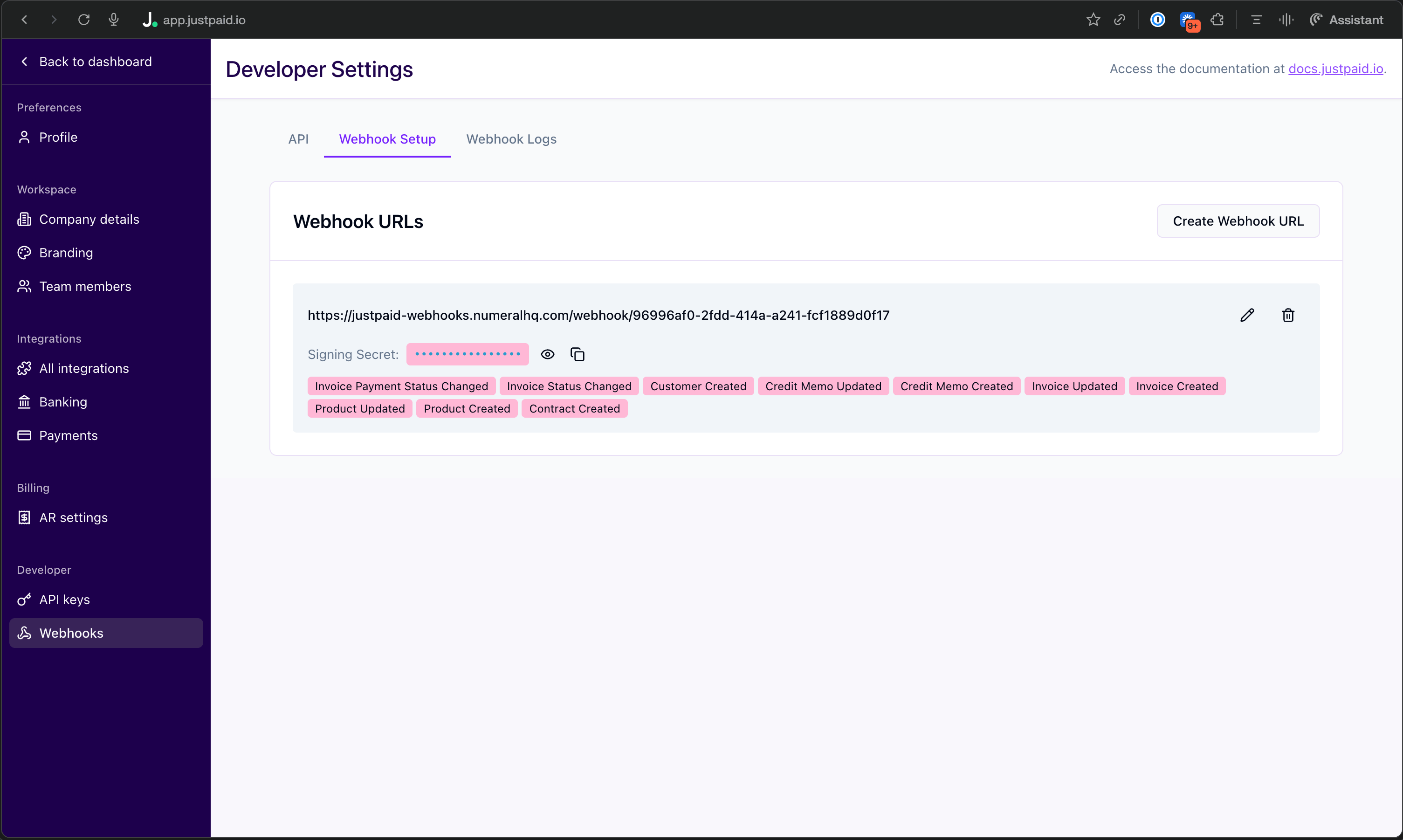
Configure the Webhook
- After connecting your API key in Numeral, you’ll be provided with a webhook URL
- Click Copy Numeral webhook URL to copy the webhook URL to your clipboard
- In your JustPaid account, navigate to Settings > Webhooks
- Click Add New Webhook or Create Webhook
- Paste the Numeral webhook URL into the webhook URL field
- Important: Select all events to enable full integration functionality:
- Invoice Events - Created, Updated, Status Changed, Payment Status Changed
- Product Events - Created, Updated
- Credit Memo Events - Created, Updated, Status Changed
- After saving the webhook in JustPaid, JustPaid will generate a Webhook Secret
- Copy the webhook signing secret from JustPaid
- Return to Numeral and paste the webhook secret into the Webhook Secret field
- Click Continue to complete the setup
Step 3: Automate Sales Tax on Invoices
Once the integration is complete, Numeral will automatically calculate and add sales tax to your invoices based on your configured tax rules and customer locations.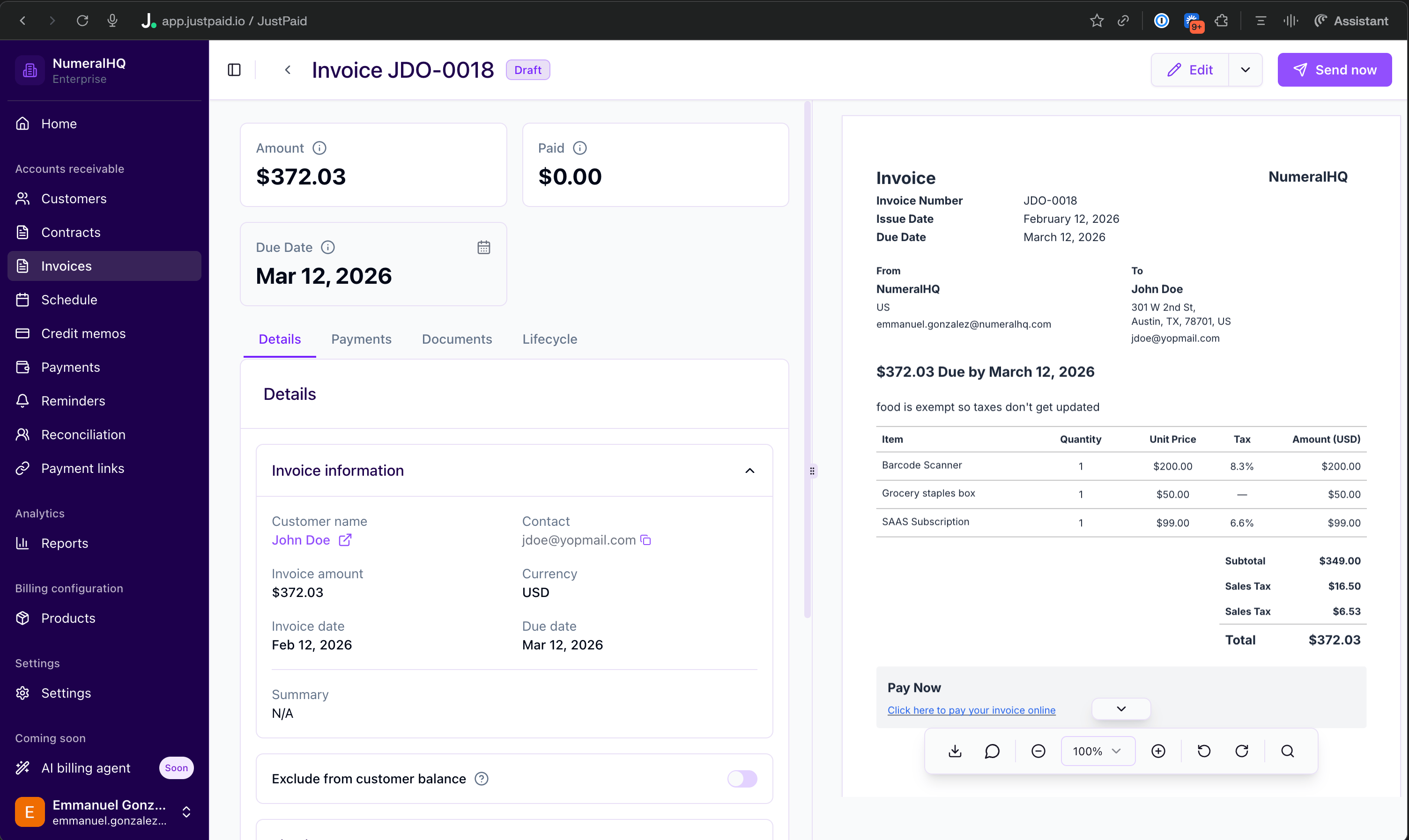
How It Works
When you create or update an invoice in JustPaid:- JustPaid sends the invoice data to Numeral via the webhook
- Numeral fetches the customer’s address from JustPaid
- The system identifies the applicable tax jurisdiction based on the customer’s location
- Appropriate sales tax rates are calculated for each line item
- The tax rates are applied back to each line item in JustPaid
- When the invoice is marked as paid, a transaction is automatically recorded in Numeral
What You’ll See
- In JustPaid: Invoices will display itemized sales tax amounts calculated by Numeral on each line item
- In Numeral: Transaction data will include detailed tax information for accounting and compliance purposes once invoices are paid
Additional Features
Product Synchronization
When you create or update products in JustPaid, they are automatically synced to Numeral:- Products are created in Numeral using the product name as the identifier
- You can assign tax categories to products in Numeral for accurate tax calculation
Credit Memo Tracking
Credit memos issued in JustPaid are automatically tracked in Numeral:- Credit memos are linked to their original invoices when applicable
- Amounts are recorded for audit trail and compliance purposes
Product Categorization
Correct product categorization is essential for accurate tax calculation. Product categories set in JustPaid do not carry over to Numeral — categories must be set up directly within your Numeral account. During onboarding, your Onboarding Manager will help set up initial product categories in Numeral and show you how to manage them going forward.Troubleshooting
Common Issues
Invoice tax is not being calculated:- Verify the webhook is active in JustPaid settings
- Ensure the invoice has line items (empty invoices are skipped)
- Check that the customer has a valid address on file
- Confirm the webhook URL was copied correctly
- Verify the webhook secret matches between JustPaid and Numeral
- Check that all event types are selected in JustPaid webhook settings
- Return to Numeral and complete the setup wizard
- Ensure both the API key and webhook secret have been entered
Getting Help
If you encounter issues with the integration, please contact Numeral support with:- Your JustPaid account identifier
- The invoice or event that failed (if applicable)
- Any error messages displayed
Security
The JustPaid integration uses industry-standard security practices:- API Key Encryption: Your JustPaid API key is encrypted at rest
- Webhook Verification: All incoming webhooks are verified using HMAC-SHA256 signatures
- Secure Communication: All data is transmitted over HTTPS