

- Admin access to your BigCommerce store’s admin panel
- A Numeral account
Numeral offers two ways to connect a BigCommerce store: through the BigCommerce Marketplace app (OAuth), or by connecting directly with API credentials. This guide walks through the API credentials method.
Part 1: Create your API credentials in BigCommerce
Step 1 — Create an API account
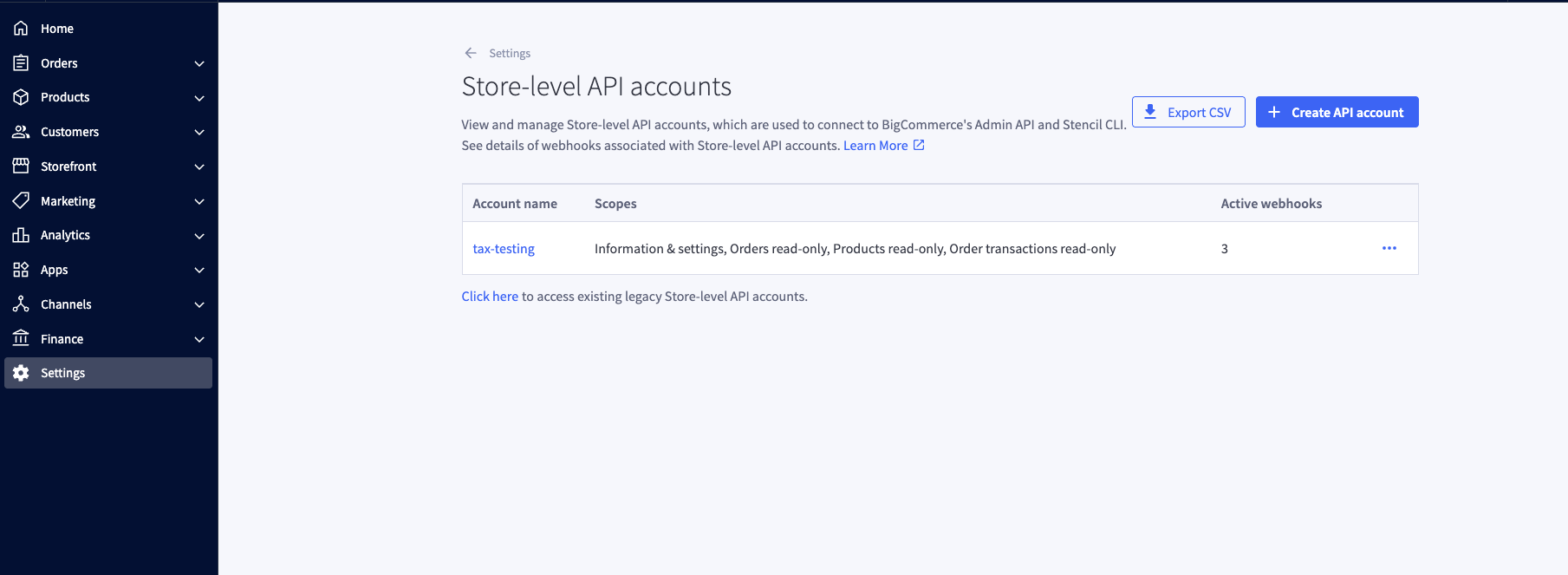
- In your BigCommerce Admin Panel, go to Settings → API → Store-level API accounts.
- Click Create API Account.
Step 2 — Configure the API account
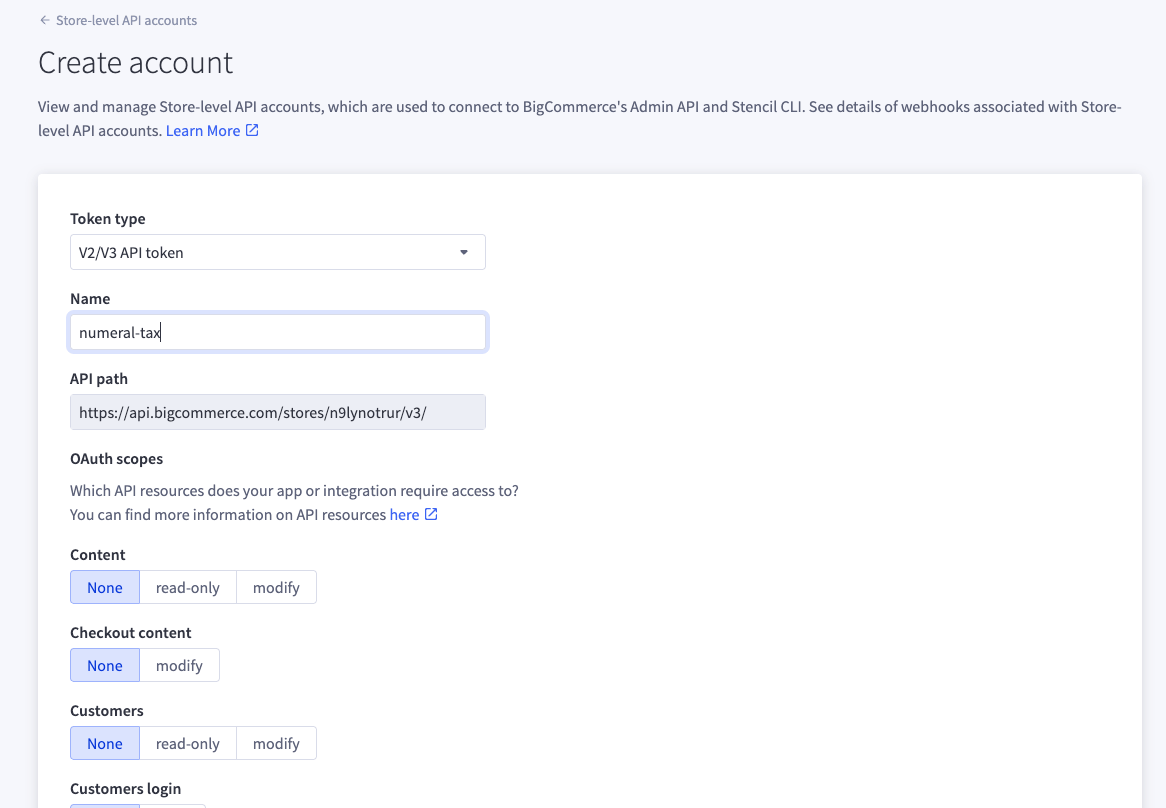
Step 3 — Select the required scopes
Set exactly these scopes — everything else should be left as None:Step 4 — Save and copy your credentials
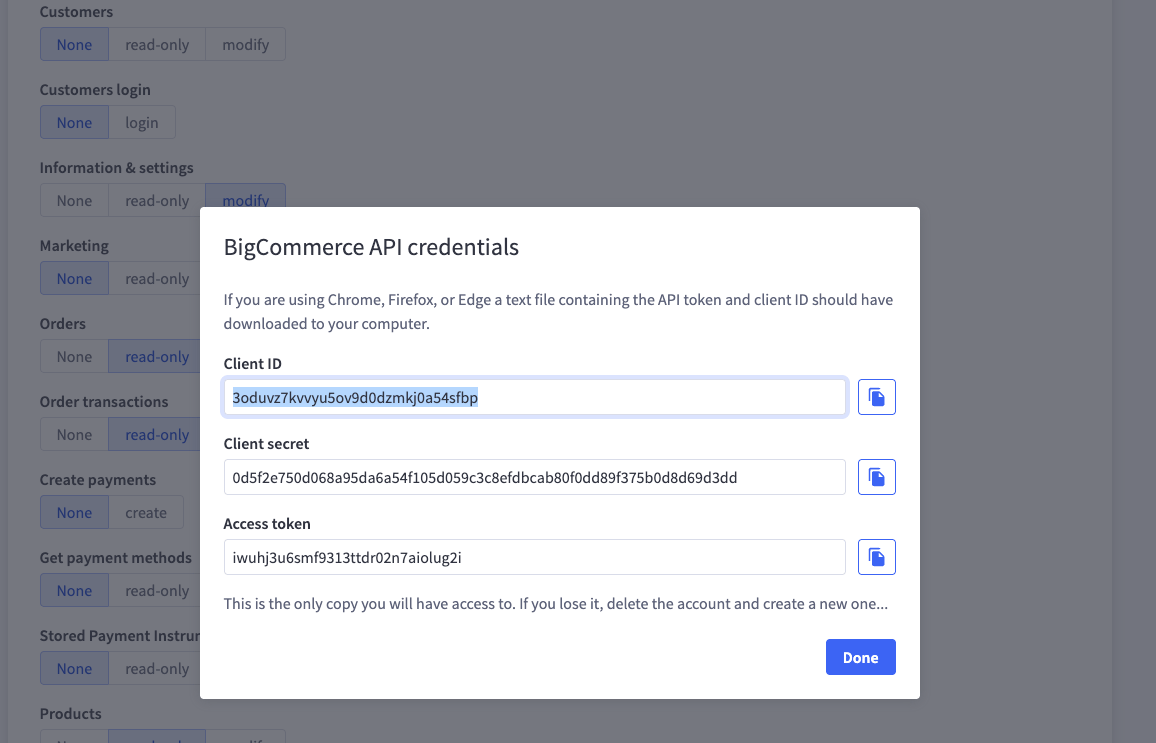
- Click Save.
- BigCommerce displays your credentials — copy both before closing the window:
Part 2: Connect BigCommerce to Numeral
Step 5 — Add a BigCommerce connection
- In the Numeral dashboard, go to Connections.
- Click Add Connection and select BigCommerce.
- Choose Connect with API credentials.
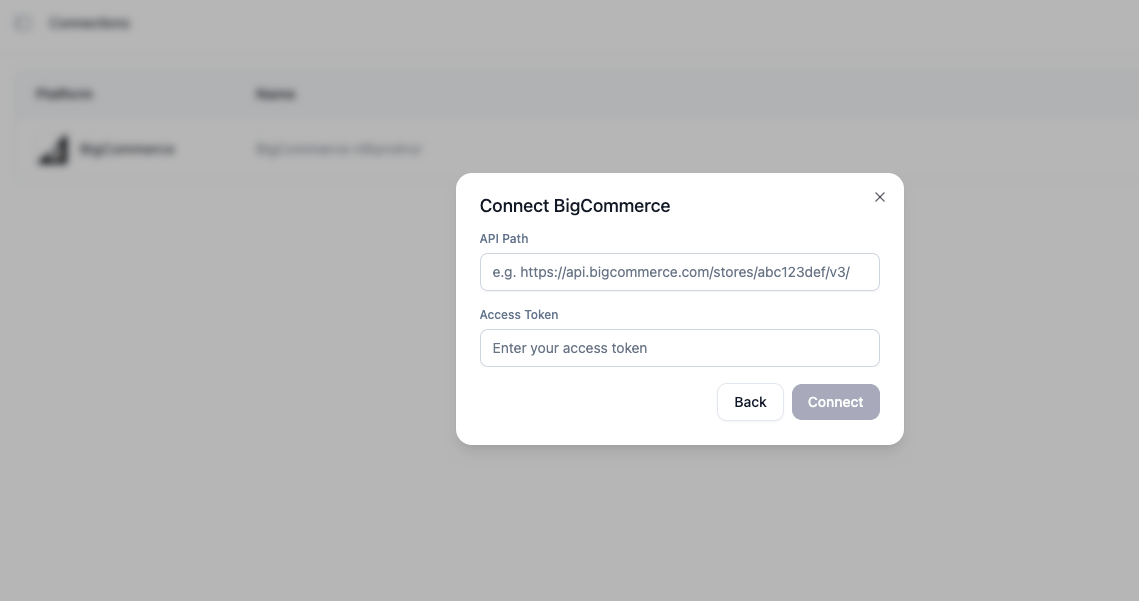
Step 6 — Enter your credentials and connect
Click Connect.
Numeral validates your credentials against BigCommerce, creates the connection, registers itself as your store’s Tax Provider, and starts syncing your product catalog — all automatically. This can take a few minutes to finish.
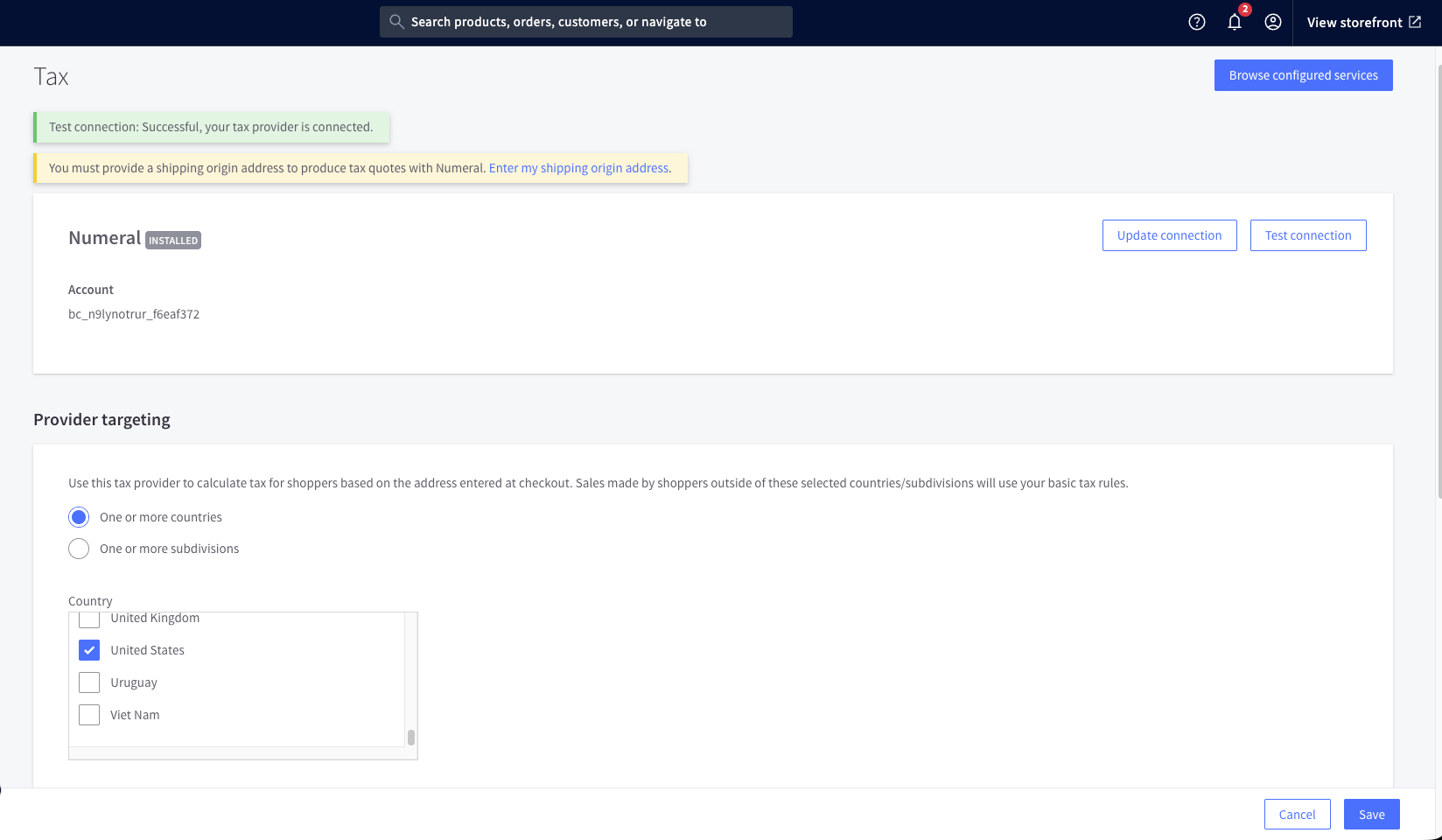
Step 7 — Configure tax targeting in BigCommerce
Once connected, tell Numeral where it should calculate tax:- In BigCommerce Admin, go to Settings → Tax.
- Next to Numeral, click Edit.
- Under Provider targeting, select the countries and subdivisions where Numeral should apply.
How it works
Once connected, Numeral acts as your BigCommerce store’s tax provider:- A customer checks out in your BigCommerce store.
- BigCommerce calls Numeral to calculate tax for the order.
- Numeral returns the tax breakdown, which BigCommerce displays to the customer.
- When the order completes, Numeral commits the transaction for filing.
- Refunds and cancellations are automatically synced back to Numeral as adjustments or voids.
Troubleshooting
”Could not verify BigCommerce credentials”
The connection was created, but tax isn’t calculating
- Confirm the Tax Provider registered successfully — check the connection status in your Numeral dashboard.
- In BigCommerce, go to Settings → Tax → Tax Services and confirm Numeral is enabled.
- Confirm the Information & settings: modify scope was selected when you created the API account.