

You must be a Sage Intacct administrator to complete this setup. The integration is provisioned per company entity.
What you’ll do
- Enable Web Services on your Sage Intacct subscription
- Authorize the Numeral and Rutter sender IDs
- Create a Web Services user (
numeral_ws) with the required permissions - Connect Sage Intacct to Numeral
- Create custom fields on
ARINVOICEandARINVOICEITEM - Configure Smart Events to push events to Numeral
- Update your invoice print template to include tax detail
1. Enable Web Services
In Sage Intacct, navigate to Company → Subscriptions and ensure Web Services is subscribed.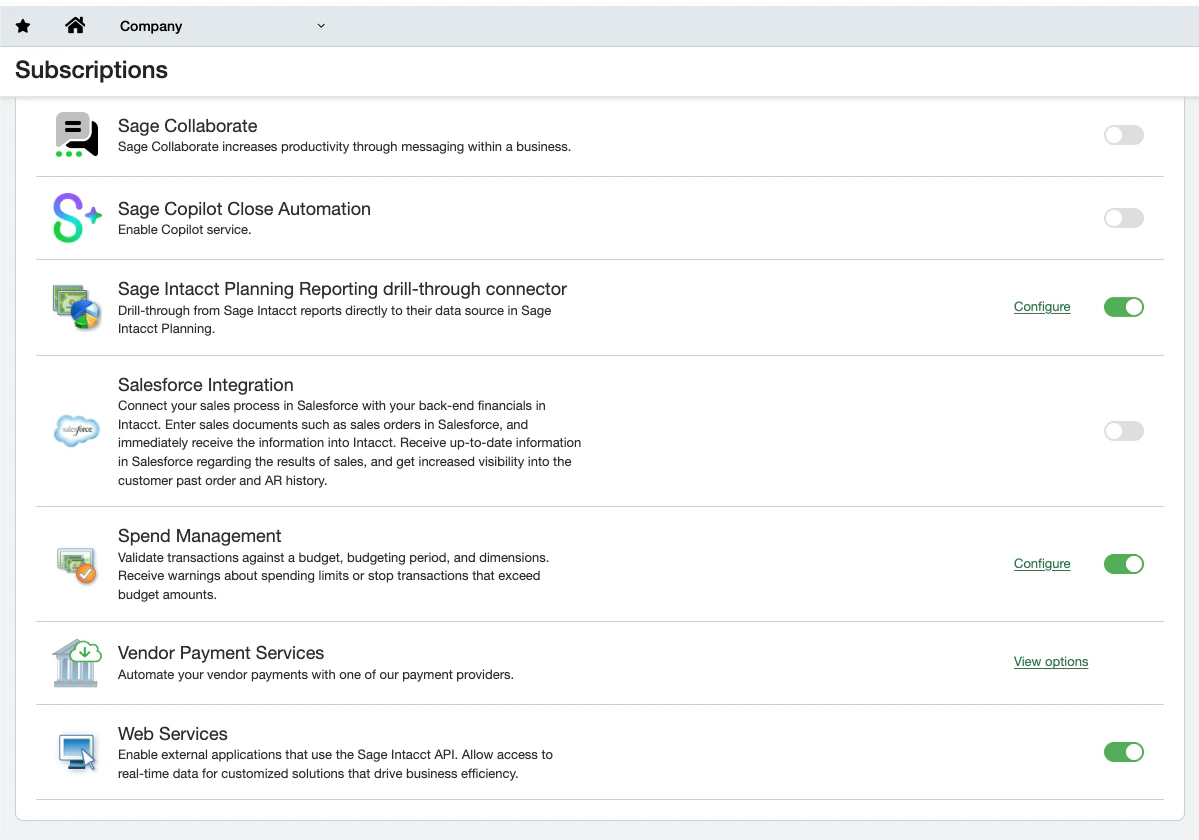
2. Authorize sender IDs
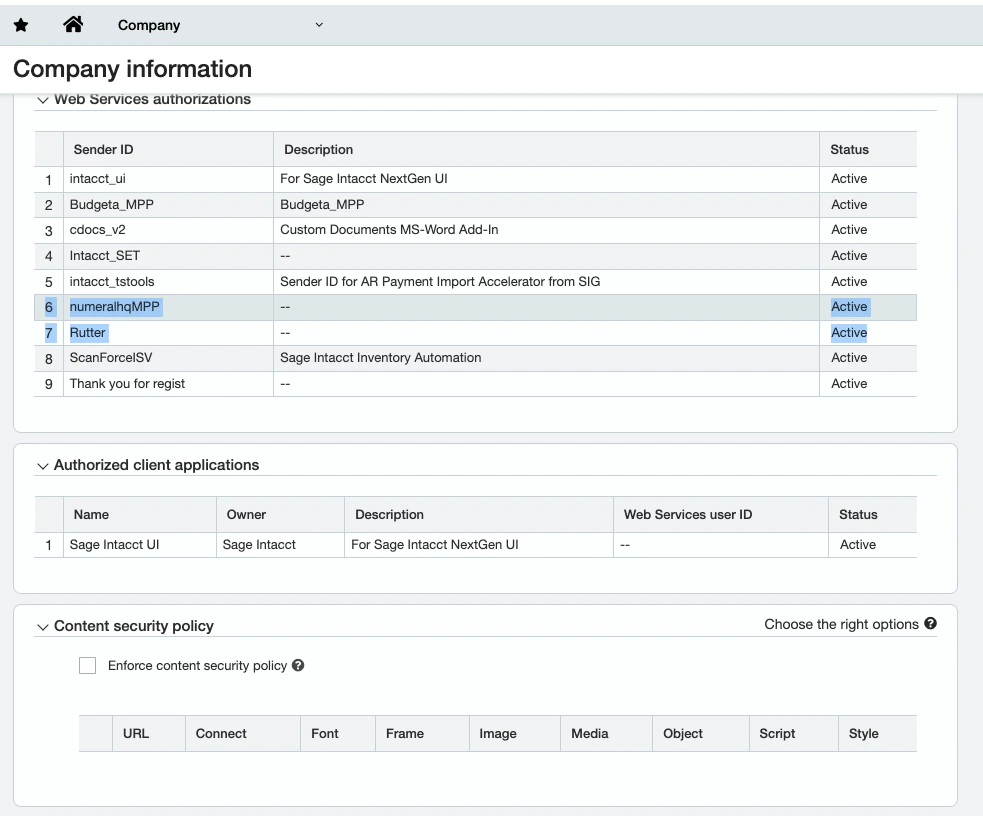
Go to Company → Setup → Company → Security tab → Web Services authorizations, then add the following sender IDs:numeralhqMPPRutter
3. Create the Web Services user
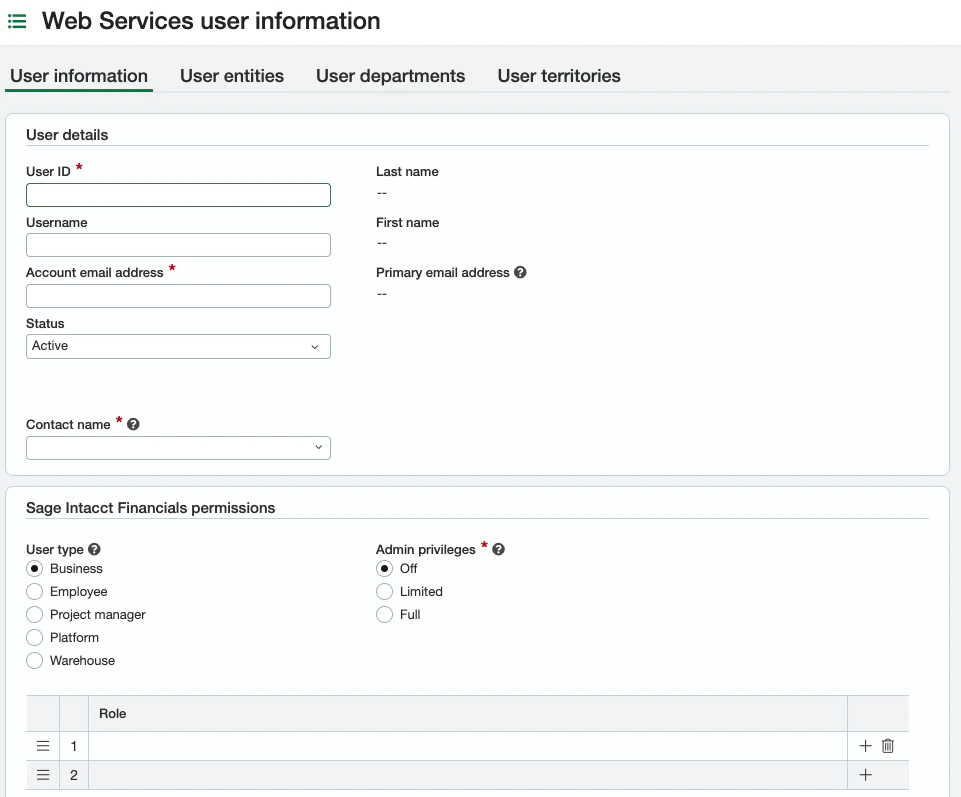
Create a Web Services user with login IDnumeral_ws. Assign the role permissions below.
4. Connect Sage Intacct to Numeral
In your Numeral dashboard, go to Settings → Integrations → Sage Intacct and provide:- Company ID — your Sage Intacct company ID
- Web Services User ID —
numeral_ws - Web Services Password — the password you set for the user
5. Create custom fields
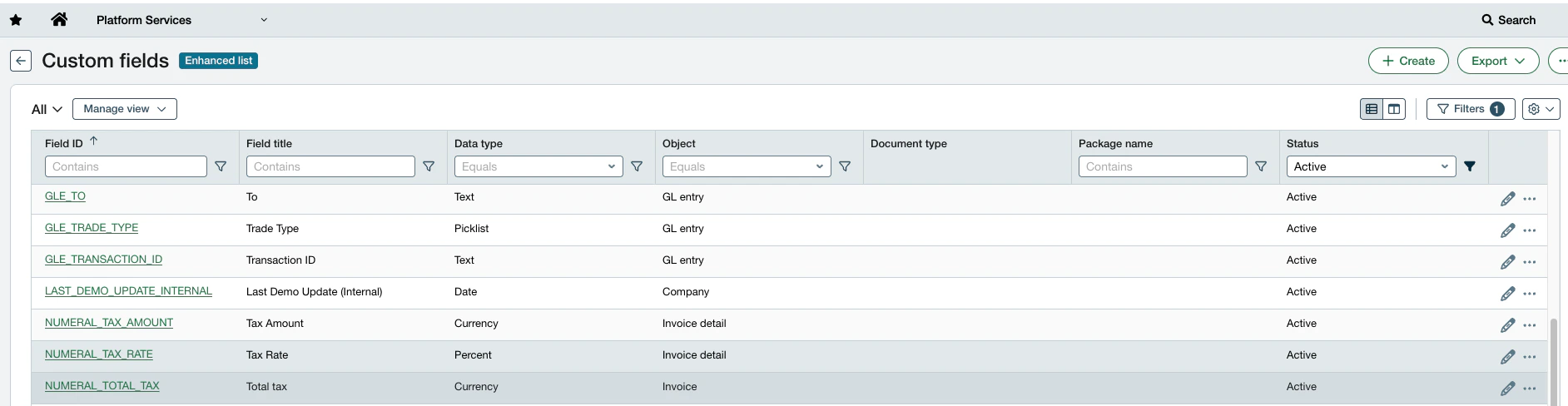
Numeral writes tax results into custom fields on the invoice and line items. Create the fields below under Platform Services → Custom Fields. OnARINVOICE:
On
ARINVOICEITEM:
6. Configure Smart Events
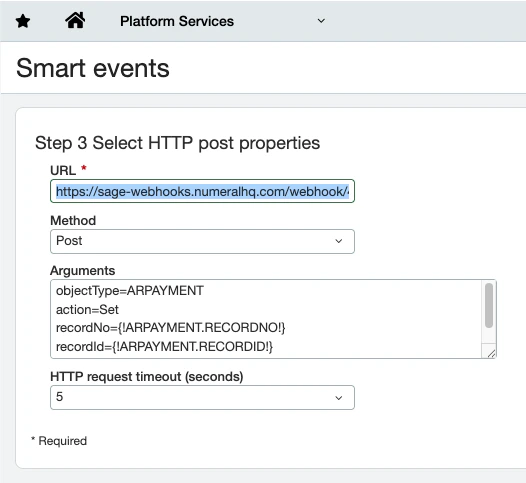
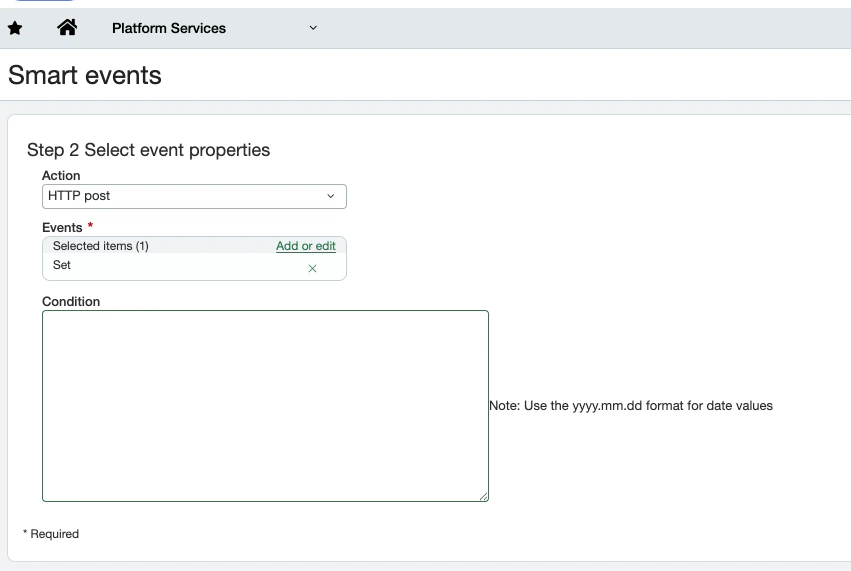
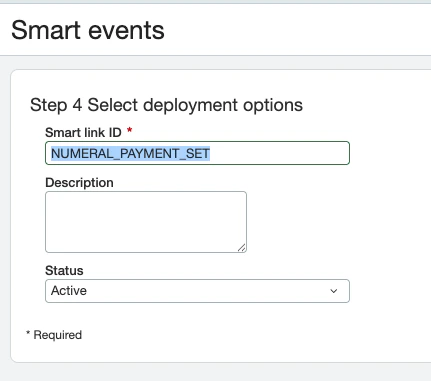
Smart Events tell Sage Intacct to notify Numeral when invoices, payments, or adjustments change. Each Smart Event is an HTTP post with a timeout of 5 seconds and status Active. Configure the eight required Smart Events listed below, plus the optionalITEM events if you want product changes synced to Numeral automatically.
Required Smart Events
Optional Smart Events
Smart Event configuration
For each Smart Event, use this argument template (replace the object name and action accordingly):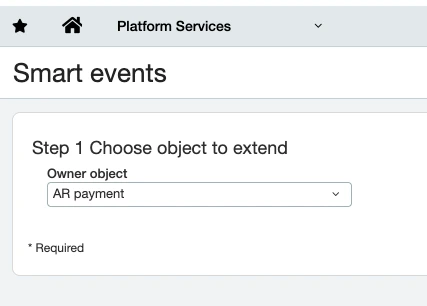
7. Update your invoice print template
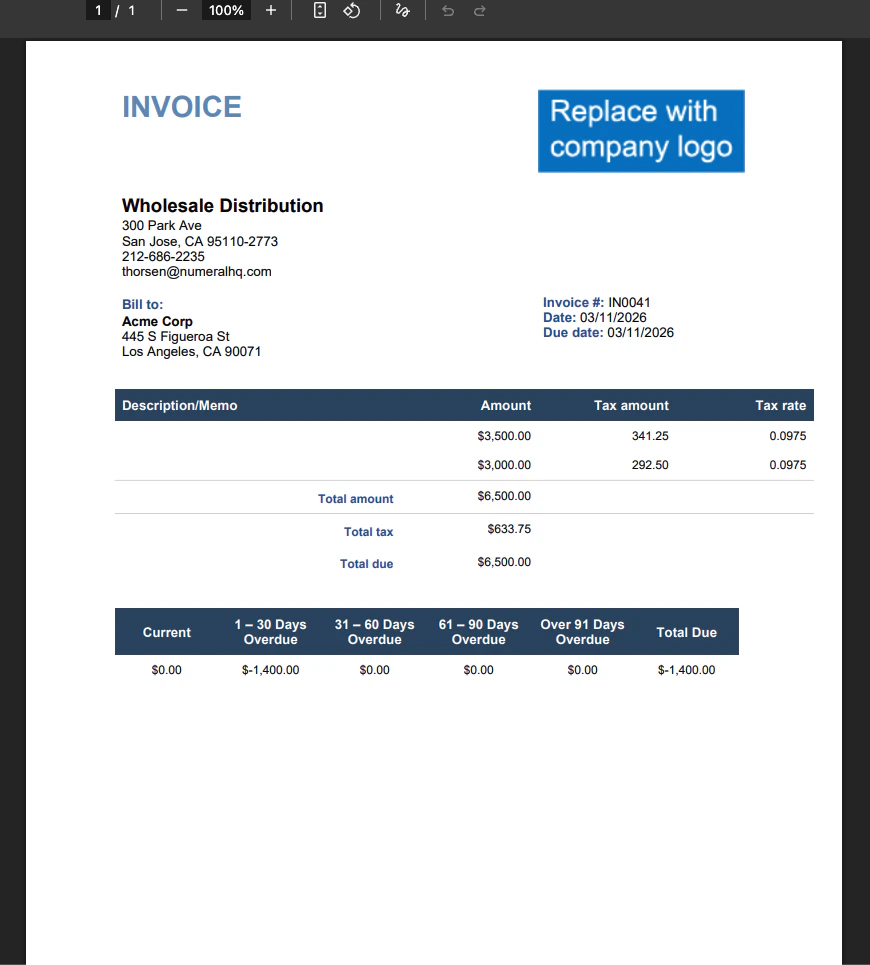
So that calculated tax appears on invoices sent to customers, edit your AR Invoice print template to reference theNUMERAL_TOTAL_TAX field on the invoice and the NUMERAL_TAX_AMOUNT and NUMERAL_TAX_RATE fields on each line item.
Verification
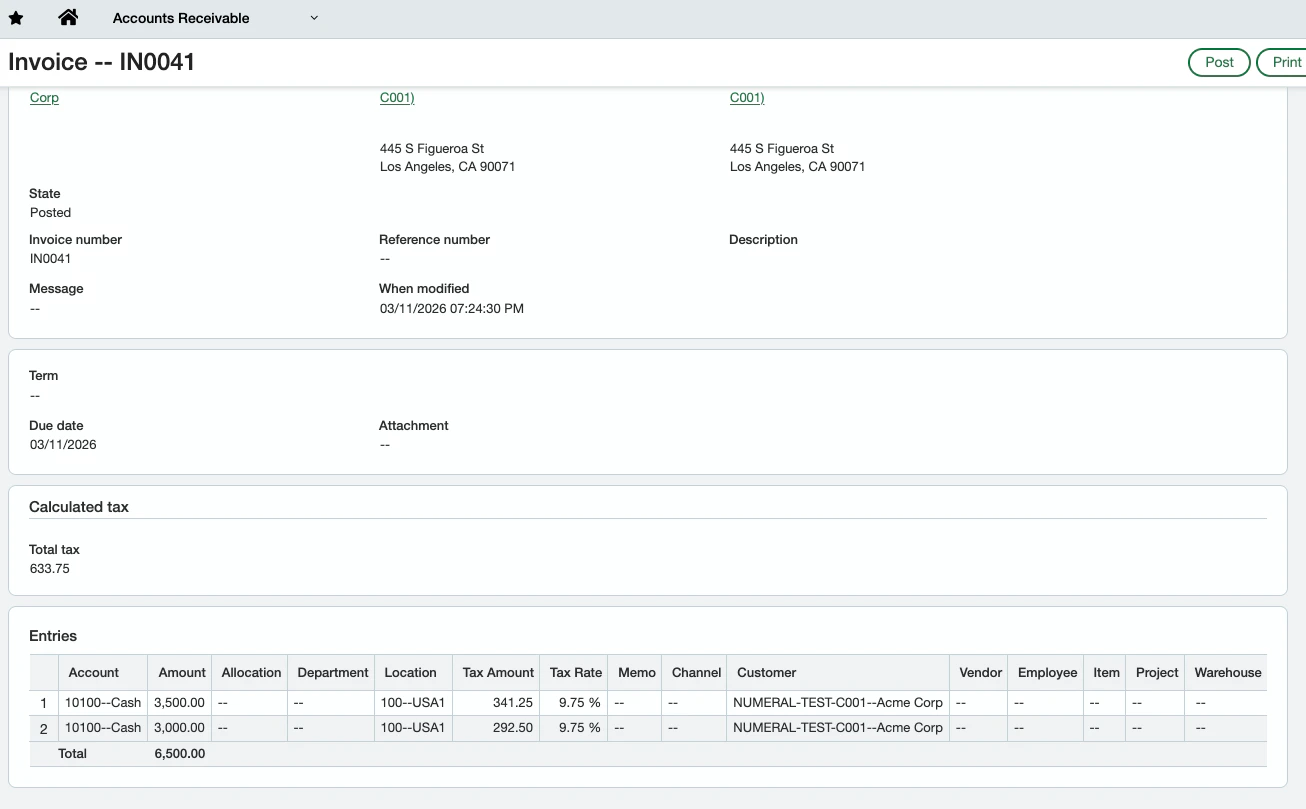
After setup, create a test invoice in Sage Intacct. Numeral will:- Receive the Smart Event
- Calculate tax for the line items
- Write the totals back to the custom fields on the invoice
Troubleshooting
Smart Event not firing
Smart Event not firing
Confirm the Smart Event is Active and that Web Services authorizations include both
numeralhqMPP and Rutter. Sage Intacct will silently drop events from unauthorized senders.Tax fields not populating on the invoice
Tax fields not populating on the invoice
Verify the custom field IDs match exactly:
NUMERAL_TOTAL_TAX, NUMERAL_TAX_AMOUNT, NUMERAL_TAX_RATE. Field IDs are case-sensitive.Print template won't upload
Print template won't upload
Save the template as
.doc (Word 97-2003), not .docx. Sage Intacct rejects .docx print templates.Authentication errors
Authentication errors
Re-validate the
numeral_ws user has AR Read/Write, Inventory Read, and Company Read permissions. If the password was rotated, update it in your Numeral dashboard under Settings → Integrations → Sage Intacct.