

This integration requires Business Central admin access and an installed copy of the Numeral Tax extension from AppSource (or a sandbox copy provided by Numeral).
What you’ll do
- Install the Numeral Tax extension
- Open Numeral Tax Setup and enter your API key
- Configure the placeholder Tax Jurisdiction and Tax Area
- Assign the Numeral Tax - Admin permission set to your operators
- Test on a Sales Order, Invoice, or Credit Memo
1. Install the Numeral Tax extension
Install the Numeral Tax extension from Microsoft AppSource, or sideload the.app file Numeral provides. After installation, search for Numeral Tax Setup in the Business Central search bar.
2. Configure Numeral Tax Setup
Open Numeral Tax Setup and complete the following fields.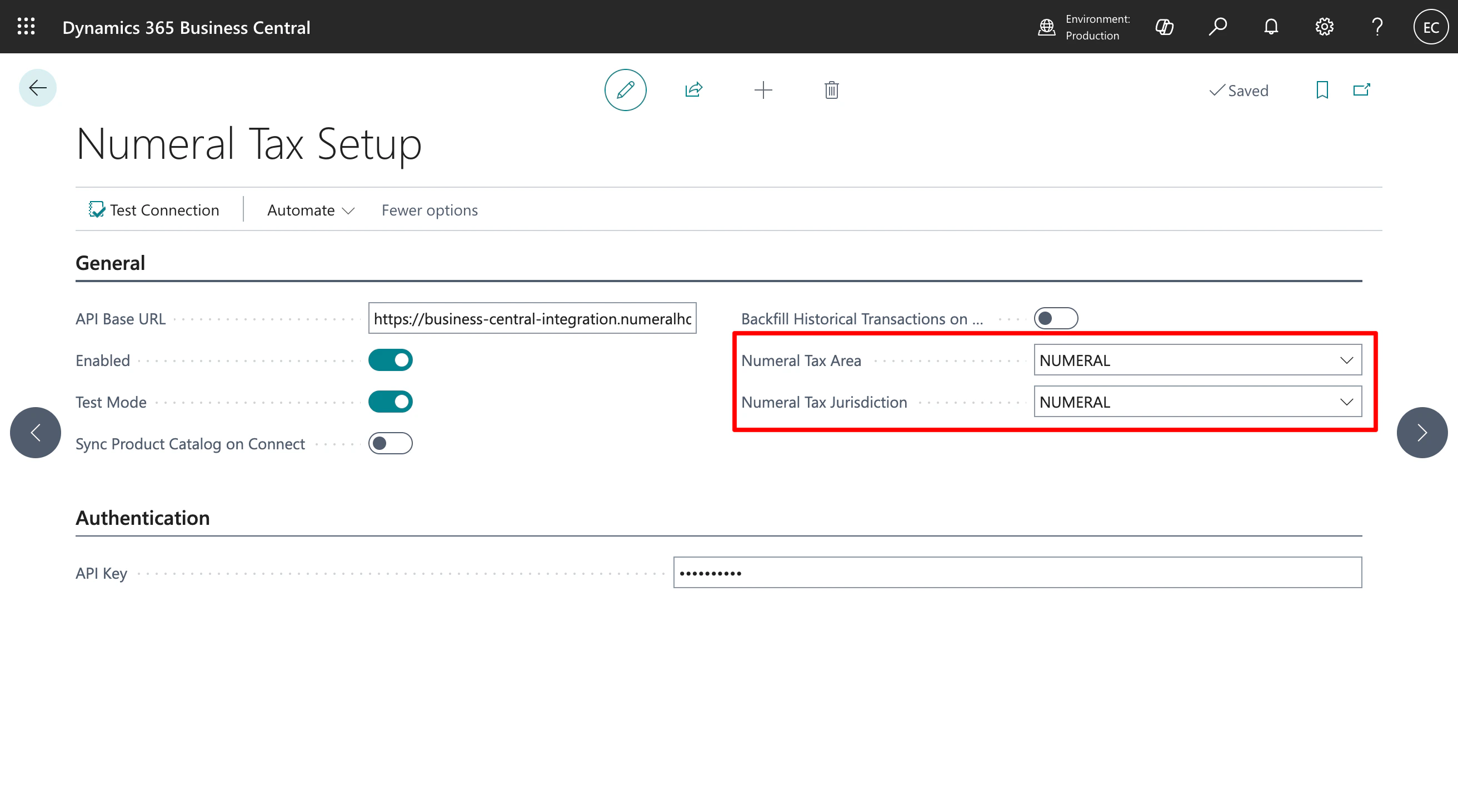
3. Configure the Tax Jurisdiction and Tax Area
Business Central requires every taxable line to reference a Tax Area. Numeral overrides the calculated amount, but the records must still exist.- Search for Tax Jurisdictions and create a new entry called
NUMERAL - Search for Tax Areas and create a new entry called
NUMERALcontaining theNUMERALjurisdiction - Reference both in the Numeral Tax Setup screen from step 2
4. Assign the permission set
Numeral ships a permission set named Numeral Tax - Admin. Assign it to every user who creates or posts sales documents. Search for User Permission Sets → select your user → add Numeral Tax - Admin.5. Test the integration
Create a Sales Order, Sales Invoice, or Sales Credit Memo with a customer in a US tax jurisdiction. The Tax Status field on the document header indicates the calculation state:
Tax is recalculated automatically when you change line items, quantities, prices, or the customer’s address. Recalculation updates the existing calculation — Numeral does not create duplicate calculations.
When you post the document, Numeral records it as a transaction. If you later cancel a posted invoice in Business Central, Numeral automatically voids the corresponding transaction.
Supported documents
Tax Exemption Certificates
To request a tax exemption certificate for a customer, navigate to the Customer Profile screen in Business Central. View demoTroubleshooting
Tax Status stays 'Pending'
Tax Status stays 'Pending'
Confirm the API Key is valid and the document has a complete shipping address. Check Numeral Tax Setup → Connection Test to validate the API key.
Tax Status flips to 'Pending' after posting
Tax Status flips to 'Pending' after posting
This is expected when a document is unposted or modified. Open the document and trigger a recalculation by editing any line.
A canceled invoice didn't void in Numeral
A canceled invoice didn't void in Numeral
Confirm the cancellation reached Posted Status: Canceled in Business Central. If the cancellation is still pending approval, the void will fire after approval completes.
Permission errors when posting
Permission errors when posting
Assign the Numeral Tax - Admin permission set to the user. Posting requires write access to the Numeral integration tables.