

Getting Started
-
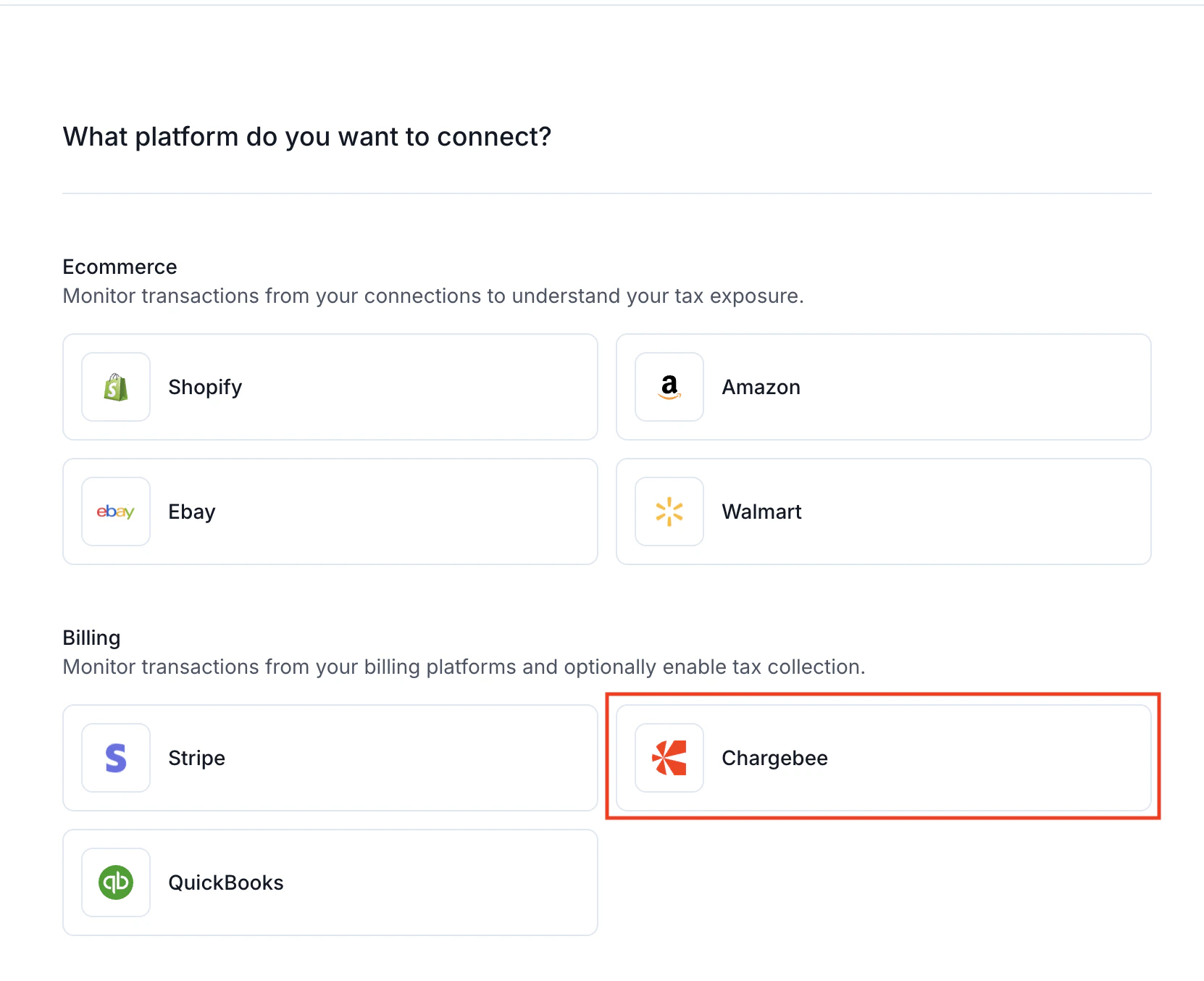
In your Numeral dashboard, click Connections on the left-hand menu, then select Chargebee.
-
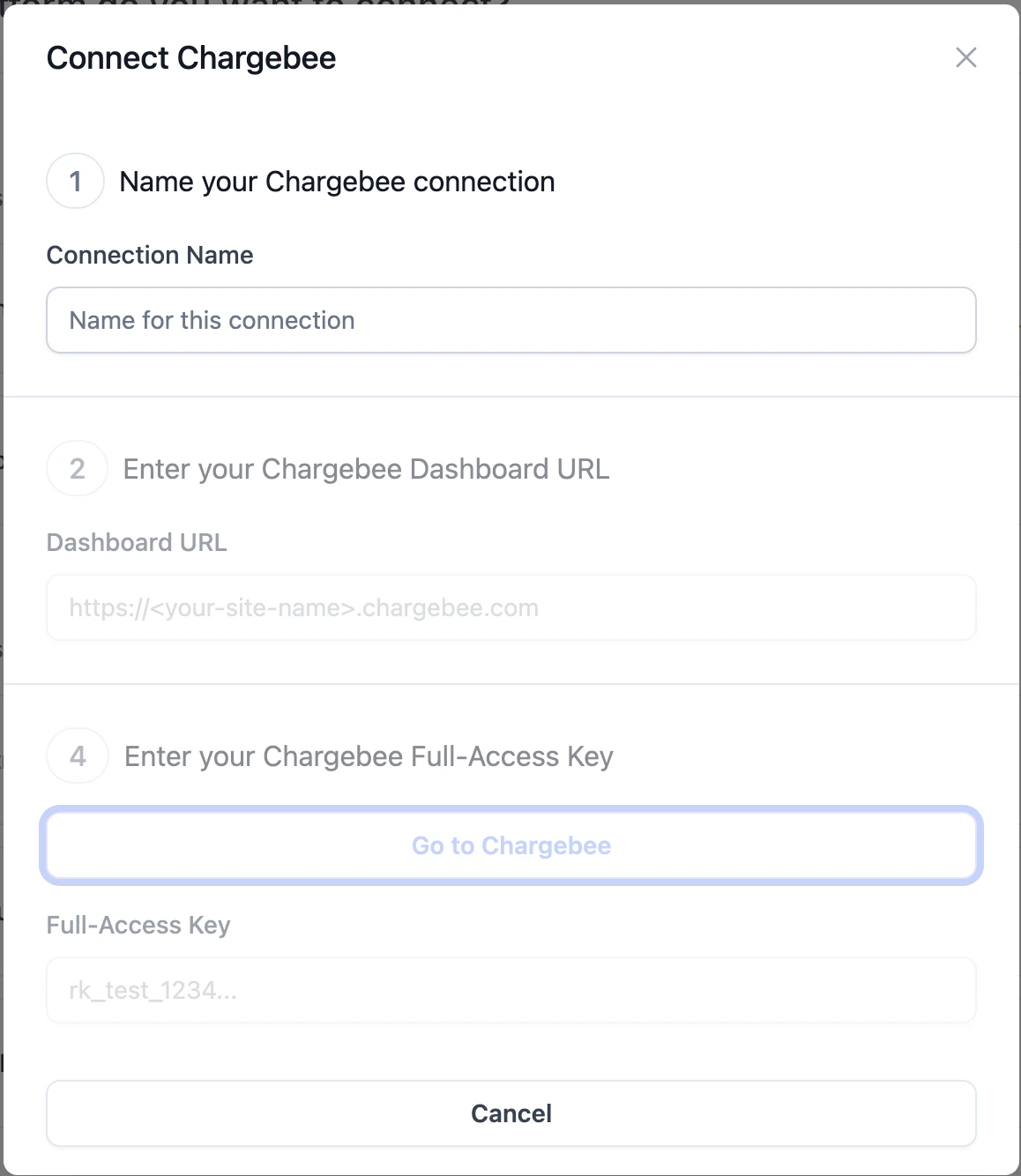
A setup window will open to begin configuring your Chargebee integration.
-
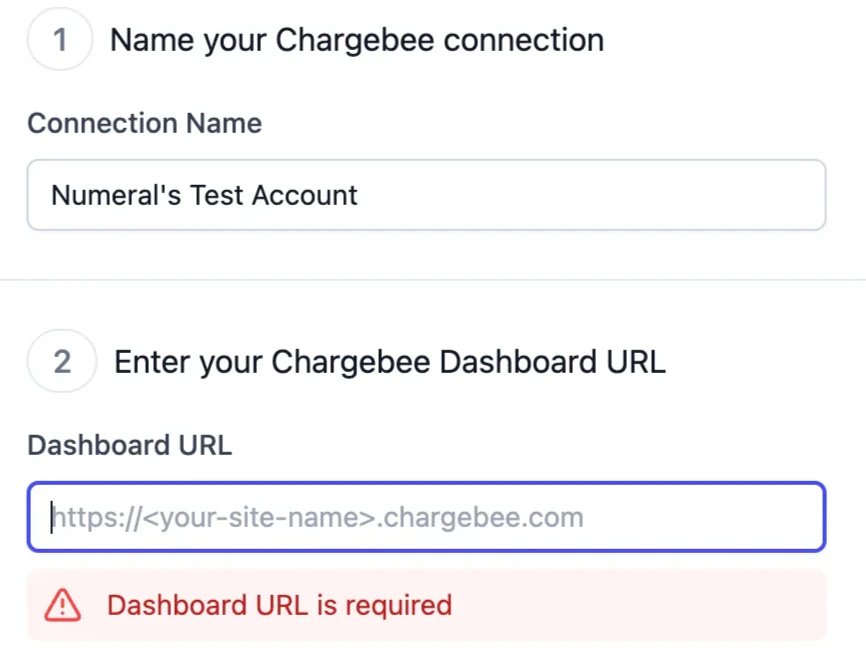
Name your connection, then navigate to your Chargebee dashboard to copy your site URL.

-
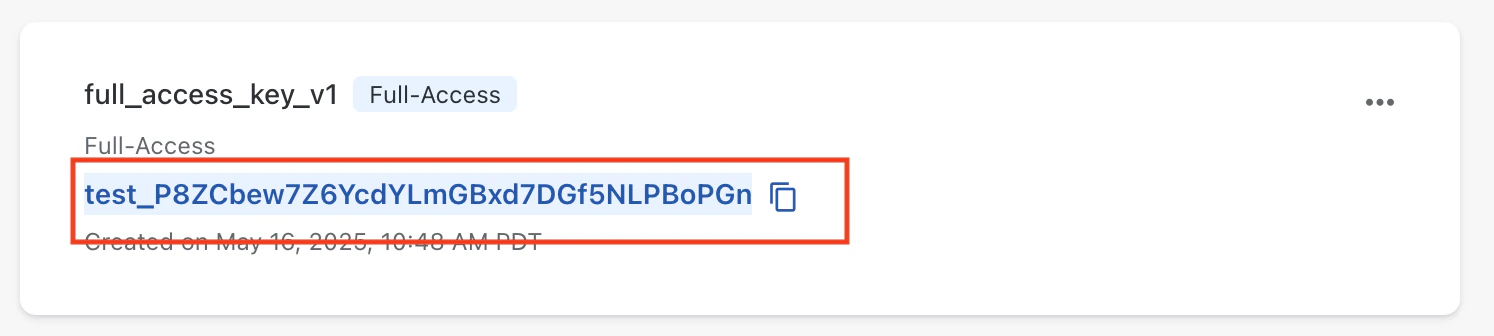
Navigate back to Numeral to enter your Chargebee Full-Access Key. Click Go to Chargebee, locate the opened Chargebee tab, and copy your
full_access_key_v1.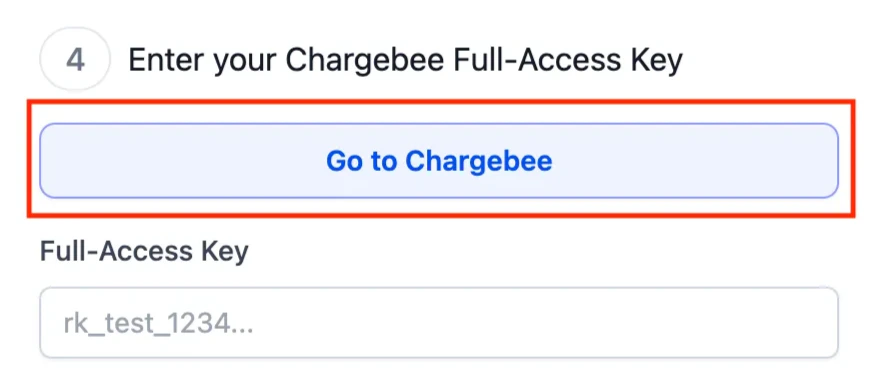
-
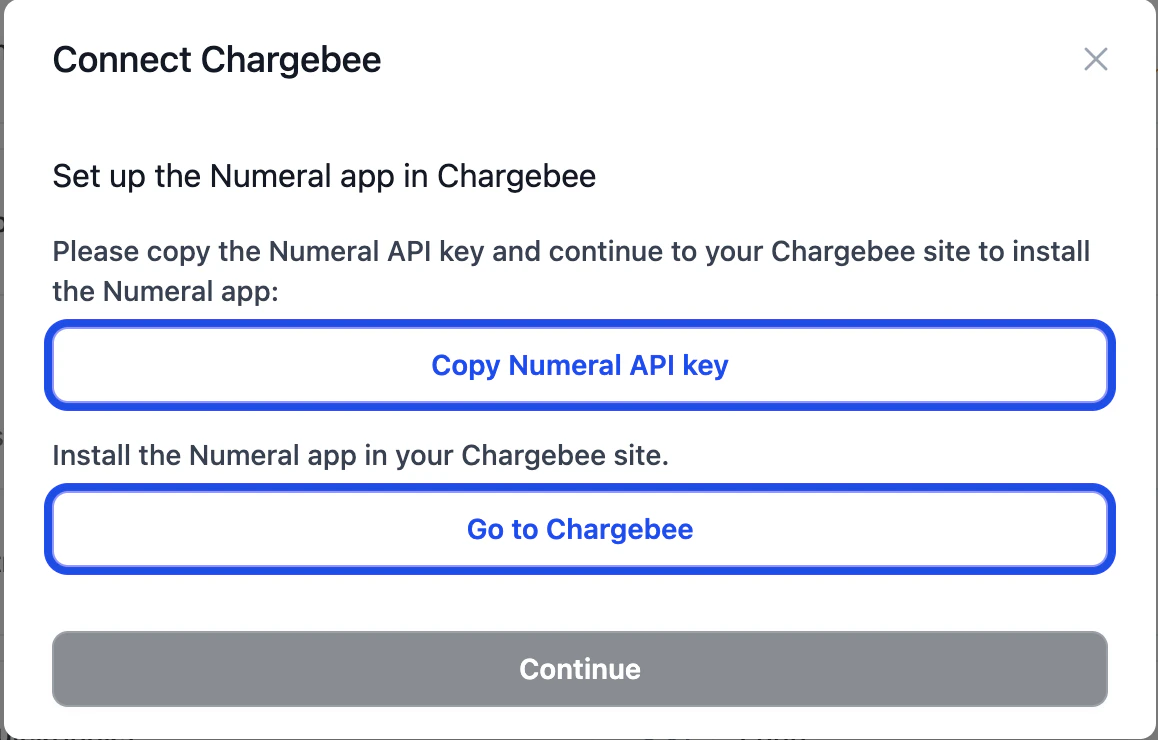
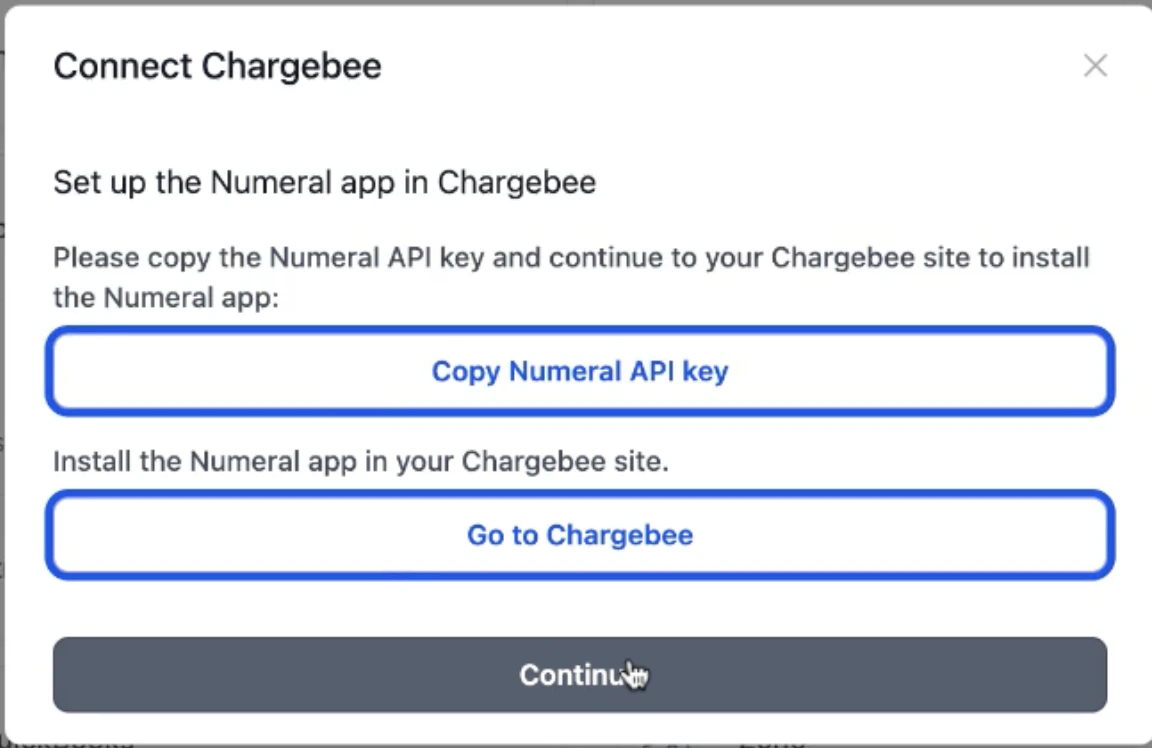
Once you click Connect, a new popup will appear to add the Chargebee webhook. Copy the Numeral API key and click Go to Chargebee.
-
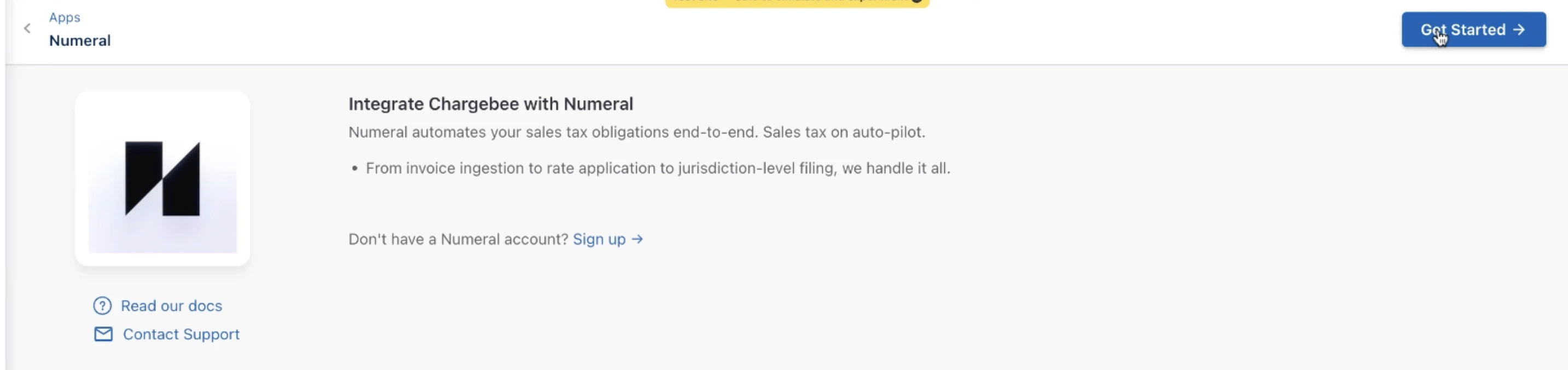
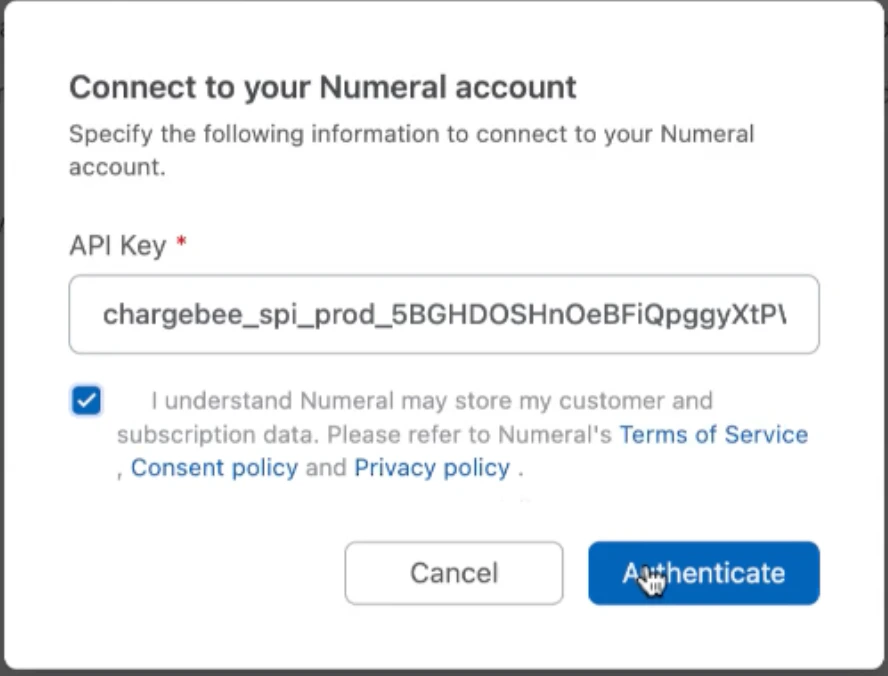
A window in Chargebee will appear to integrate Chargebee with Numeral. In the top right corner, click Get Started to open a box to enter the Numeral API key, check the checkbox, then click Authenticate.
-
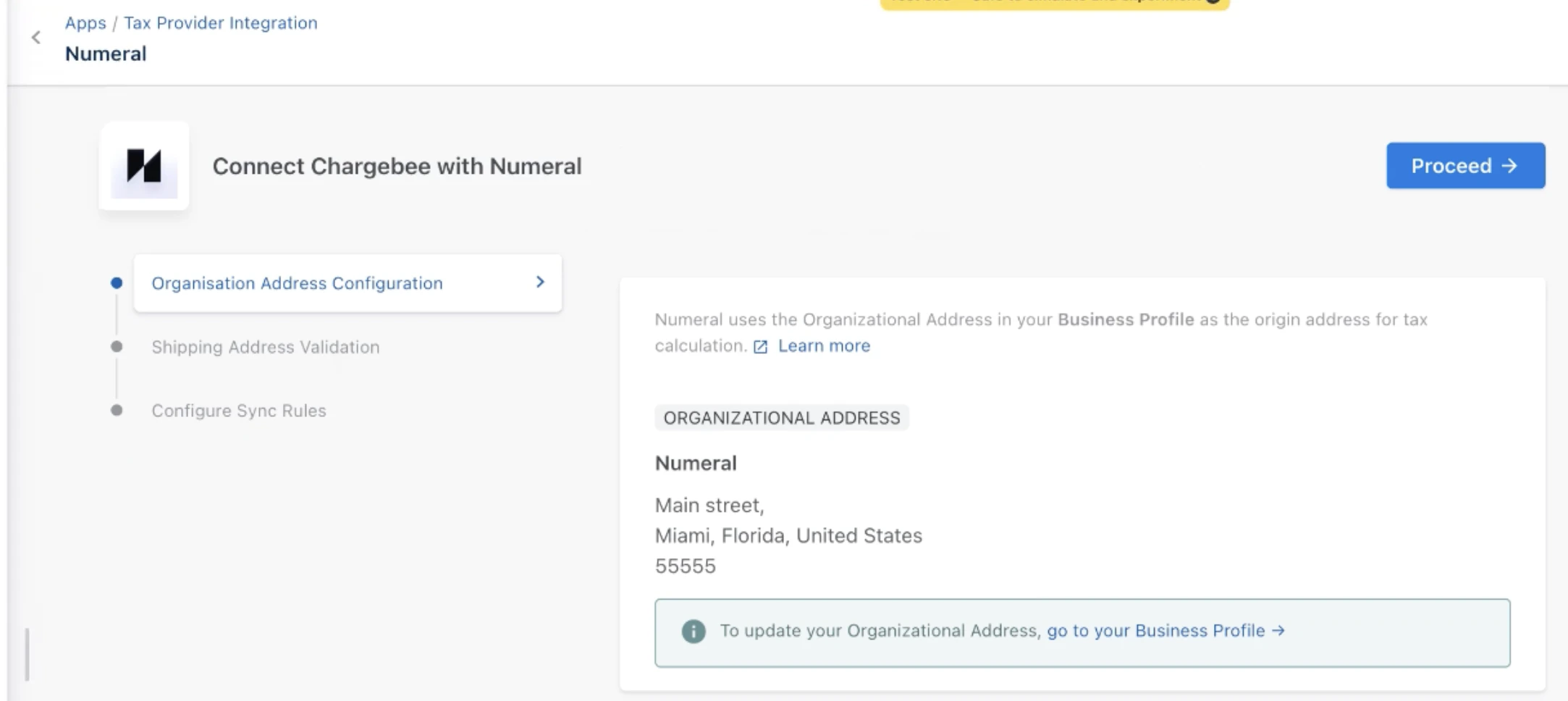
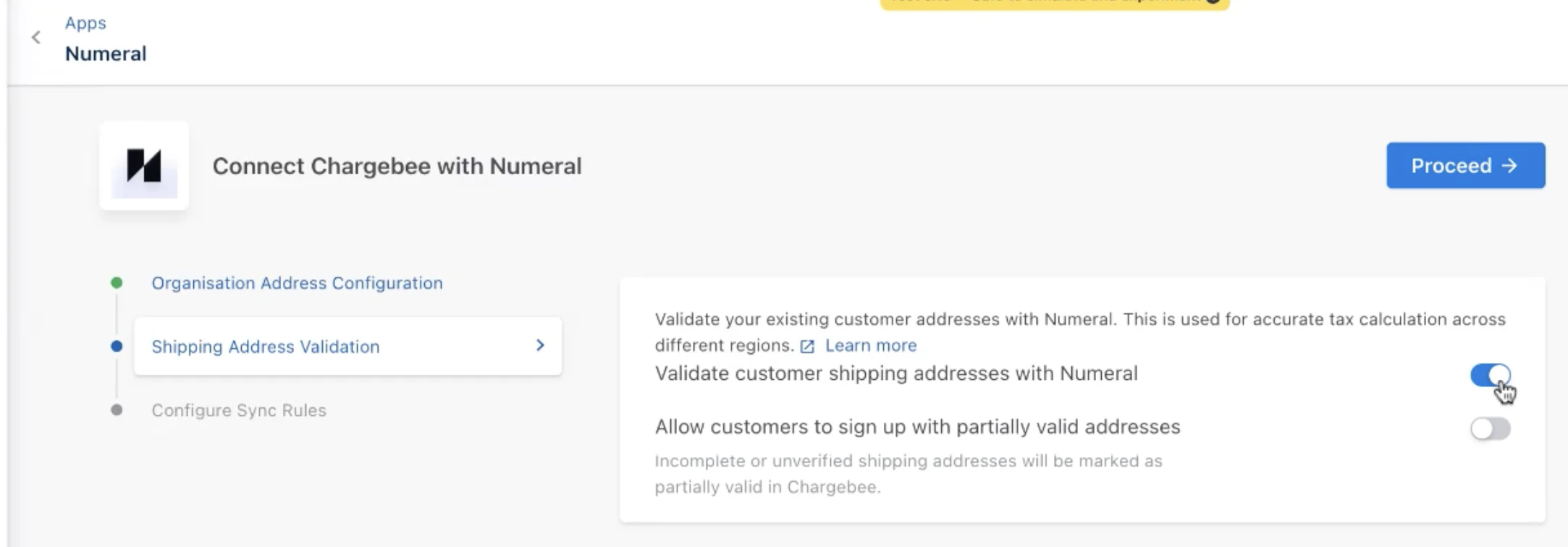
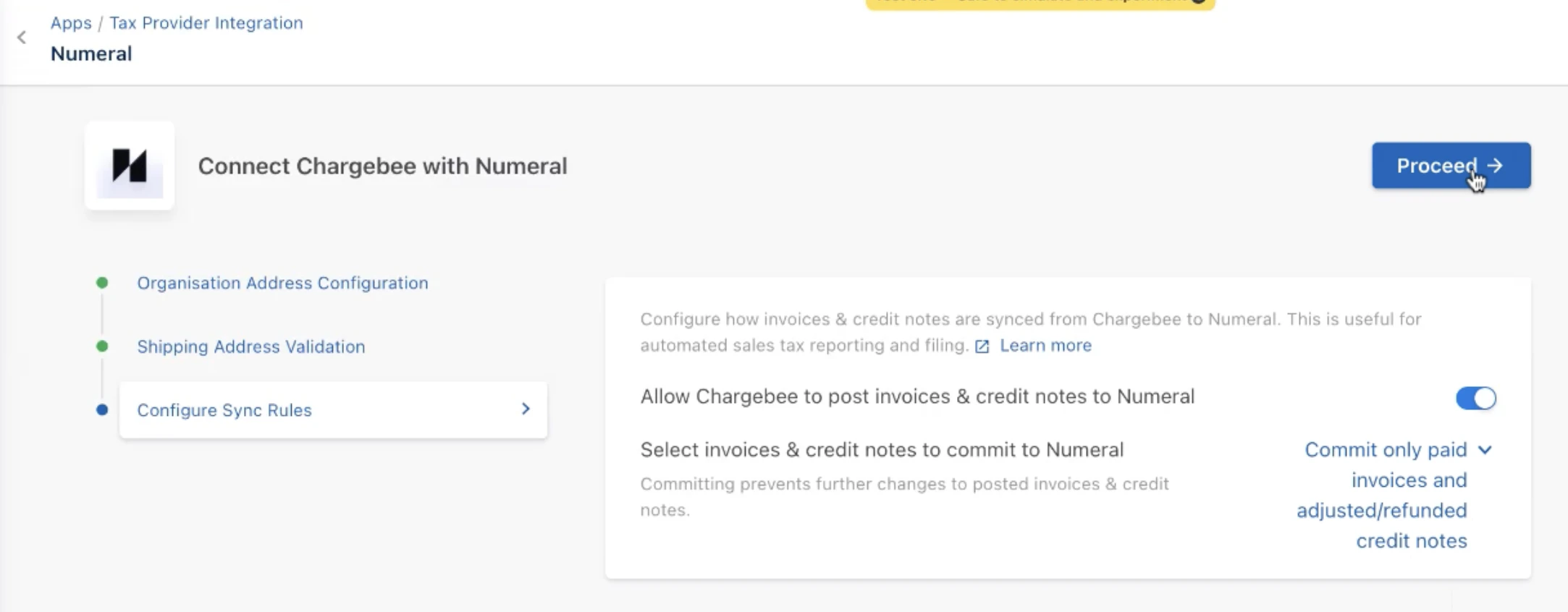
Your organization address should auto-populate. Click Proceed. Toggle on Validate customer shipping addresses with Numeral. In the last step, toggle on Allow Chargebee to post invoices & credit notes to Numeral, then select Commit only paid invoices and adjusted/refunded credit notices and click Proceed.
-
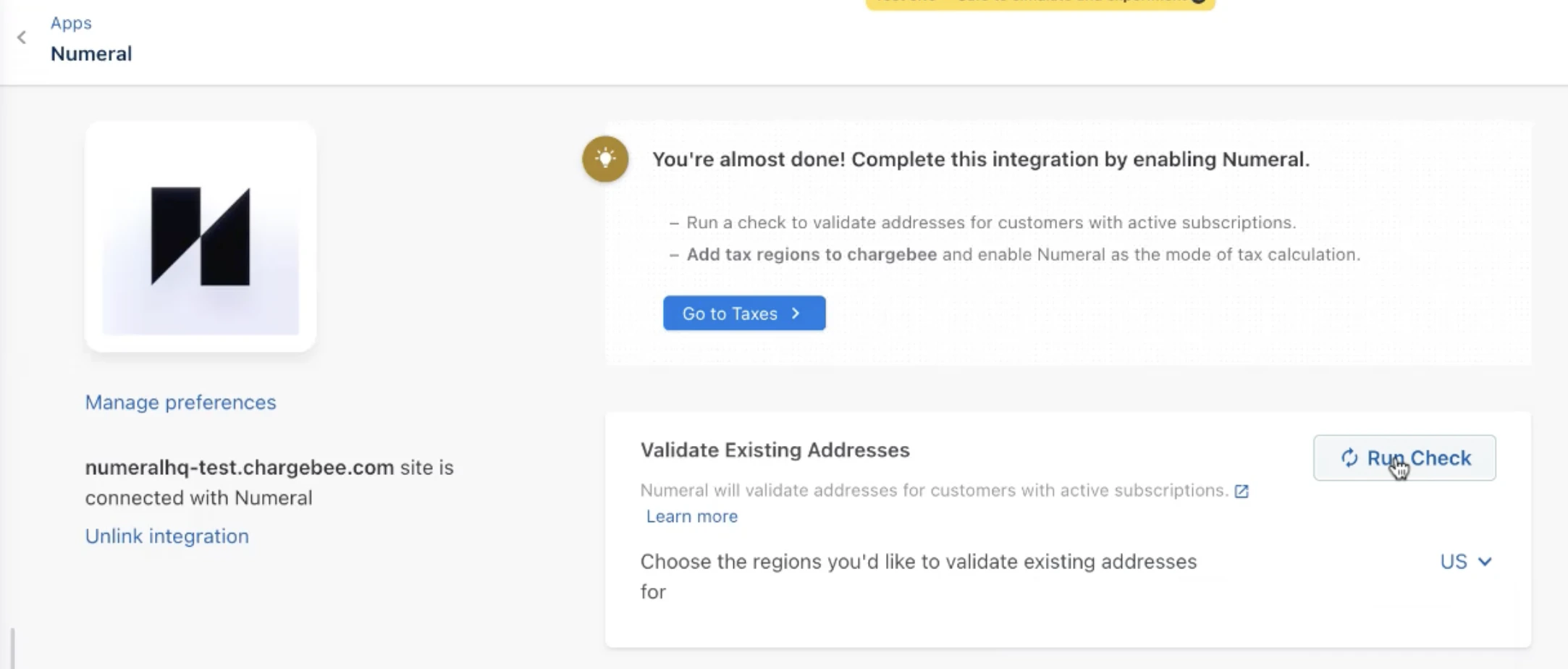
In the next window, validate your existing addresses. Select the regions you have customers in and click Run Check.
-
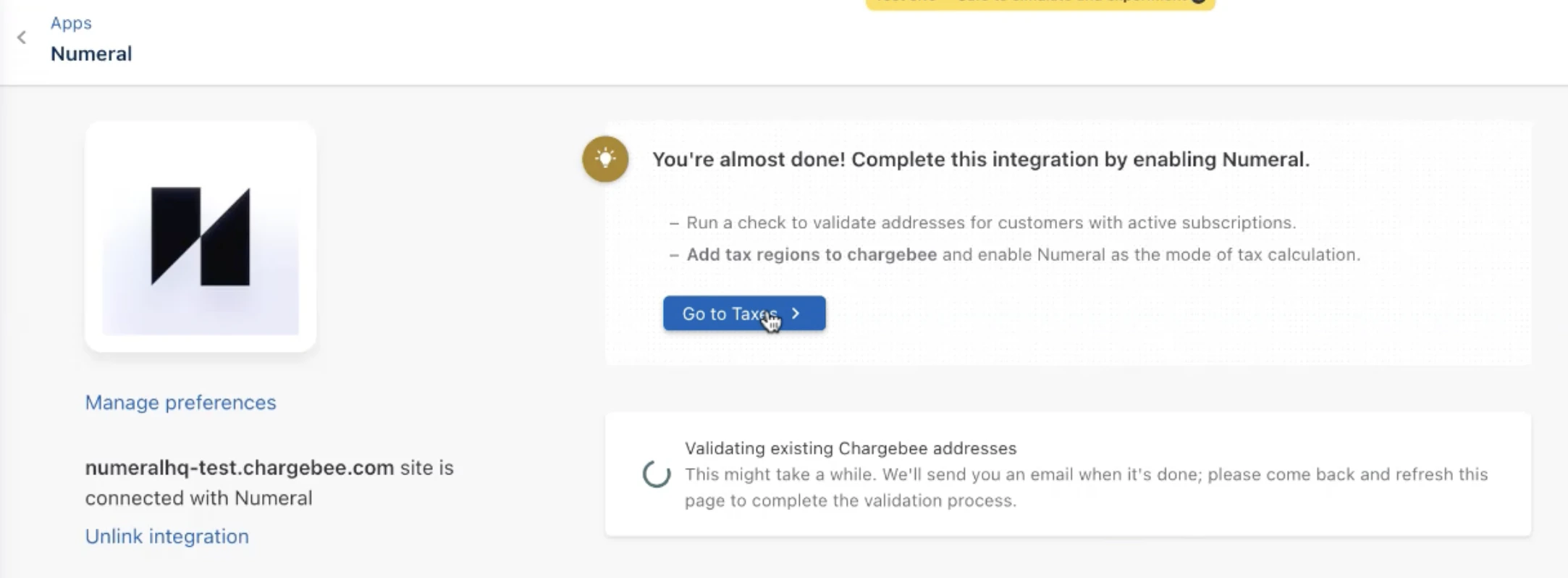
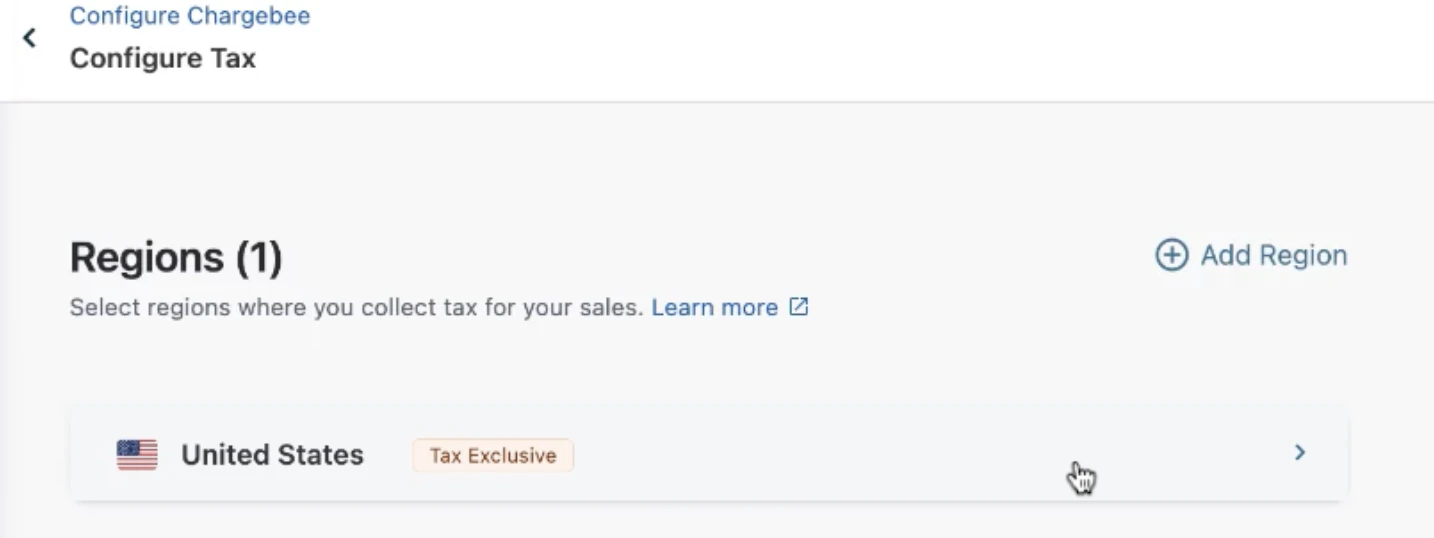
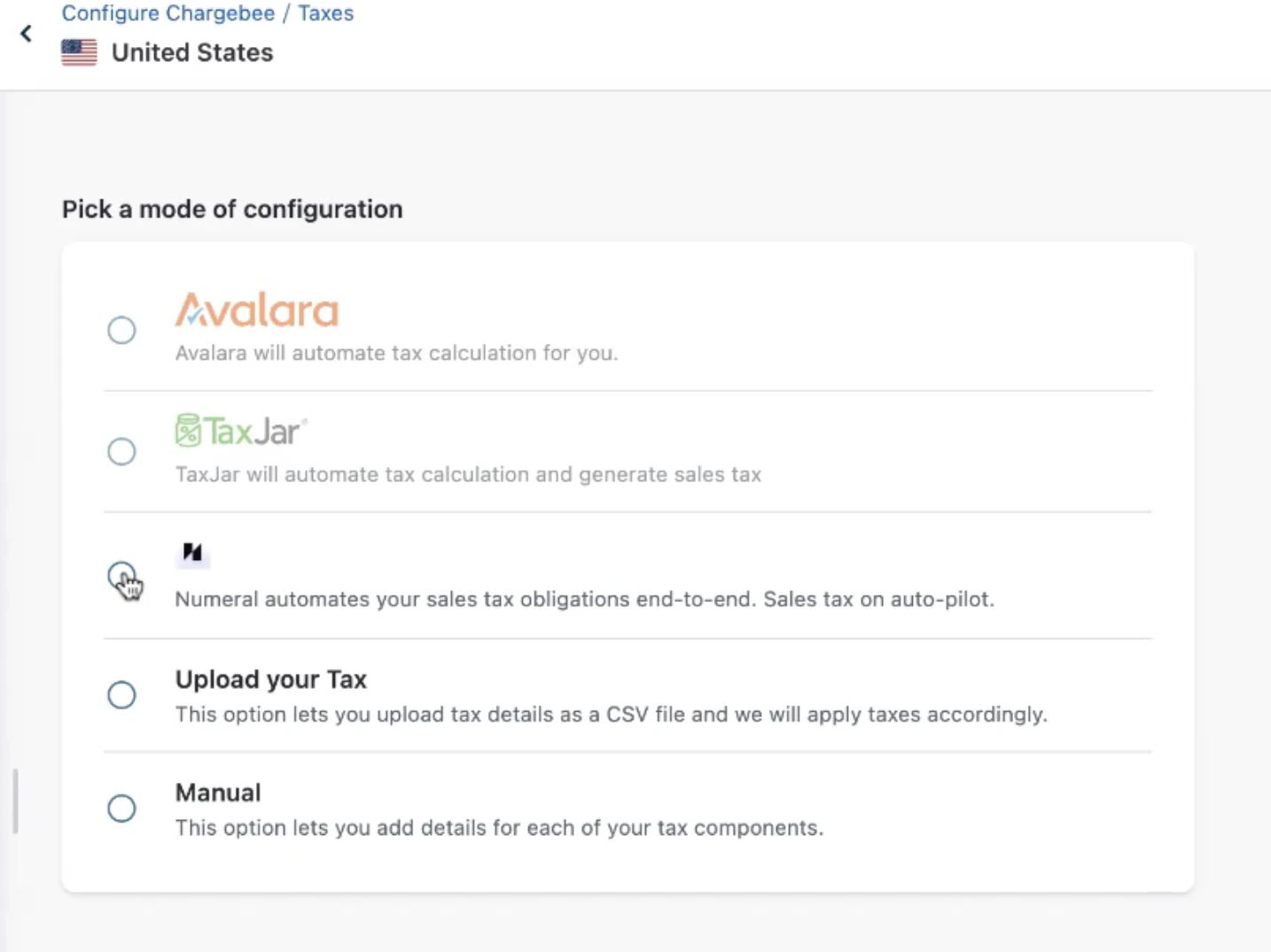
While the check is loading, finalize the integration by clicking Go to Taxes. Select the regions where you need to collect sales tax and select Numeral.
-
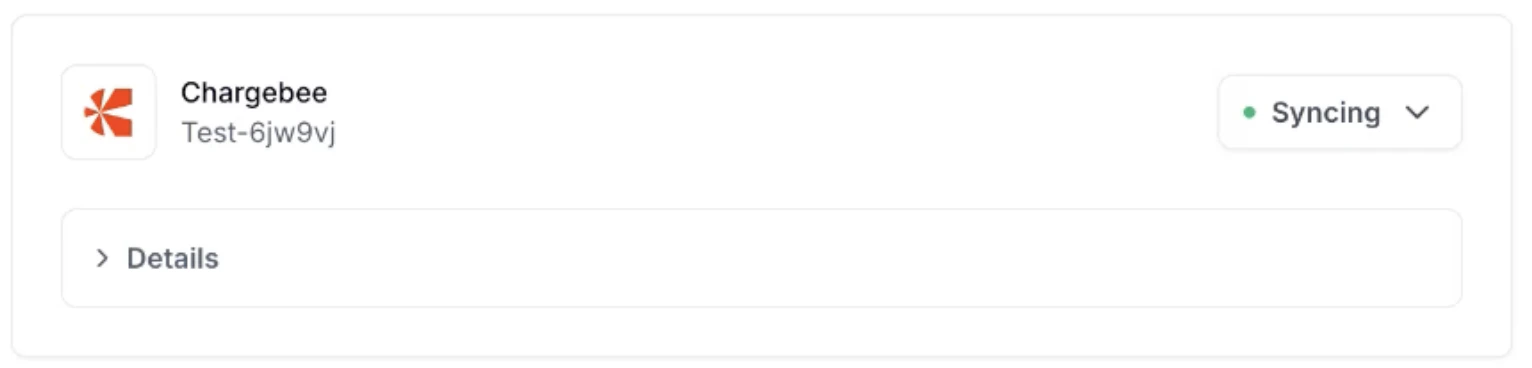
Navigate back to Numeral and click Continue. Your Numeral ↔ Chargebee connection is now complete. You will see a green dot next to Chargebee indicating the integration is syncing.
Generating Your First Invoice
To test your integration, create a test invoice for a client in a state you’re registered for sales tax:- Navigate to the Subscriptions tab and click + Create Subscription in the top right corner. Select your customer.
- Choose your Product Family, click + Add Plan, and select the plan you’d like to charge.
-
Under Invoicing Options, configure the following:
- Select Generate all renewal invoices in pending state
- Select Also generate first invoice in pending state
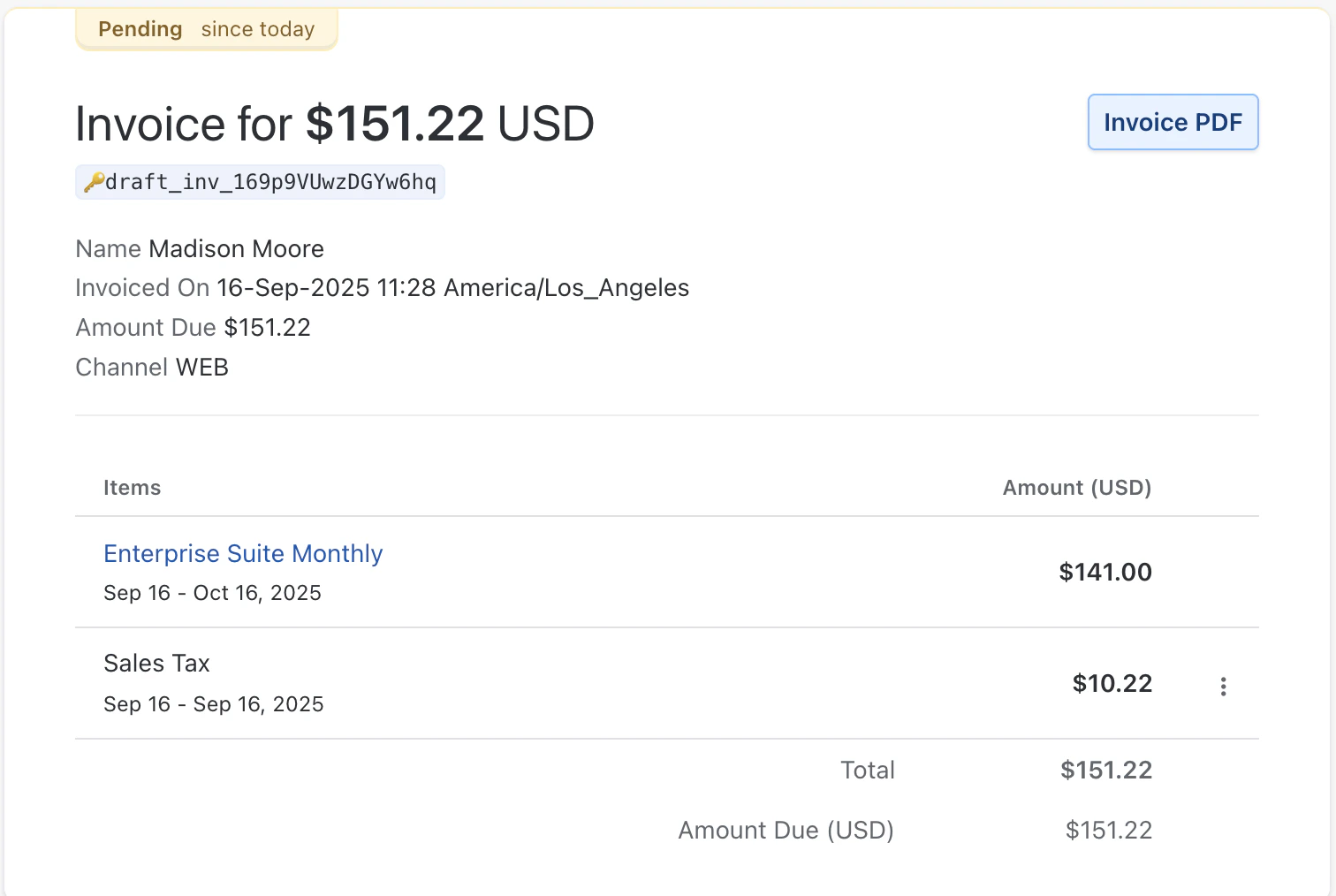
 Generating invoices in pending state is required to give Numeral’s tax engine time to apply the correct tax rate before the invoice is finalized.
 - If the client doesn’t have a shipping address, select Same as billing address.
- Click Create in the top right corner.
-
To review the new invoice, navigate to Invoices & Credit Notes > Invoices and click the new invoice.
Timeline Considerations
If you’re already using Chargebee to apply tax rates to invoices, coordinate with your Onboarding Manager to confirm your go-live date with Numeral. For example, if Numeral will begin managing your sales tax registrations in August, meet with your Onboarding Manager on August 1 to turn off Chargebee tax calculations and activate Numeral’s tax engine.Confirming Your Configurations
On your go-live call, your Onboarding Manager will confirm that Chargebee tax calculations are disabled. You can also verify this on your own: How to Turn Off Chargebee’s Tax Calculations:- Log in to your Chargebee account.
- Navigate to the Settings menu on the left-hand side.
- Select Configure Chargebee.
- Go to the Taxes section.
- Disable the feature for automatic tax calculation on your dashboard.
Product Categorization
Product categories in Chargebee do not carry over to Numeral — categories must be set up directly within your Numeral account. Work with your Onboarding Manager to set up product categories within Numeral. Once configured, Numeral’s tax engine uses these categories to accurately determine taxability. How to review or update product categories in Numeral:- Log into your Numeral dashboard.
- Navigate to the Developers tab. If this tab isn’t visible, contact your Onboarding Manager.
- Select Products.
- Edit products individually or create new products as needed.
Customer Exemptions
If a customer should be exempt from sales tax, mark them as exempt directly in Chargebee:- Navigate to Customers on the left-hand side.
- Click on the customer’s name to open their profile.
- Select Edit Customer in the top right corner.
- Scroll down to Tax Details and check This customer is exempt.