

Getting Started
-
Connect your QuickBooks Online account to your Numeral dashboard — click Connections on the left-hand menu, then select QuickBooks.
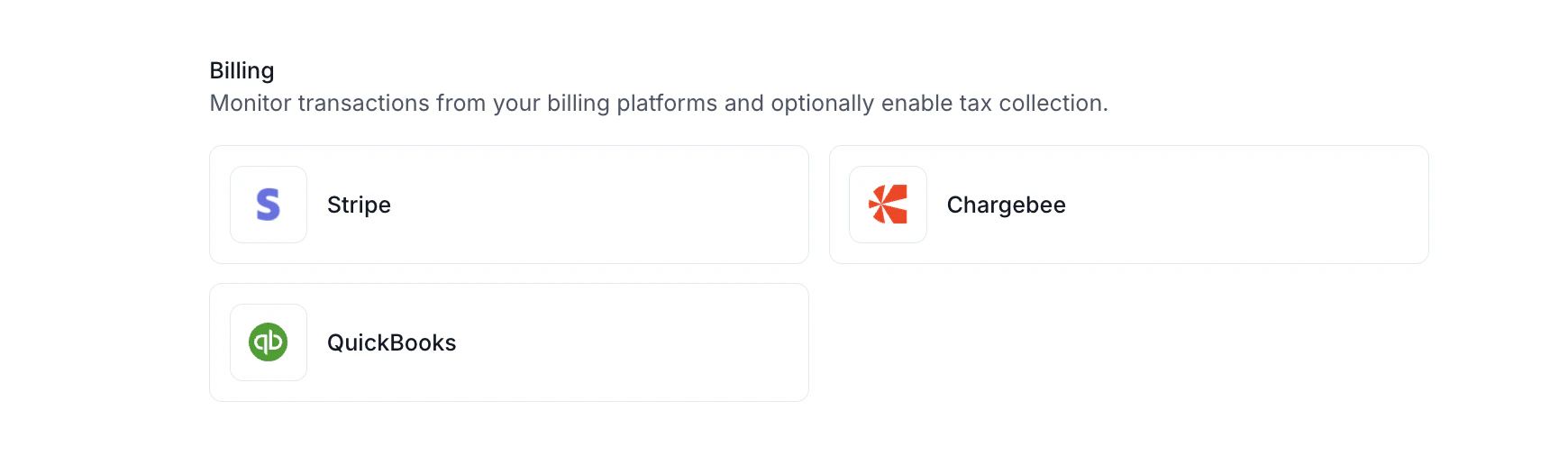
- Follow the prompts and select the QBO account you would like to connect to Numeral.
-
Once connected, you should see a green dot next to the status, Syncing.
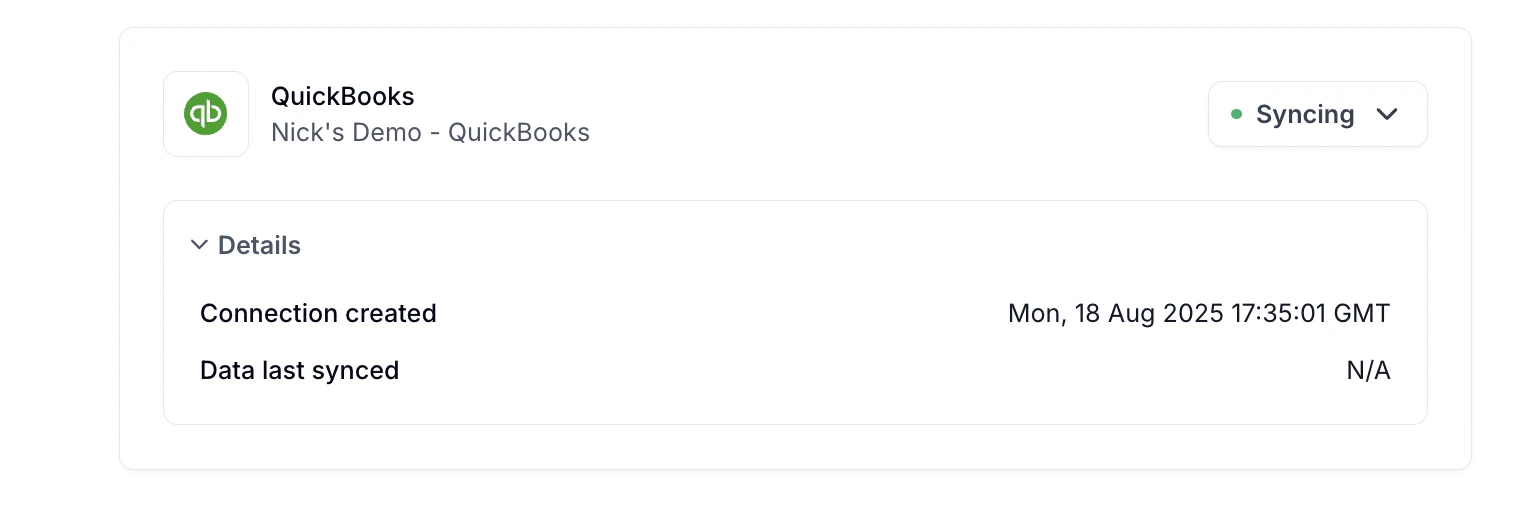
The status will always display Syncing since Numeral continuously pulls sales data from your QBO account to monitor nexus and prepare your tax returns.If you see a red dot or experience issues connecting, please contact your Onboarding Manager or reach out via the message widget in your dashboard.
Timeline Considerations
If you’re already using QuickBooks to apply tax rates to invoices, coordinate with your Onboarding Manager to confirm your go-live date with Numeral. For example, if Numeral will begin managing your sales tax registrations in August, meet with your Onboarding Manager on August 1 to turn off QuickBooks tax calculations and activate Numeral’s tax engine.Confirming Your Configurations
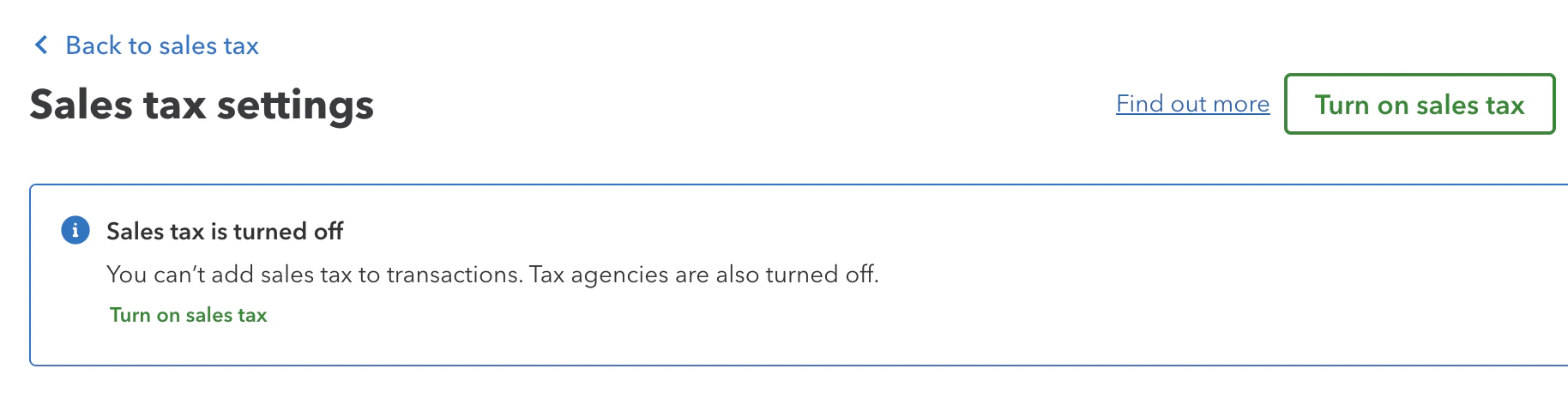
On your go-live call, your Onboarding Manager will confirm that QuickBooks Online tax calculations are disabled. You can also verify this on your own: How to Turn Off QBO’s Tax Calculations:- Log in to your QBO account.
- From the left-hand menu, select My Apps.
- Navigate to Sales Tax > Sales Tax Settings.
- At the top, click the box labeled Turn off sales tax.
- Select Turn off to confirm.
Product Categorization
Correct product categorization is essential for accurate tax calculation. Product categories set in QuickBooks do not carry over to Numeral — categories must be set up directly within your Numeral account. During onboarding, your Onboarding Manager will help set up initial product categories in Numeral and show you how to manage them going forward.Edit an Existing Product
- Go to Developers → Products.
- Click the Edit icon next to the product you want to update.
- Search for and select the correct Product Category.
- Save your changes.
Add a New Product
- Navigate to Developers → Products → Create Product.
- Enter the Product ID (this should match the Product ID in your sales platform).
- Add the Product Name.
- Select or type the appropriate Product Category.
- Click Create Product to save.
Creating an Invoice in QuickBooks
Customers
- If a customer is not located in a state where you have an active sales tax registration in Numeral, no sales tax will be applied.
- To ensure Numeral can apply the correct tax rate, you must enter either a shipping address or a billing address for the customer.
- From the left-hand menu, click My Apps.
- Go to Customer Hub > Customers.
- Select the desired customer and click Edit.
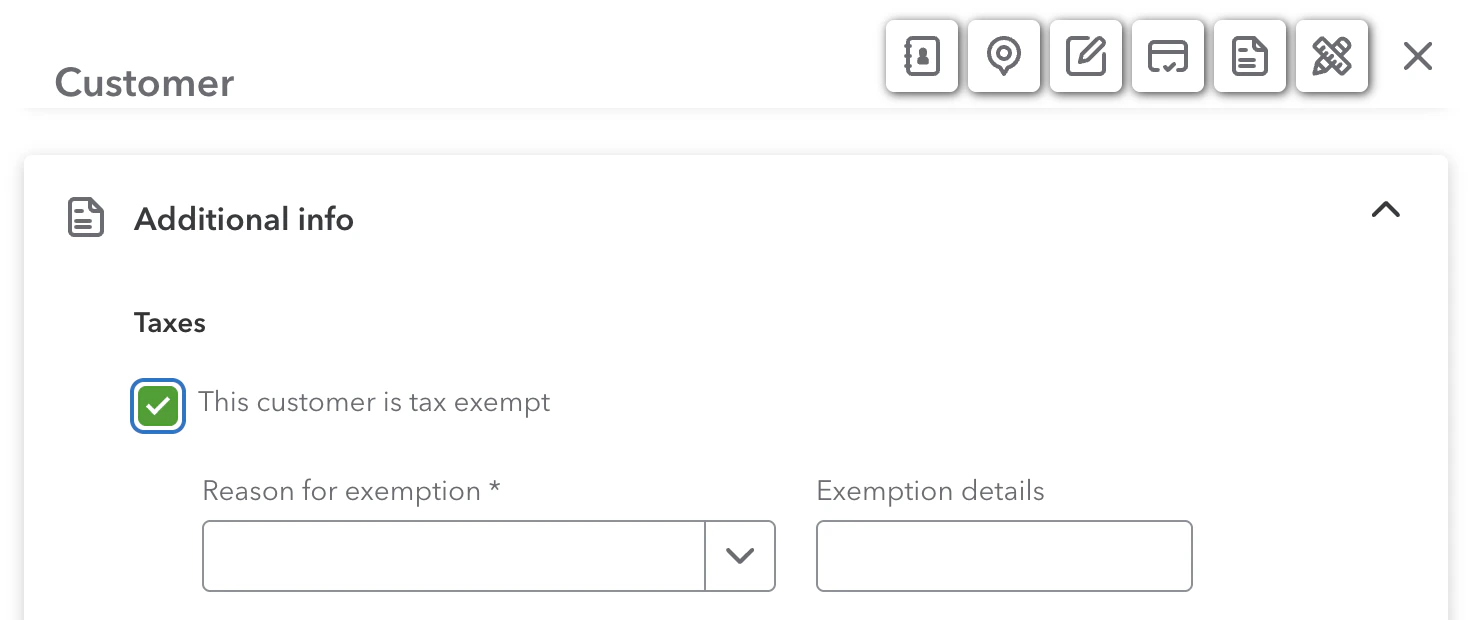
- Scroll to the Additional Info section.
- Under Taxes, check This customer is tax exempt.
Items
- Numeral applies sales tax based on an item’s product category and the customer’s jurisdiction.
- Confirm your product categories with your Onboarding Manager, as categories in QuickBooks do not carry over to Numeral.
Adding Tax
To preview the tax Numeral will apply:- Add your customer and items to the invoice.
- Select Save and Close. If an invoice is auto-finalized, TAX WILL NOT BE APPLIED.
- Open the saved invoice from your invoice list.
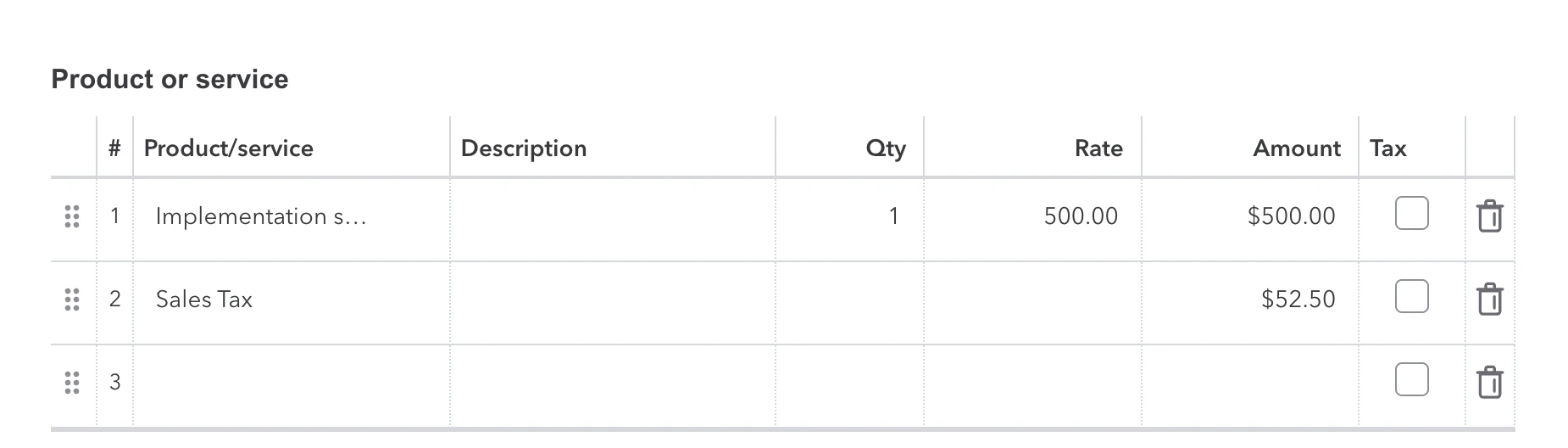
Newer clients may have sales tax populate on the native QBO sales tax line,
and not have a line item displayed. This is a more seamless display — just
ensure QBO tax is disabled when this occurs. You can double check with your
logs in Numeral.
Troubleshooting
If you need to troubleshoot an invoice with Numeral, share the Invoice ID with our team via the message widget in your dashboard. You can find the Invoice ID in the URL of the invoice page: