

Getting Started
- Work with your Onboarding Manager to make sure the Developer tab is enabled in your Numeral dashboard.
- Navigate to Developers > API Keys and create a test API key. Save it — you’ll need it to configure Orb.
-
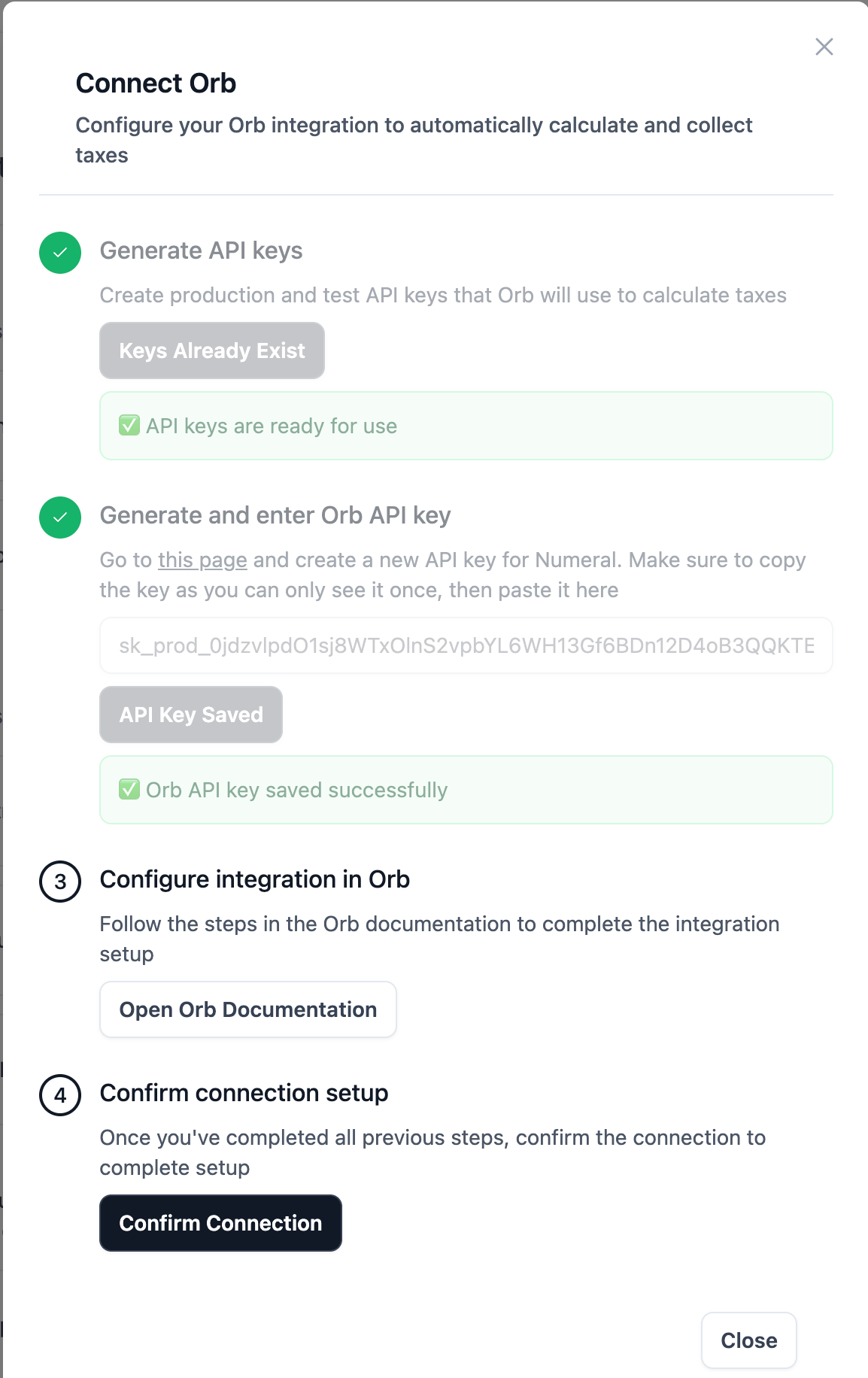
In Orb, navigate to Settings > Integrations > Taxes and select Connect to Numeral.
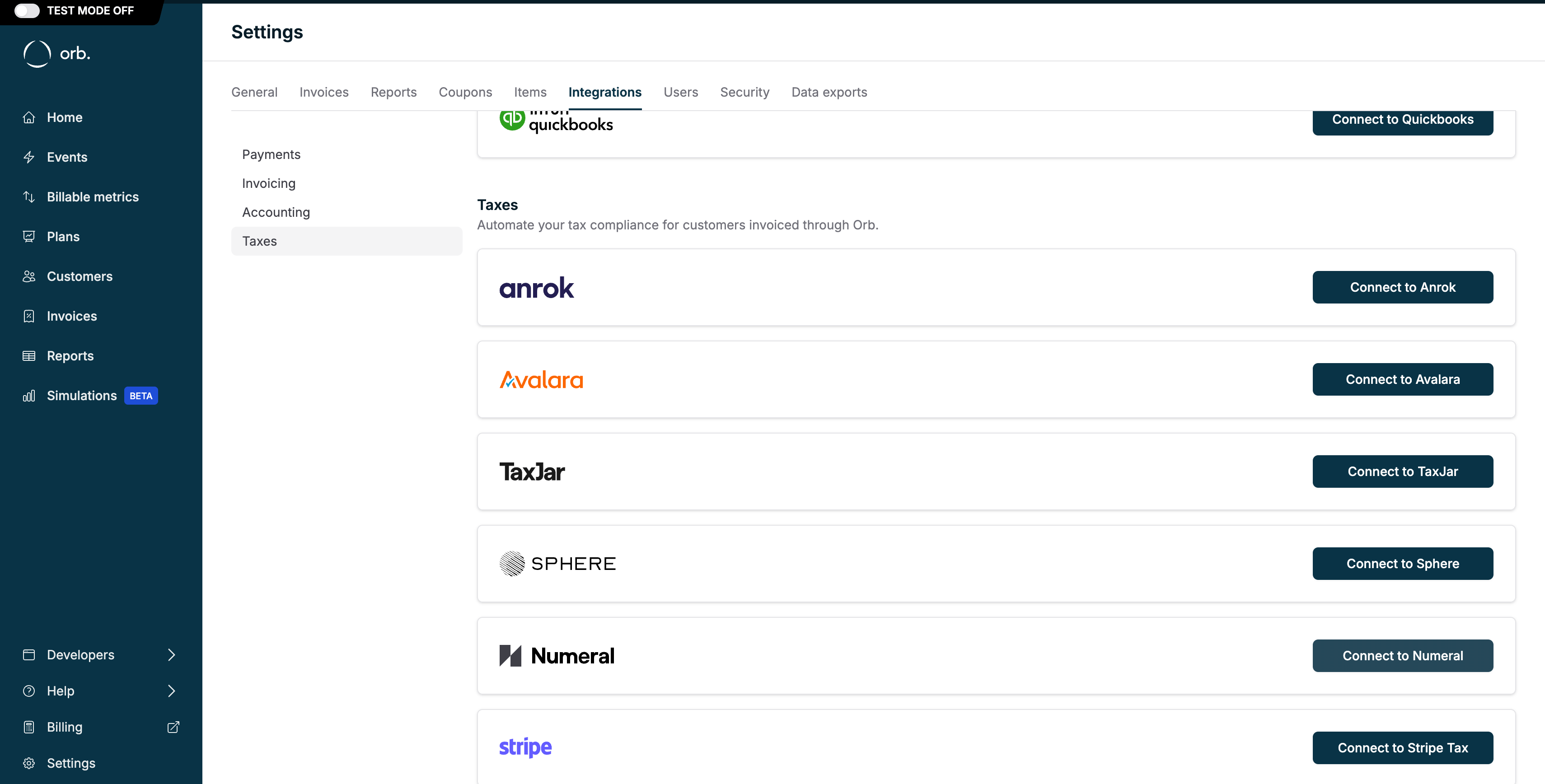
-
In the pop-up window, enter your test API key from Numeral.
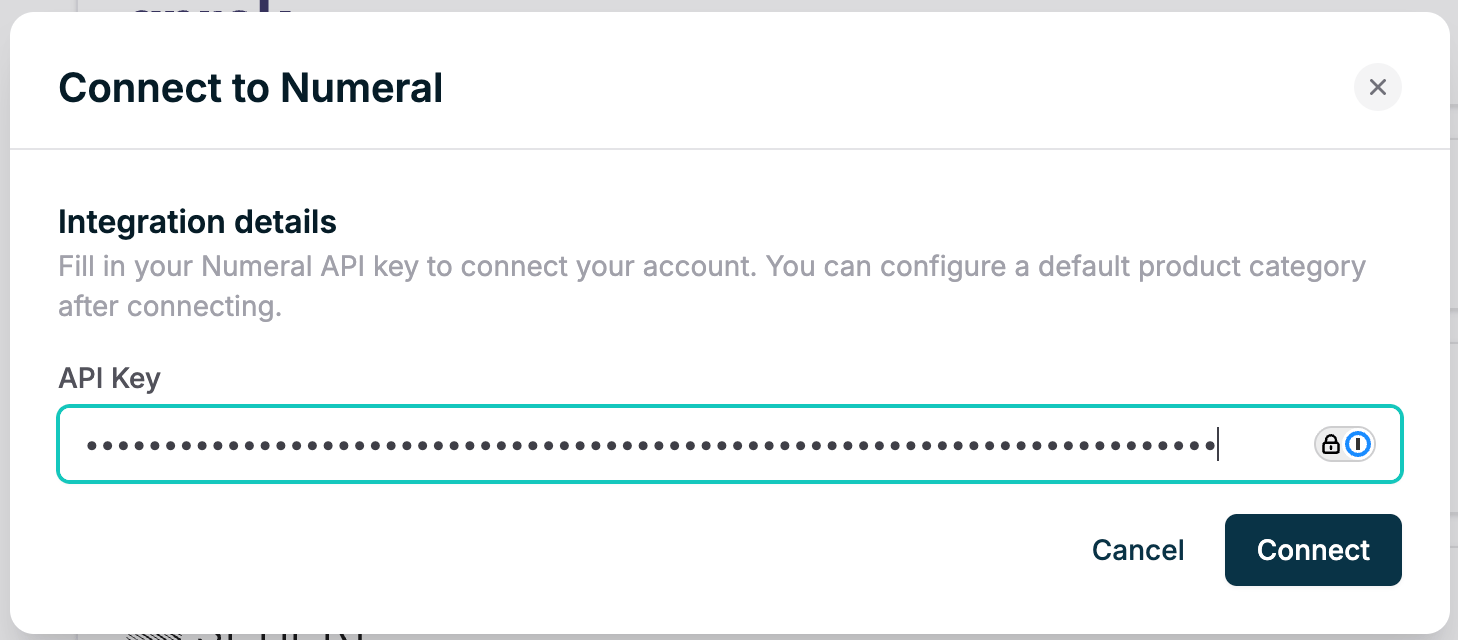
-
Enable the tax engine. Your default product category will appear here — this is the fallback category used for any products that don’t have a category assigned.
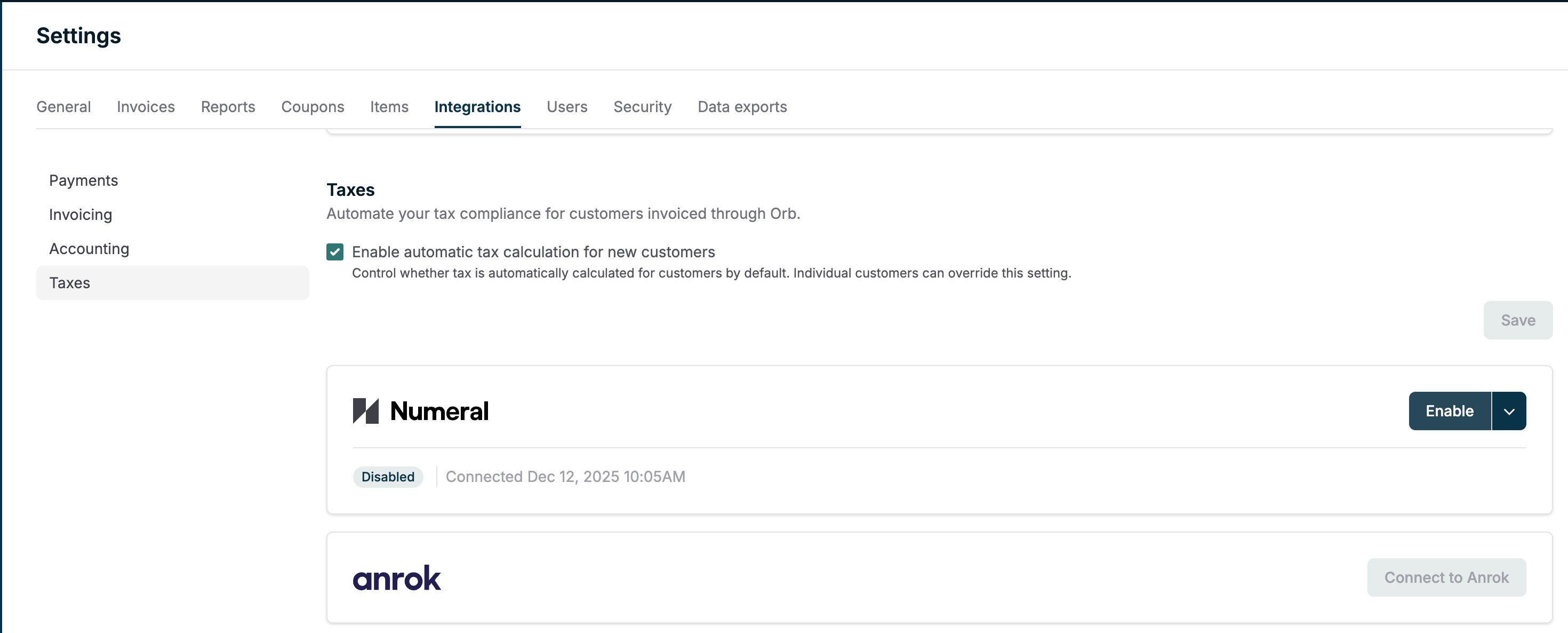
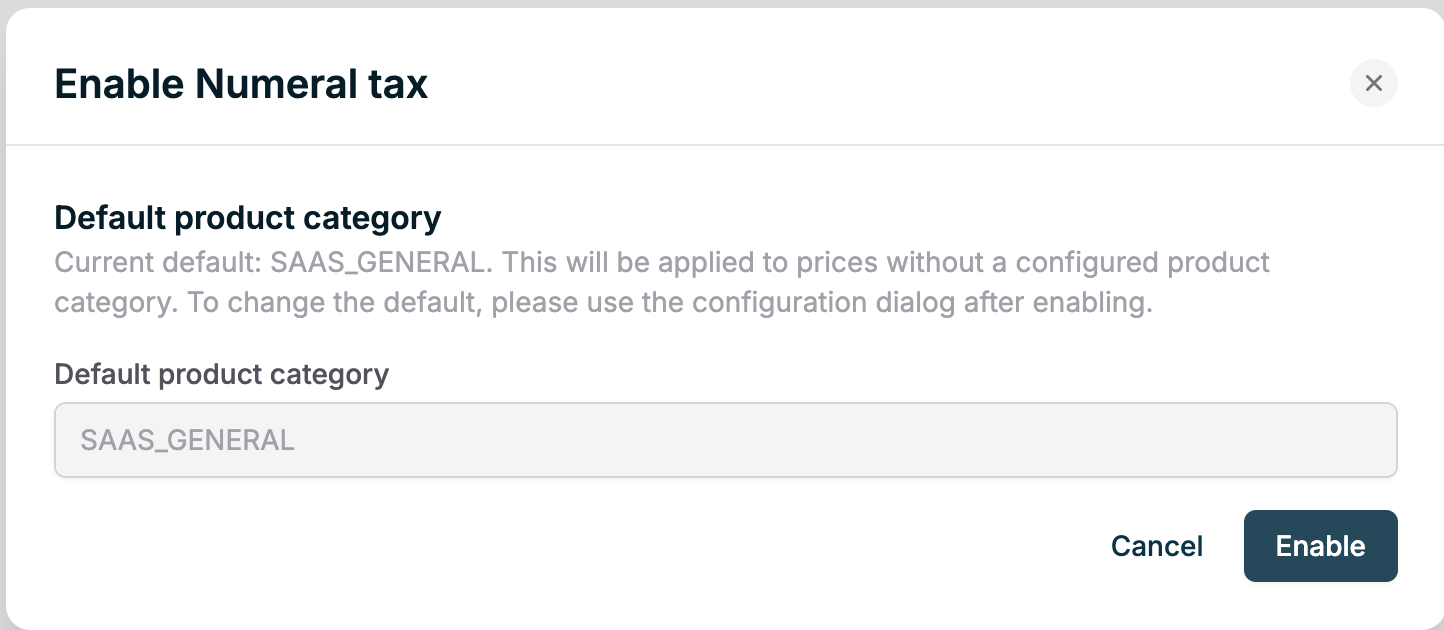
-
Confirm your Orb connection by entering your API key again and clicking Confirm Connection. The pop-up will close automatically and begin syncing.
Timeline Considerations
If you’re already using Orb to apply tax rates to invoices, coordinate with your Onboarding Manager to confirm your go-live date with Numeral. For example, if Numeral will begin managing your sales tax registrations in August, meet with your Onboarding Manager on August 1 to turn off Orb’s tax calculations and activate Numeral’s tax engine.Confirming Your Configurations
On your go-live call, your Onboarding Manager will confirm that Orb’s tax calculations are disabled. You can also verify this on your own: How to Turn Off Orb’s Tax Calculations:- Log in to your Orb account.
- Navigate to Settings > Integrations > Taxes.
- Click the menu next to Stripe Tax (or the relevant tax integration) and select Disconnect Stripe Tax.
- Confirm the disconnection.
Product Categorization
Product categories in Orb do not carry over to Numeral — categories must be set up directly within your Numeral account. Work with your Onboarding Manager to set up product categories within Numeral. Once configured, Numeral’s tax engine uses these categories to accurately determine taxability. How to review or update product categories in Numeral:- Log into your Numeral dashboard.
- Navigate to the Developers tab. If this tab isn’t visible, contact your Onboarding Manager.
- Select Products.
- Edit products individually or create new products as needed.
Customer Exemptions
If a customer should be exempt from sales tax, mark them as exempt directly in Orb:- Navigate to Customers on the left-hand side.
- Click on the customer’s name to open their profile.
- Scroll down to Customer Details and select Edit.
- Scroll to the bottom and check the box next to Exempt from automated tax.
- Click Save.