

This guide is intended for SAP administrators and implementation users. It focuses only on the communication setup required for Numeral.
What you’ll do
- Start the connection in Numeral and generate credentials
- Create the SAP inbound communication user
- Create and configure the Communication System
- Create the Communication Arrangements
- Test the Tax Calculation connection
- Complete the connection in Numeral
1. Start in Numeral
Before configuring SAP:- In Numeral, go to Connections.
- Click Add connection.
- Select SAP S/4HANA.
- Choose the flows you want to configure:
- Tax Calculation
- Product Sync
- Customer Sync
- Billing Sync
- For Tax Calculation, enter:
- SAP System ID
- Company Code
- Click Generate.
- Copy and securely store all values generated by Numeral.
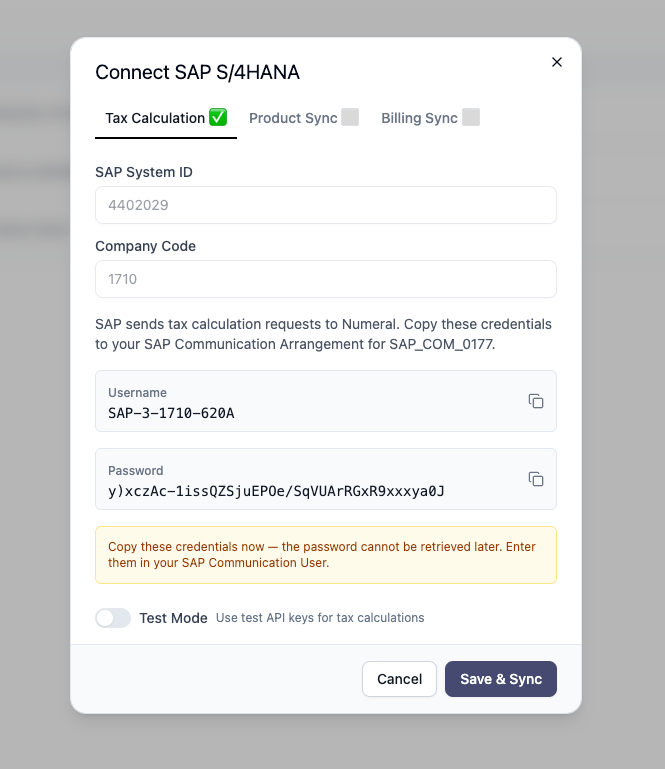
- Numeral host
- Outbound username
- Outbound password
- Service paths
2. Communication scenarios
The following SAP communication scenarios are used:3. Recommended SAP object names
Customers may use different names according to their internal naming conventions.
4. Configure the communication users first
The communication users are configured before the arrangements. The users and arrangements are separate objects: creating a user does not create an arrangement, and creating an arrangement does not create a user. Two communication directions must be configured:4.1 Create the SAP inbound communication user
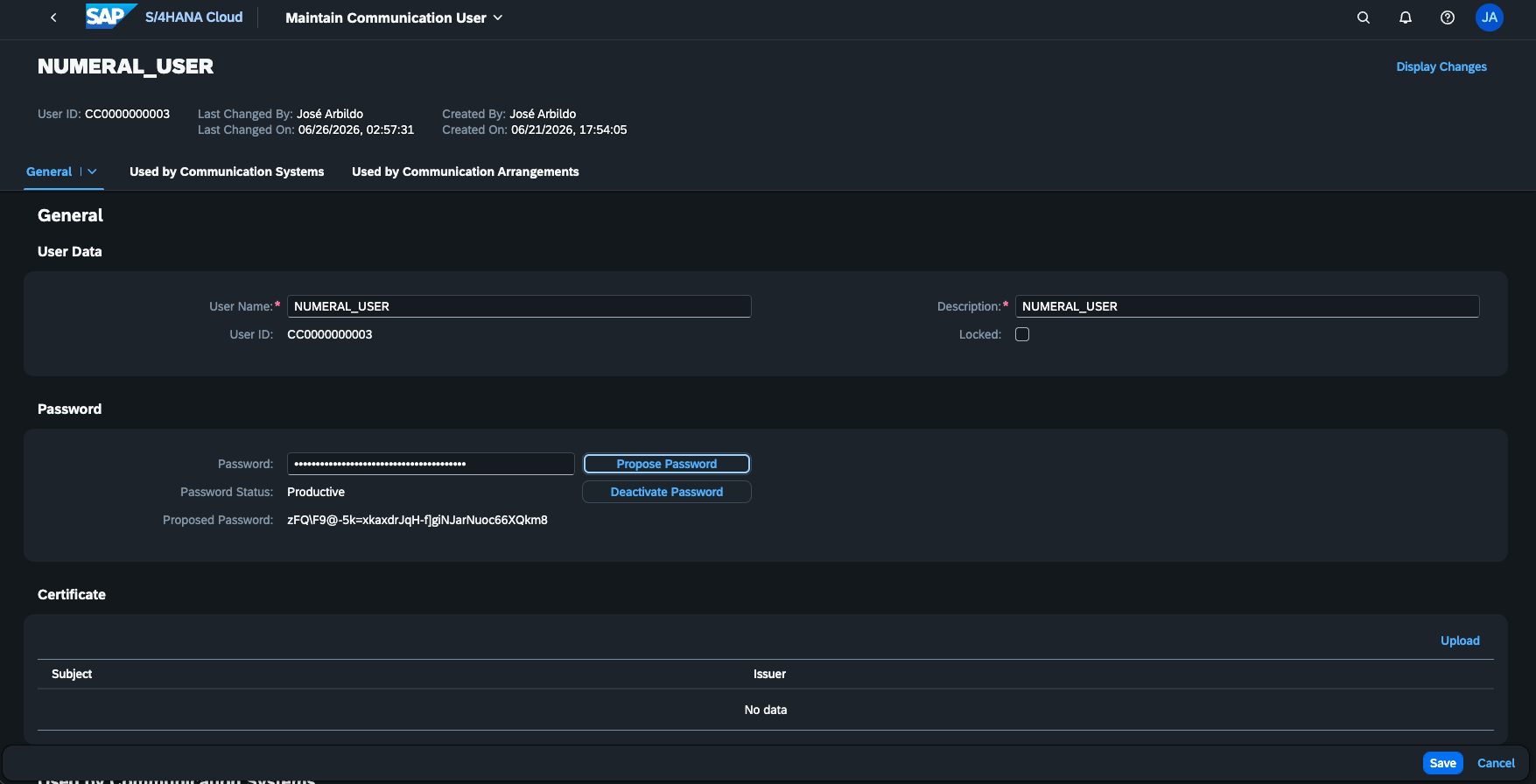
In SAP Fiori, open:
Generate or assign a secure password and store it safely. This password will be entered in Numeral later.
- Product Sync
- Customer Sync
- Billing Sync
4.2 Prepare the Numeral outbound user
Use the outbound username and password generated in Numeral. Example username: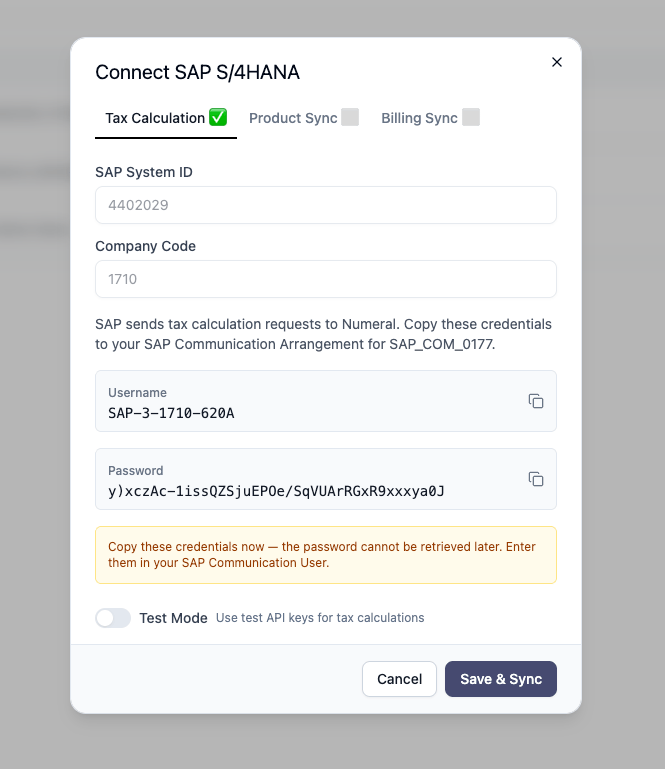
5. Create and configure the Communication System
In SAP Fiori, open:
In Host Name, enter only the hostname.
Correct:
5.1 Add the inbound user
Under Users for Inbound Communication, add:
This user handles Numeral requests for products, customers, and billing documents.
5.2 Add the outbound user
Under Users for Outbound Communication, add:
This user handles Tax Calculation requests sent from SAP to Numeral.
5.3 Configure the Numeral host and endpoints
Use the host and service paths generated by Numeral. Typical Tax Calculation paths are:
Use the exact values displayed in Numeral. Save the Communication System after both users and the connection details are configured.
6. Create the Communication Arrangements
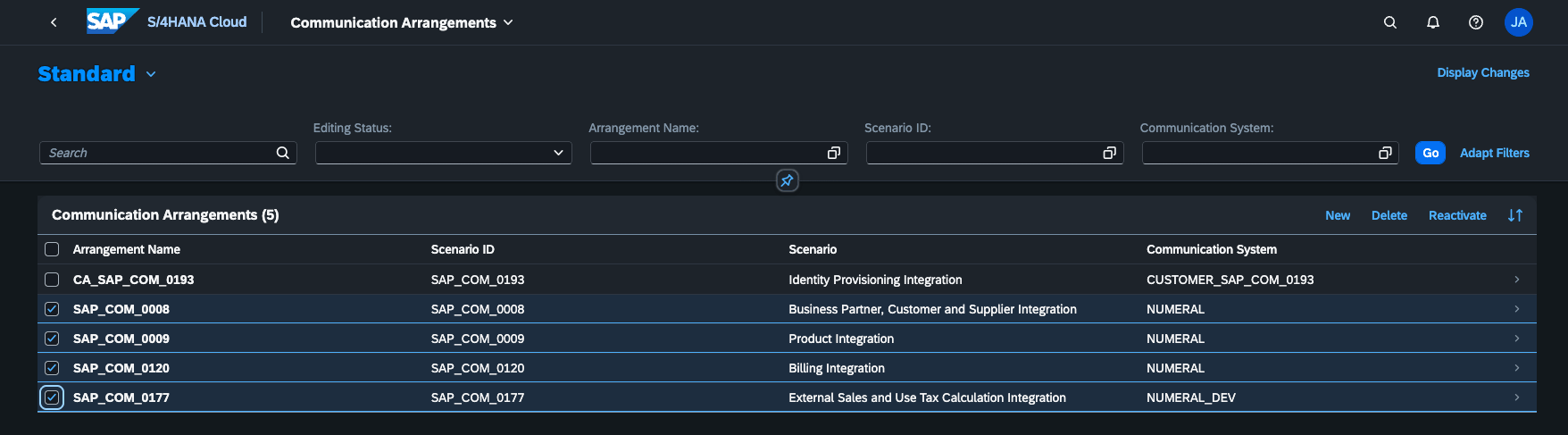
After the Communication System is ready, create the arrangements. At this point, the Communication System already contains the inbound user, outbound user, Numeral host, and connection details. For each arrangement:- Open Communication Arrangements in SAP Fiori.
- Create a new arrangement using the corresponding scenario.
- Assign the Communication System
NUMERAL_CONNECTION. - Save the arrangement.
- Confirm that the expected service is active.
The arrangements reuse the users and connection information already declared in
NUMERAL_CONNECTION. There is no need to create new communication users for each arrangement.
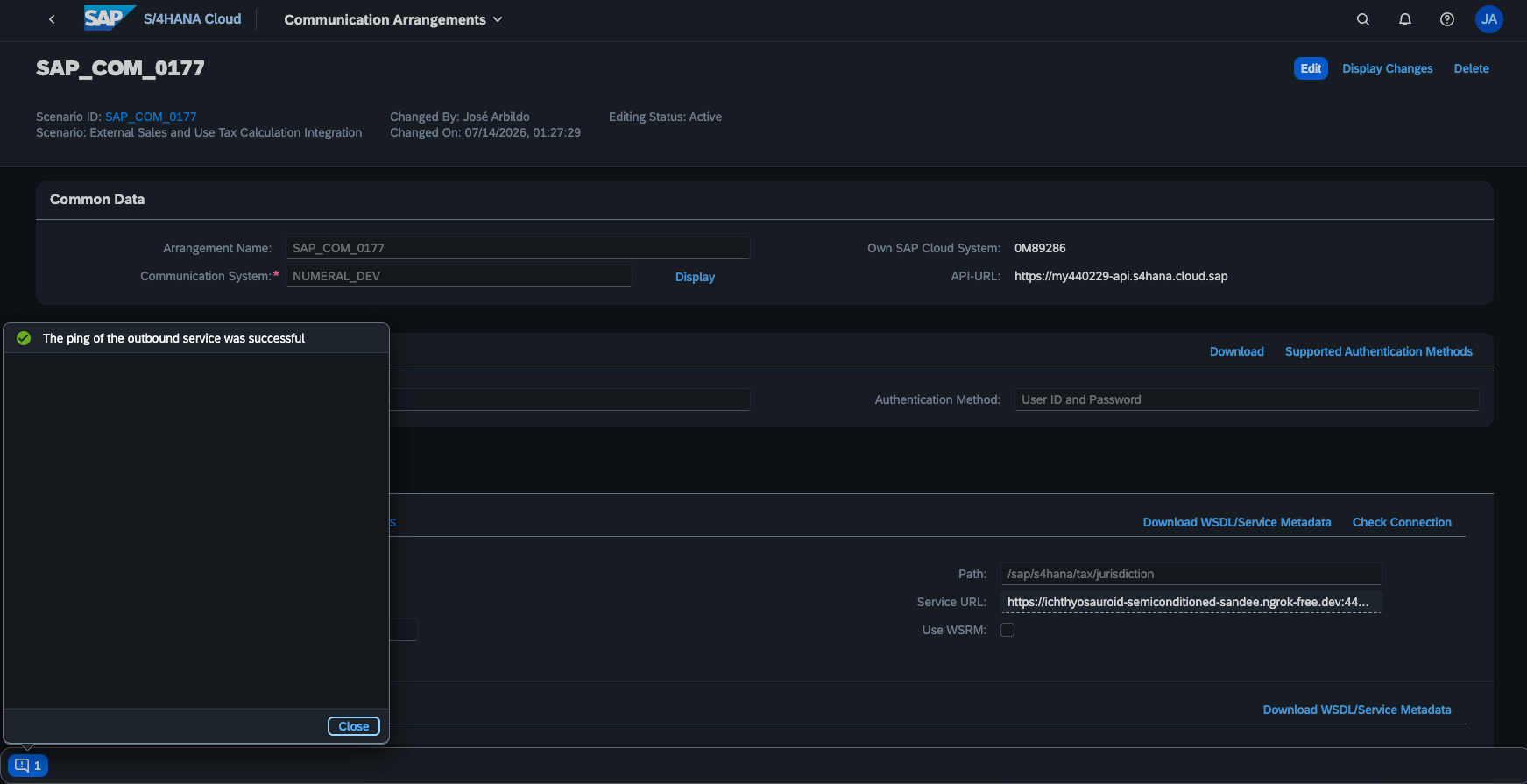
7. Test the Tax Calculation connection
Inside theSAP_COM_0177 arrangement:
- Locate one of the configured outbound services.
- Click Check Connection.
8. External Tax Configuration Check (recommended)
Before testing tax calculations, SAP provides the External Tax Configuration Check application to validate that the external tax integration is correctly configured. Open:- Communication Arrangement (
SAP_COM_0177) - External Tax Calculation activation
- Tax jurisdiction configuration
- Pricing procedure configuration
- Tax procedure assignments
- External tax mapping consistency
A successful communication test (Check Connection) only verifies connectivity between SAP and Numeral. It does not validate the SAP pricing configuration required to create tax conditions during sales order processing.
9. Complete the connection in Numeral
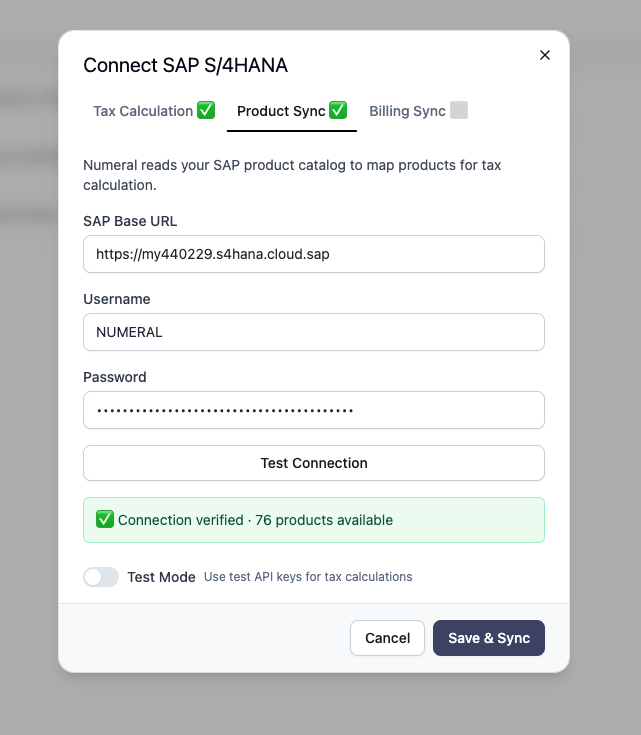
Return to the SAP connection in Numeral. For Product, Customer, and Billing Sync, enter:
The SAP API URL normally uses the SAP API host, for example:
Product Categorization
Correct product categorization is essential for accurate tax calculation. Product categories set in SAP S/4HANA do not carry over to Numeral — categories must be set up directly within your Numeral account. During onboarding, your Onboarding Manager will help set up initial product categories in Numeral and show you how to manage them going forward.Troubleshooting
Pricing error: Mandatory condition UTXJ is missing (V1801)
Pricing error: Mandatory condition UTXJ is missing (V1801)
If SAP successfully calls Numeral and receives a valid response (
RETCODE = 0), but sales orders still fail with Pricing error: Mandatory condition UTXJ is missing, the communication with Numeral is working correctly. The issue is typically related to SAP pricing configuration.Recommended checks:- Run External Tax Configuration Check and resolve any reported issues.
- Verify that the pricing procedure used by the sales document supports external tax calculation.
- Verify the U.S. Tax Jurisdiction configuration (
0TXUSX). - Verify the Map Tax Results to Condition Types (Sales Pricing Procedure) SSCUI.
- Verify the Map S/4HANA Tax Codes to External Tax Codes SSCUI if tax code mapping is required.
- Verify that the relevant tax jurisdiction entries exist for the configured tax procedure.
- Connectivity →
SAP_COM_0177, credentials, endpoints, and communication with Numeral. - Functional SAP configuration → Pricing, UTXJ, jurisdictions, and mappings.