

Capabilities
- Automated tax calculations: Calculate precise tax rates based on customer addresses and product categories
- Tax return filing: Automatically handle tax return filing after sales clear through the platform
- Product management: Manage product tax categories and handle refunds seamlessly
- Exempt customer handling: Efficiently manage tax-exempt customers across multiple jurisdictions
Connector setup
Before integrating with Numeral you must ensure that your customers in Sequence have unique email addresses.
Step 1 — Add Sequence to Numeral Connections
In your Numeral dashboard, click Connections in the left-hand menu, then select Add Connection. Under Billing, select Sequence.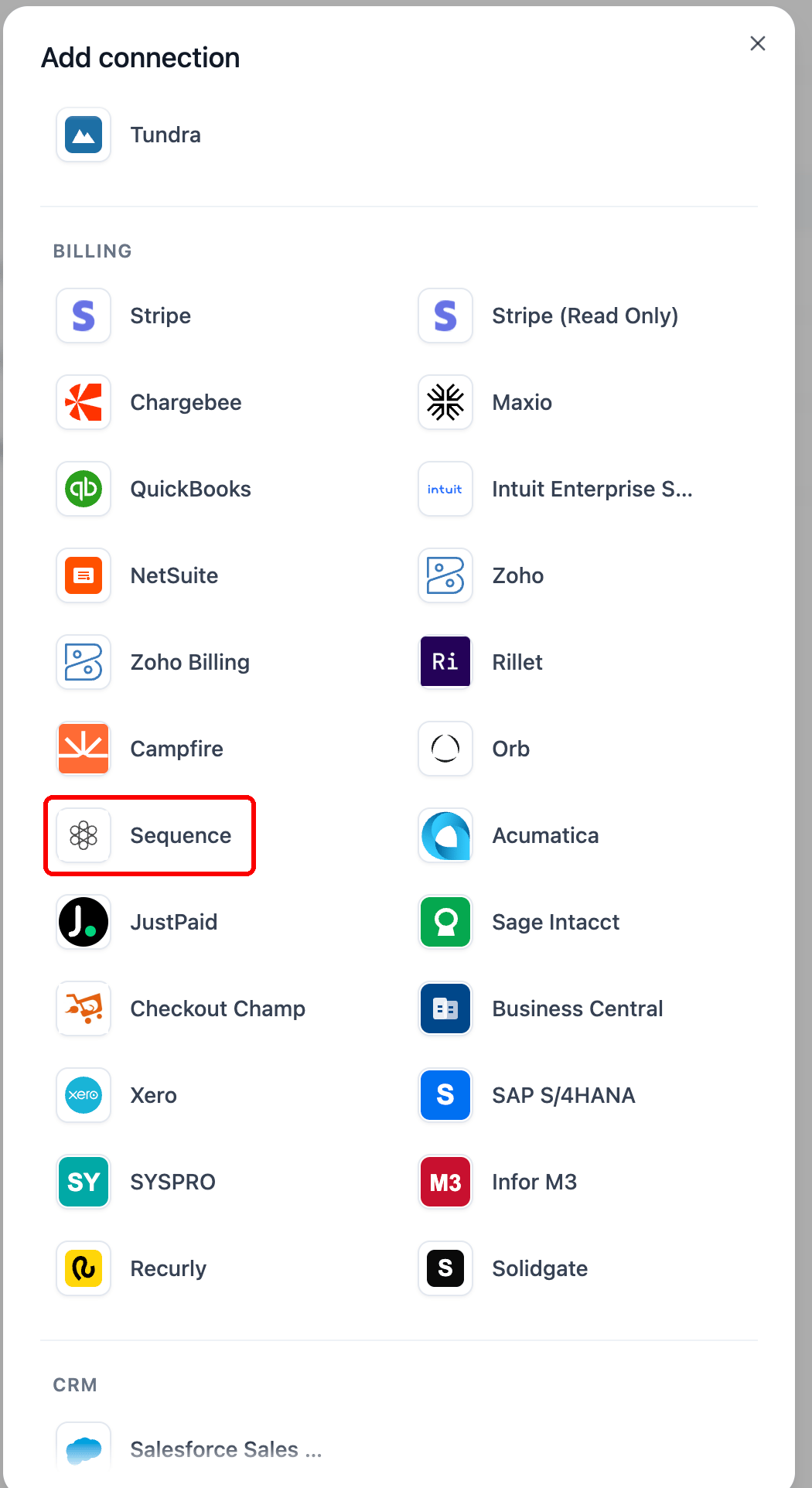
Step 2 — Connect to Numeral
View connector Navigate to “Browse integrations”, locate Numeral in the Tax section, and click “Manage integration”.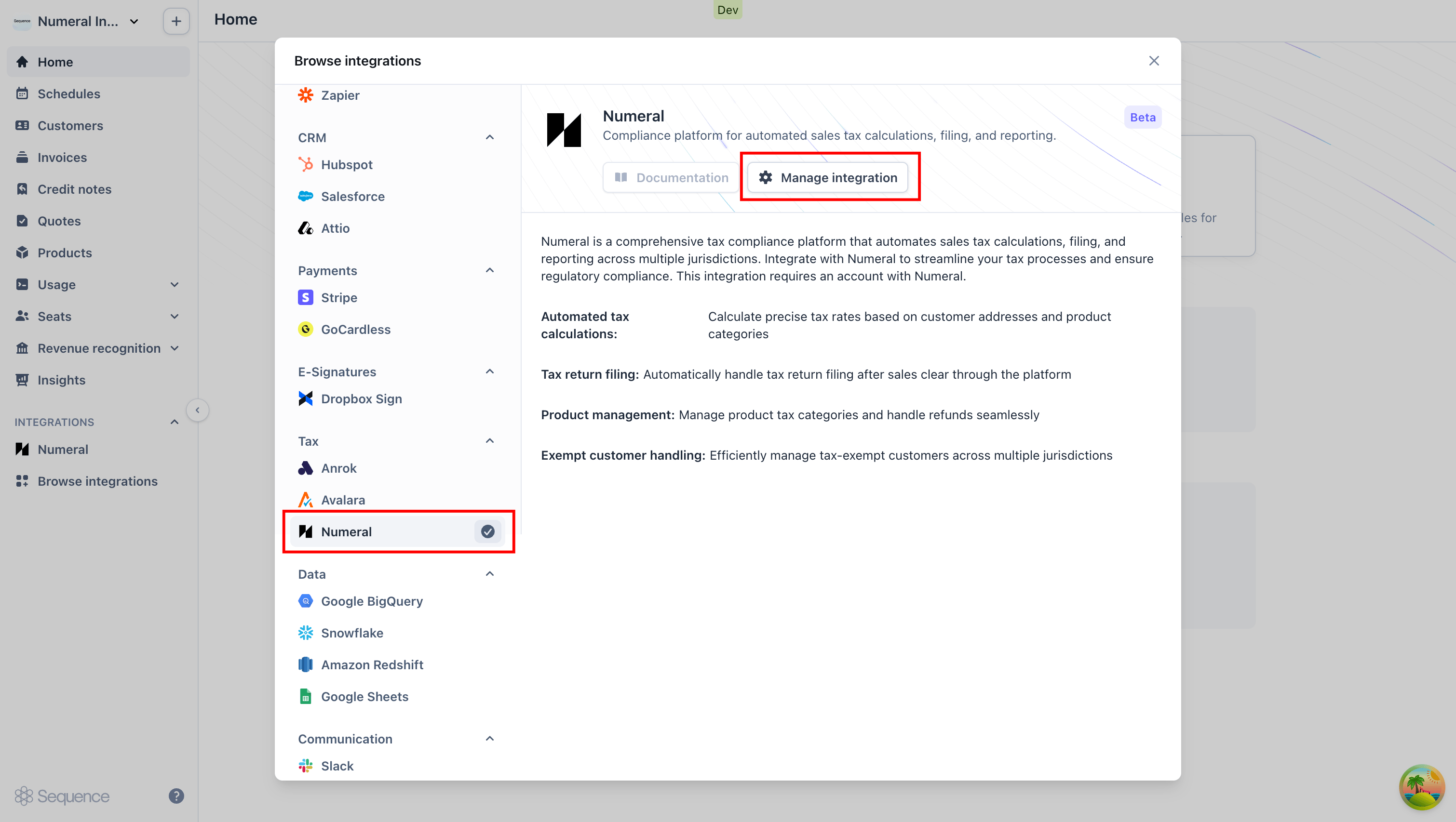
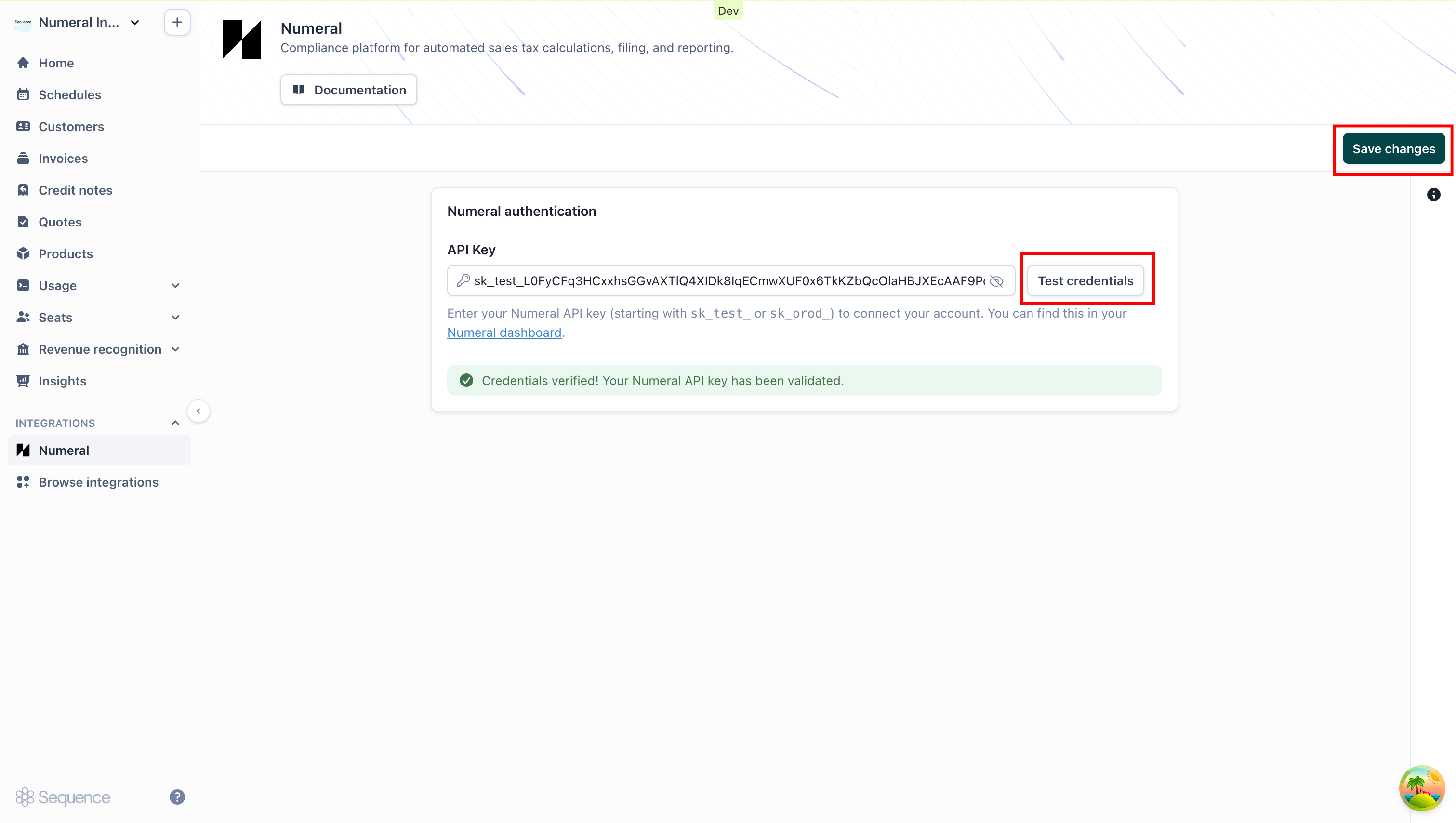
Step 3 — Add Numeral product categories
View tax categories Navigate to Settings > Sales Tax to view your existing Sequence tax categories. With Numeral connected, these categories will now be managed through Numeral product categories rather than custom rates.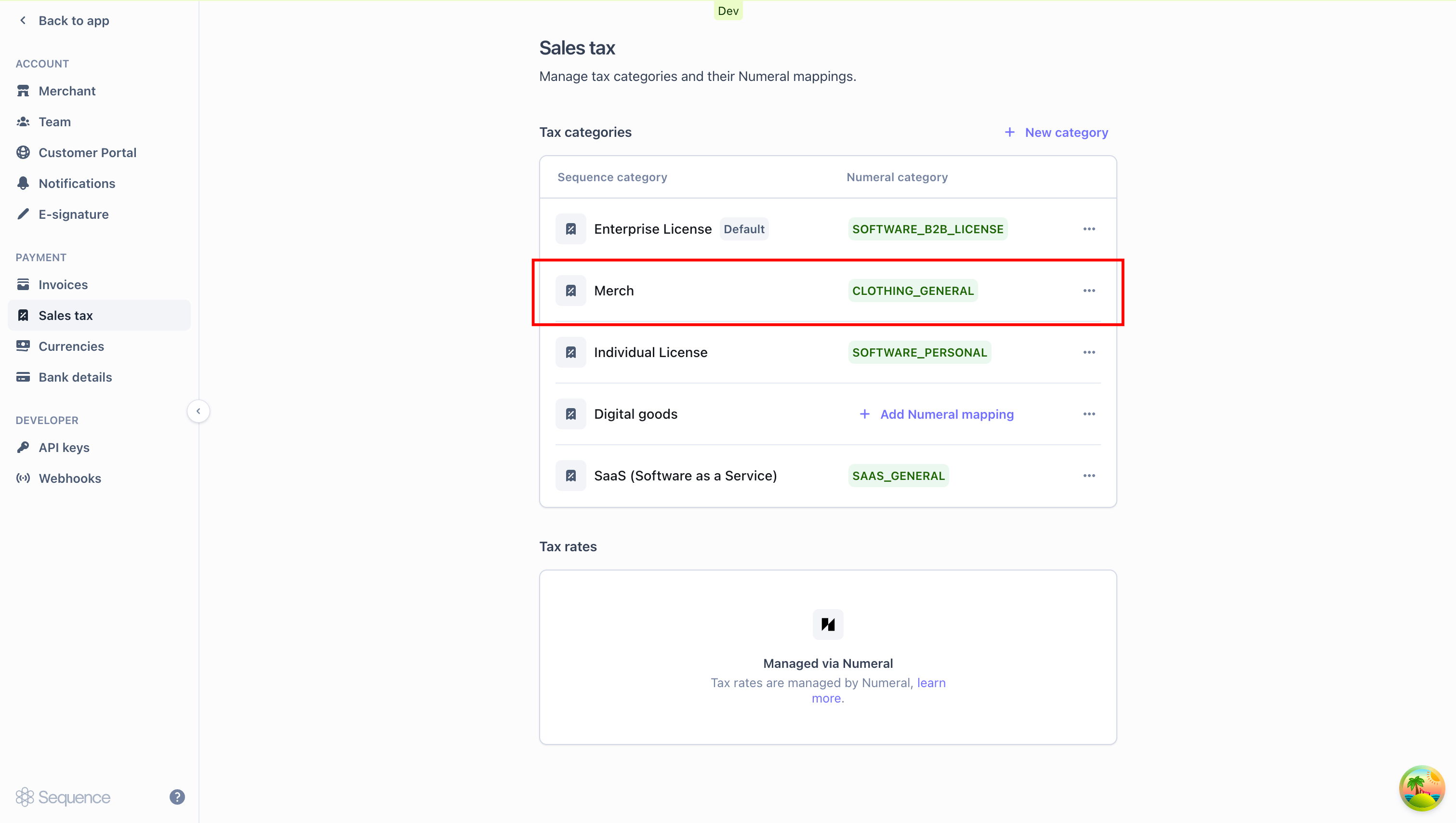
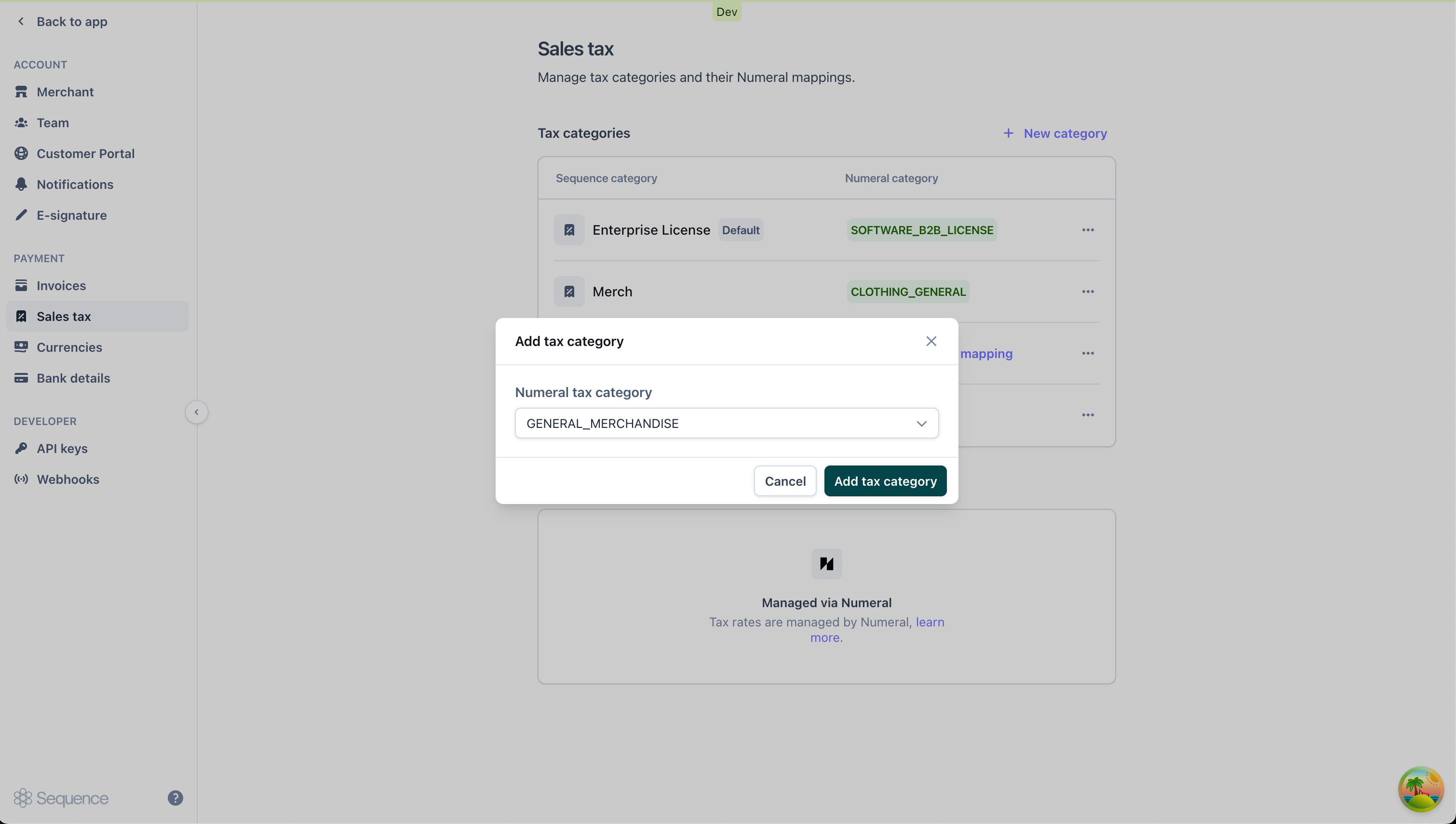
Step 4 — Add tax categories to products
Navigate to your Products catalog and assign tax categories to each product. For automatic tax calculation to work on a product, its tax category must have a corresponding Numeral product category mapping.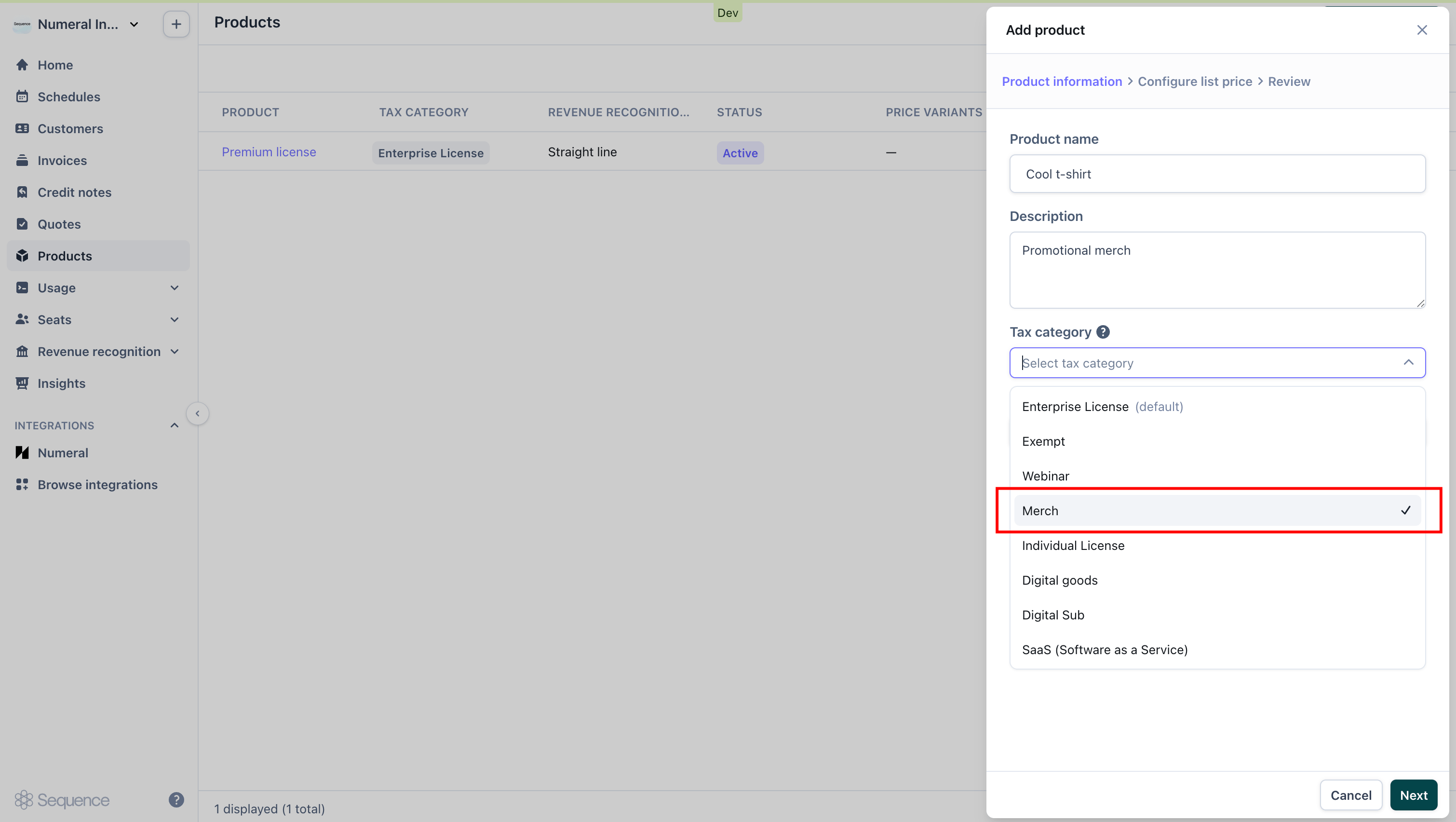
Calculating sales tax with Numeral
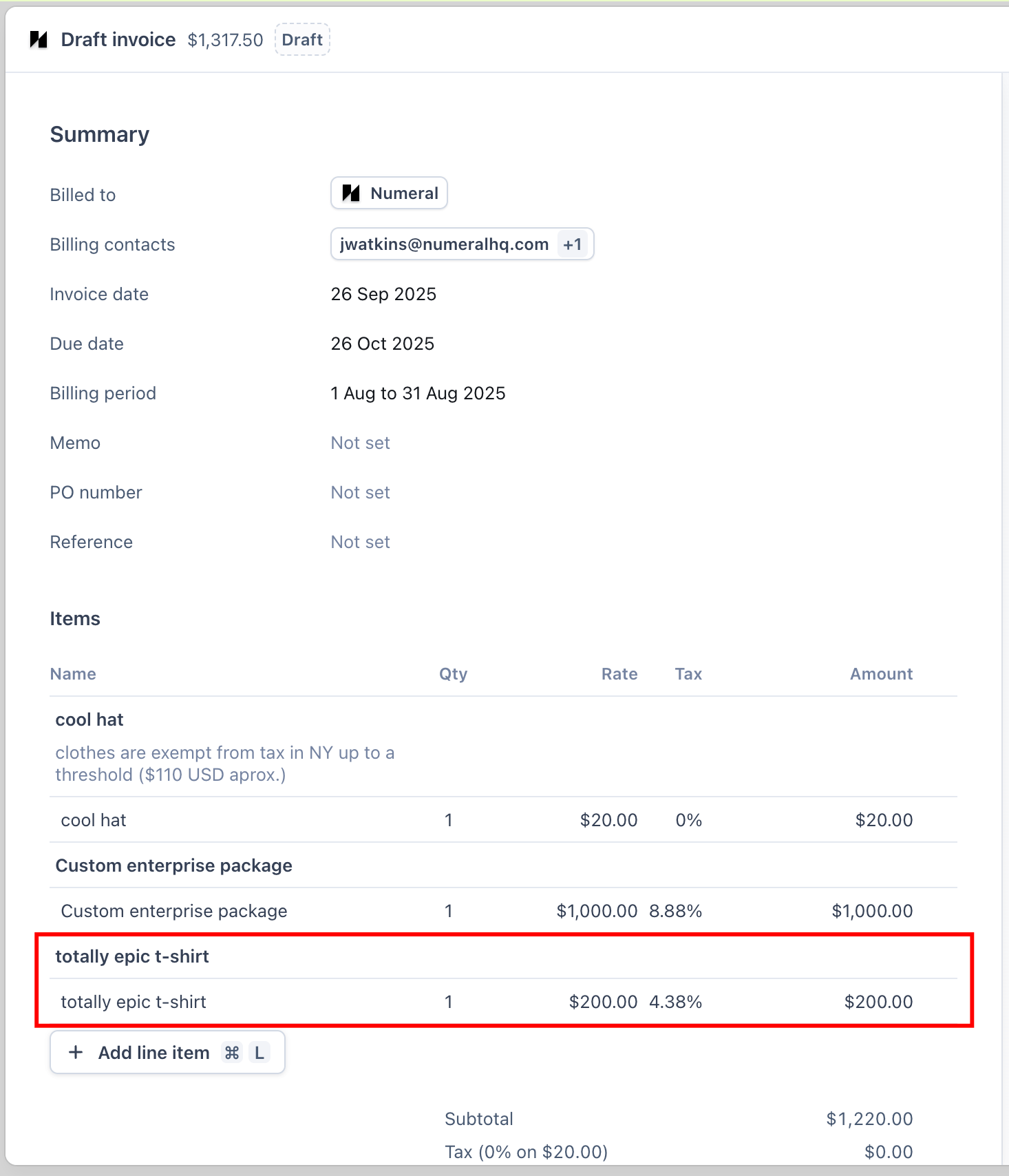
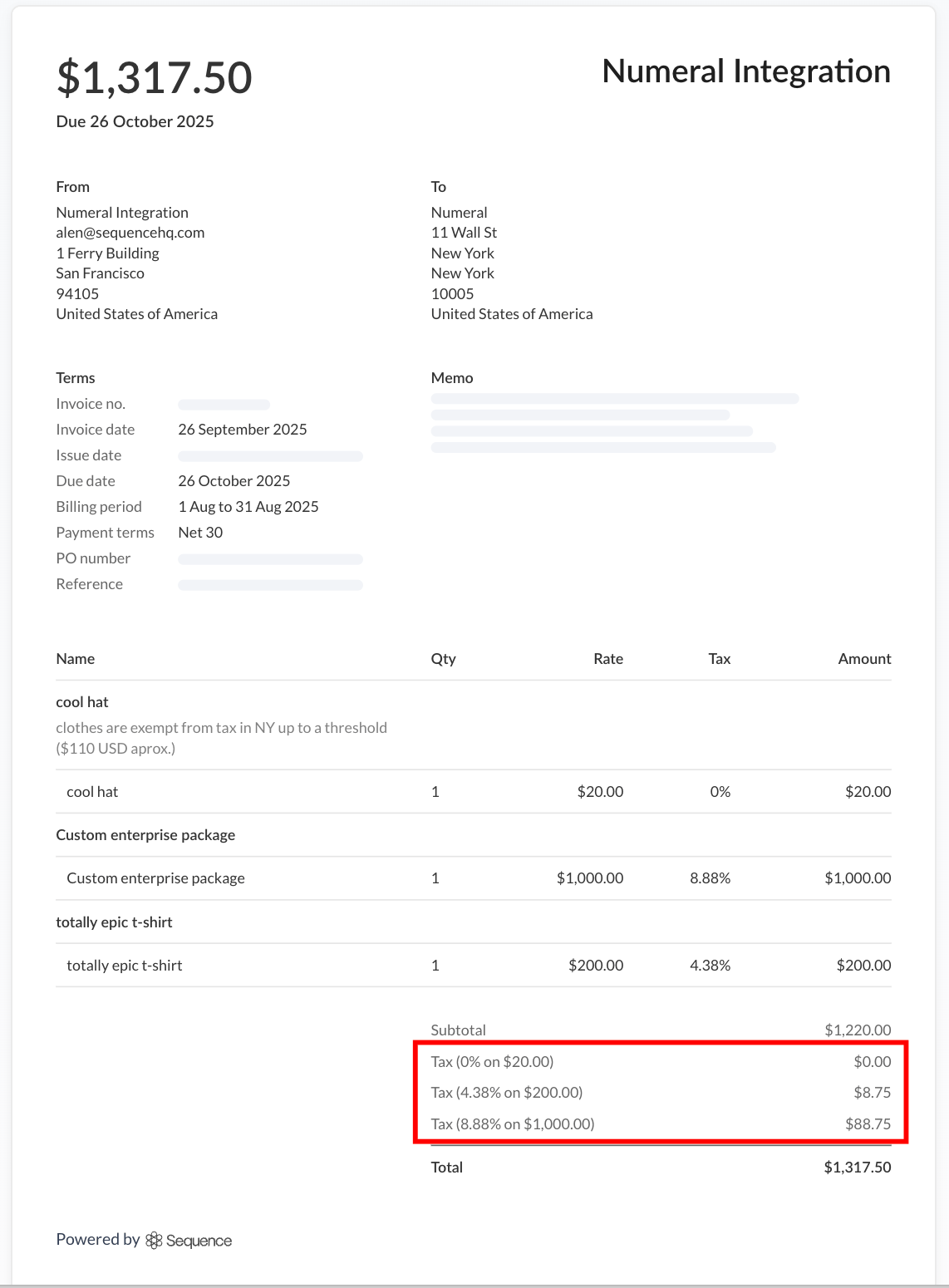
With Numeral connected, sales tax will be calculated automatically for all draft invoices. The tax amount is determined by several key factors:- The origin address configured in Settings > Merchant > Address
- Your customer’s billing location and their tax exemption status
- Which Numeral product category is mapped to each line item’s tax category
Troubleshooting
Invalid API key format
Verify that your API key follows the correct format. Test environment keys begin withsk_test_ while production keys start with sk_prod_. Retrieve your API key from the Developers tab in your Numeral dashboard.
Incorrect merchant address
Double-check your merchant address configuration at Settings > Merchant > Address. This location serves as the point of origin for all tax calculations.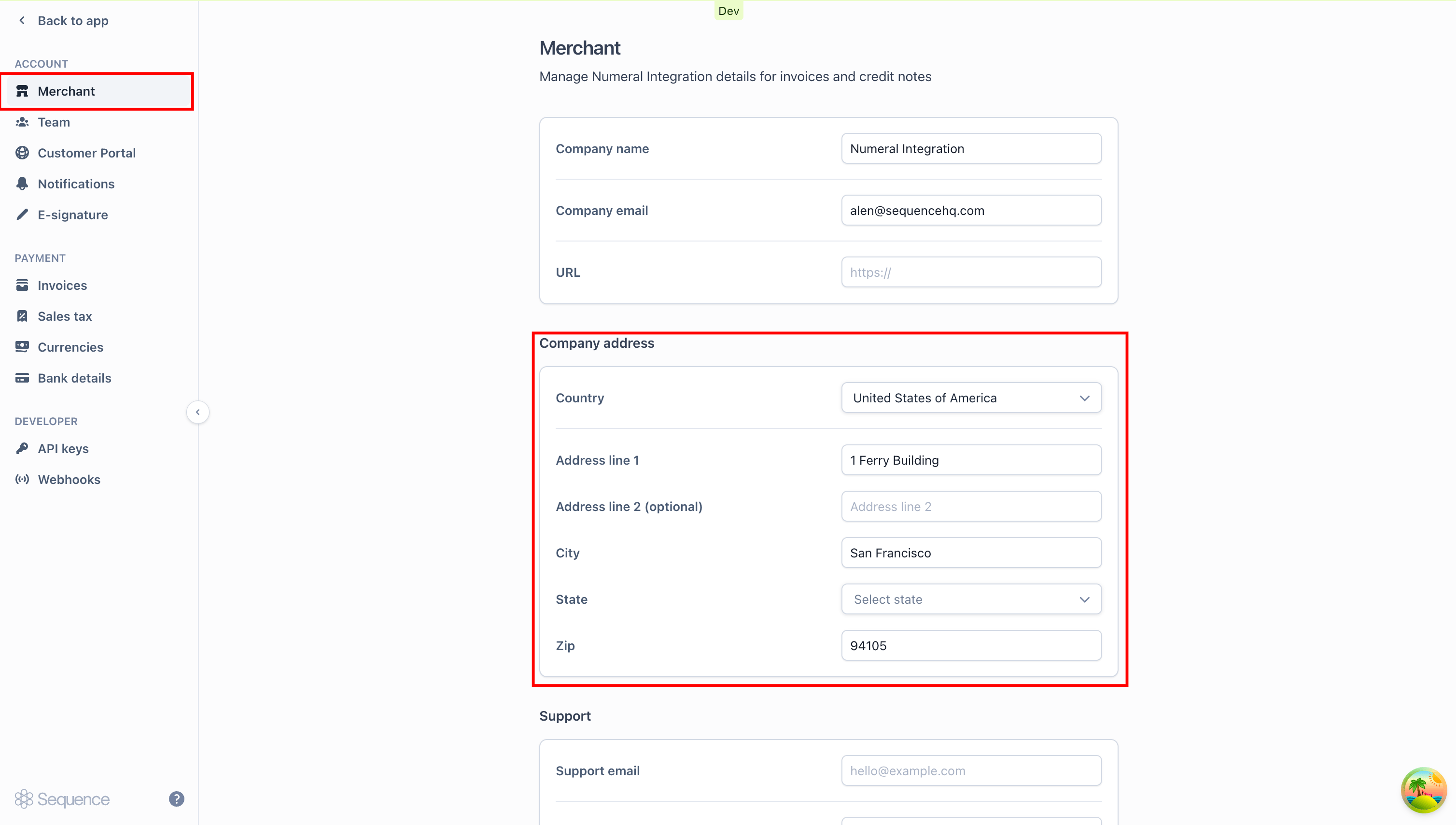
Failed to load Numeral product categories
If product categories fail to load when adding mappings, check the following:- Confirm your API key is saved correctly
- Verify you have an active Numeral subscription
- Check your network connectivity
Frequently asked questions (FAQ)
Do Sequence products need to be synced with Numeral? Not at all. The connector works by mapping your Sequence tax categories to Numeral product categories. When an invoice is generated, Numeral uses the product category associated with each line item’s tax category to calculate the appropriate tax. What Numeral product categories are available? Numeral provides comprehensive coverage across many product types:- SaaS & Digital: SAAS_GENERAL, SOFTWARE_DOWNLOAD, DIGITAL_AUDIO_STREAMED, DIGITAL_VIDEO_STREAMED
- Clothing: CLOTHING_GENERAL, CLOTHING_ATHLETIC, CLOTHING_JEWELRY
- Food & Beverage: FOOD_GENERAL, BEVERAGE_SOFT_DRINK, BEER
- Books & Media: BOOKS, MAGAZINE, NEWSPAPER
- General: GENERAL_MERCHANDISE, EXEMPT, SHIPPING
sk_test_) to your Sequence Sandbox. Then create sample invoices using various product categories and customer addresses to confirm calculations are working correctly.