

Requirements
To support the Numeral integration, your Zoho Books account must be on the Premium plan or higher. Zoho enforces API rate limits based on your subscription tier, and lower tiers don’t provide enough capacity (or webhook support) for Numeral to reliably sync your data and update taxes.Higher volumes? If you process a high volume of invoices and are concerned your activity may exceed these limits, email presales.usa@zohobooks.com to request higher API limits. We recommend doing this early in your onboarding, as it can take time to hear back.
Connecting Zoho Books
Before you connect, make sure your default origin address(es) are set up in Numeral — these are required for accurate tax calculation. To connect your account:- From the Numeral dashboard, start the Zoho Books connection and authorize Numeral to access your Zoho account.
- Select the Zoho organization you’d like to connect.
- Follow the on-screen Fivetran setup guide to finish connecting your Zoho data. (Fivetran provides step-by-step instructions on the right side of that page.)
- You’ll be redirected back to Numeral, where the connection is finalized.
For larger accounts, the initial data sync can take a few days to complete due to Zoho’s API limits. Any nexus study based on your historical data will be ready once that sync finishes.
Product Categorization
Correct product categorization is essential for accurate tax calculation. Product categories set in Zoho Books do not carry over to Numeral — categories must be set up directly within your Numeral account. During onboarding, your Onboarding Manager will help set up initial product categories in Numeral and show you how to manage them going forward.What you’ll see on your invoices
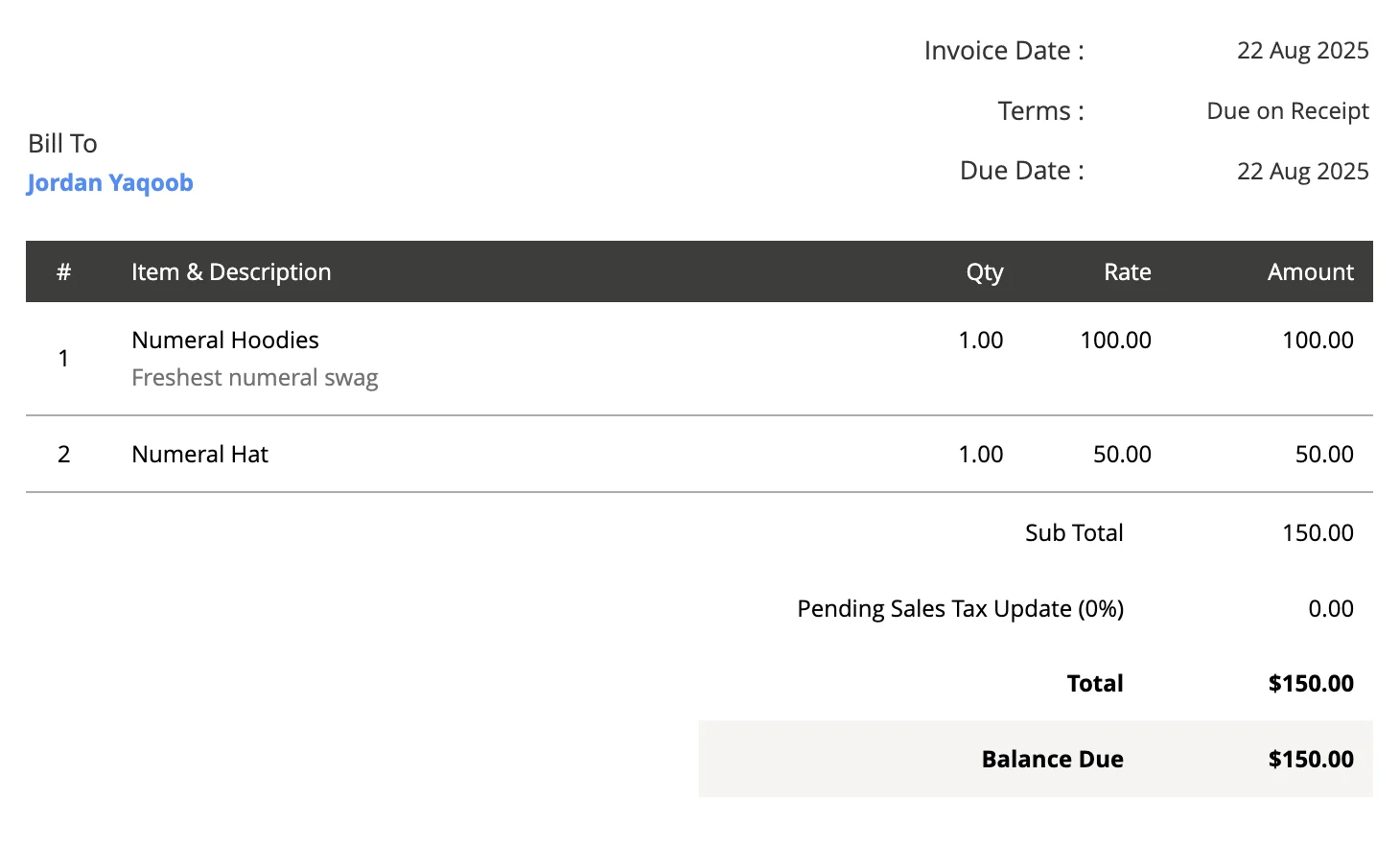
During setup, Numeral adds a few tax labels to your Zoho Books account so you can always tell the status of a quote or invoice at a glance:- Pending Sales Tax Update — shown before Numeral has calculated tax on a new quote or invoice.
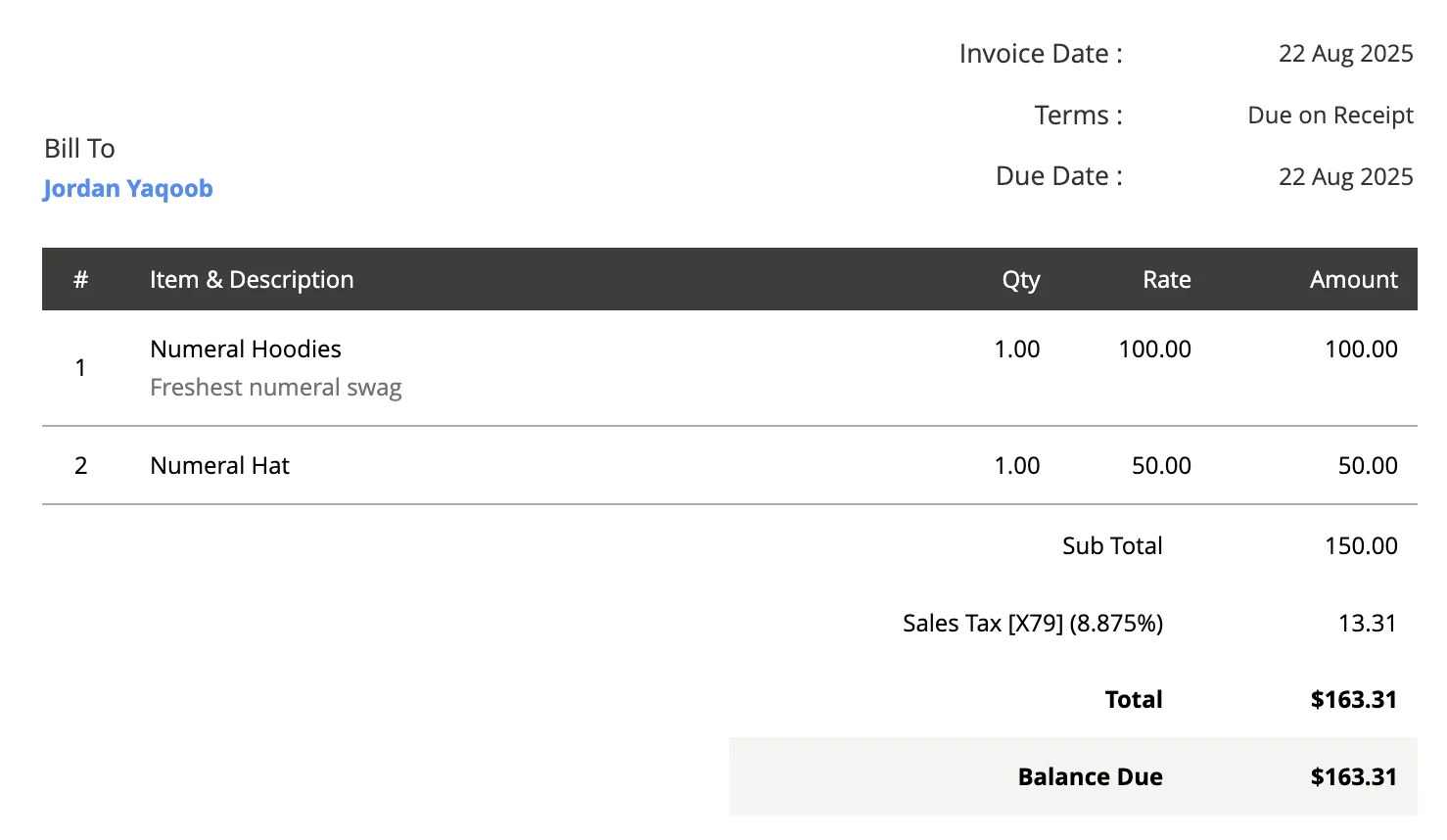
- Sales Tax [XXX] — the calculated tax rate Numeral has applied to a line item (XXX is a unique identifier).
- NUMERAL (tax exempt) — applied to line items that are not taxable.
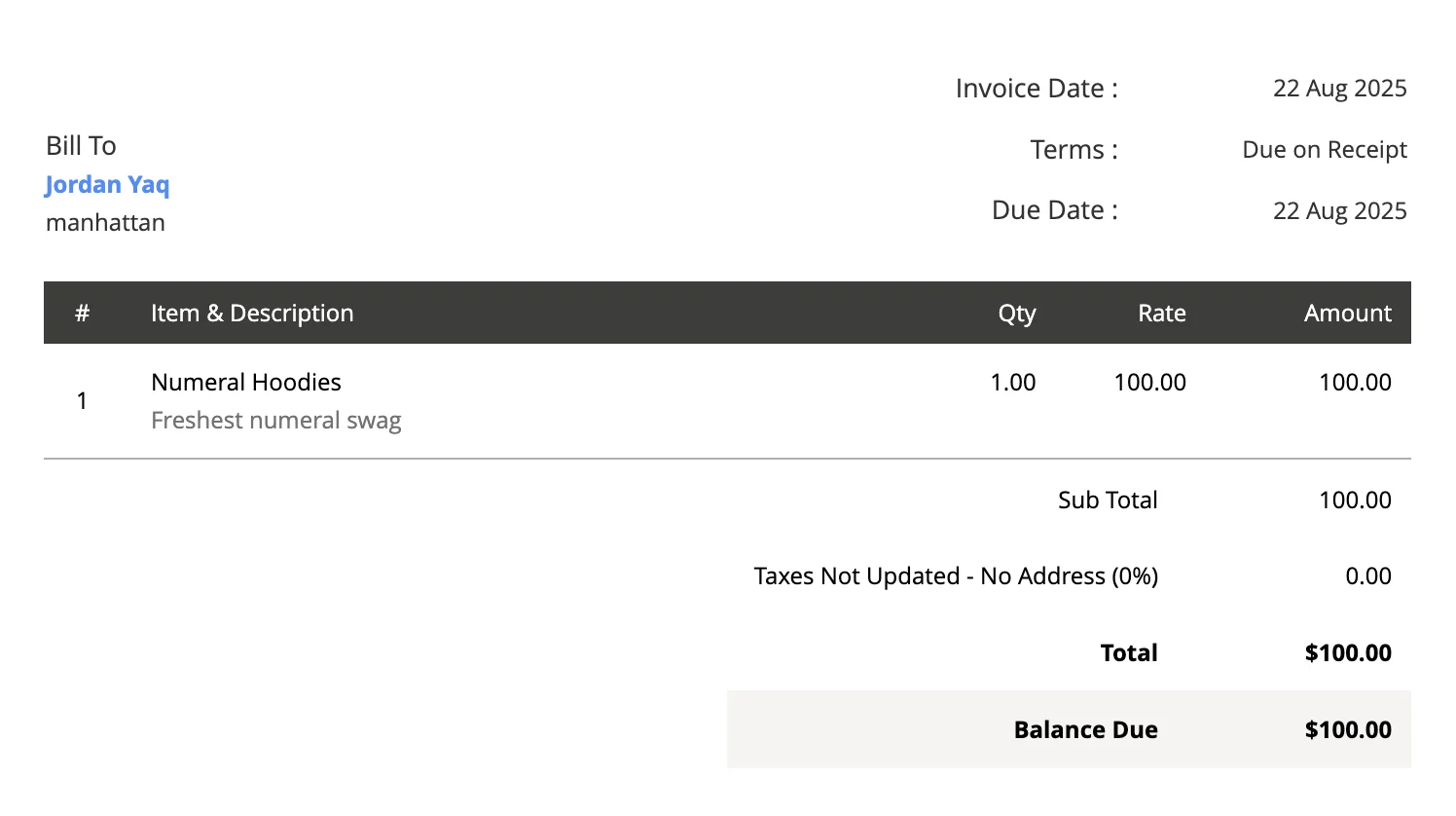
- Taxes Not Updated - No Address — shown when a document doesn’t yet have a valid address, so tax can’t be calculated.
Creating quotes and invoices
Your day-to-day workflow doesn’t change. Create quotes and invoices the way you normally would, and Numeral handles the tax automatically. (In Zoho Books, “quotes” and “estimates” are the same thing and behave identically.) A few things to keep in mind:- Create your quote or invoice as a draft. Numeral calculates tax while the document is in draft status.
- Make sure a valid address is on the document before saving the draft. Numeral uses the first available address in this order: invoice shipping address → customer default shipping address → billing address.
- Once Numeral processes the draft, each line item is updated with either a tax rate (
Sales Tax [XXX]) or marked tax exempt. - When the rates appear, you can send the quote or invoice to your customer.
- When you convert a quote to an invoice, the tax rates carry over automatically.
Customer payments
Record payments exactly as you do today. Numeral is automatically notified of payments and refunds and tracks them to prepare your filings — no extra steps required.Avoid deleting payments or invoices. While our system is designed to handle it, deleting records can lead to inconsistent data (and it’s generally not recommended accounting practice).