

- Connect your Numeral and Rillet accounts with an API key
- Configure a webhook so Rillet sends invoice and payment events to Numeral
- Confirm that sales tax is calculating and syncing automatically
- Find your sales tax reporting in both Numeral and Rillet
Walkthrough video
Step 1 — Connect Numeral to Rillet
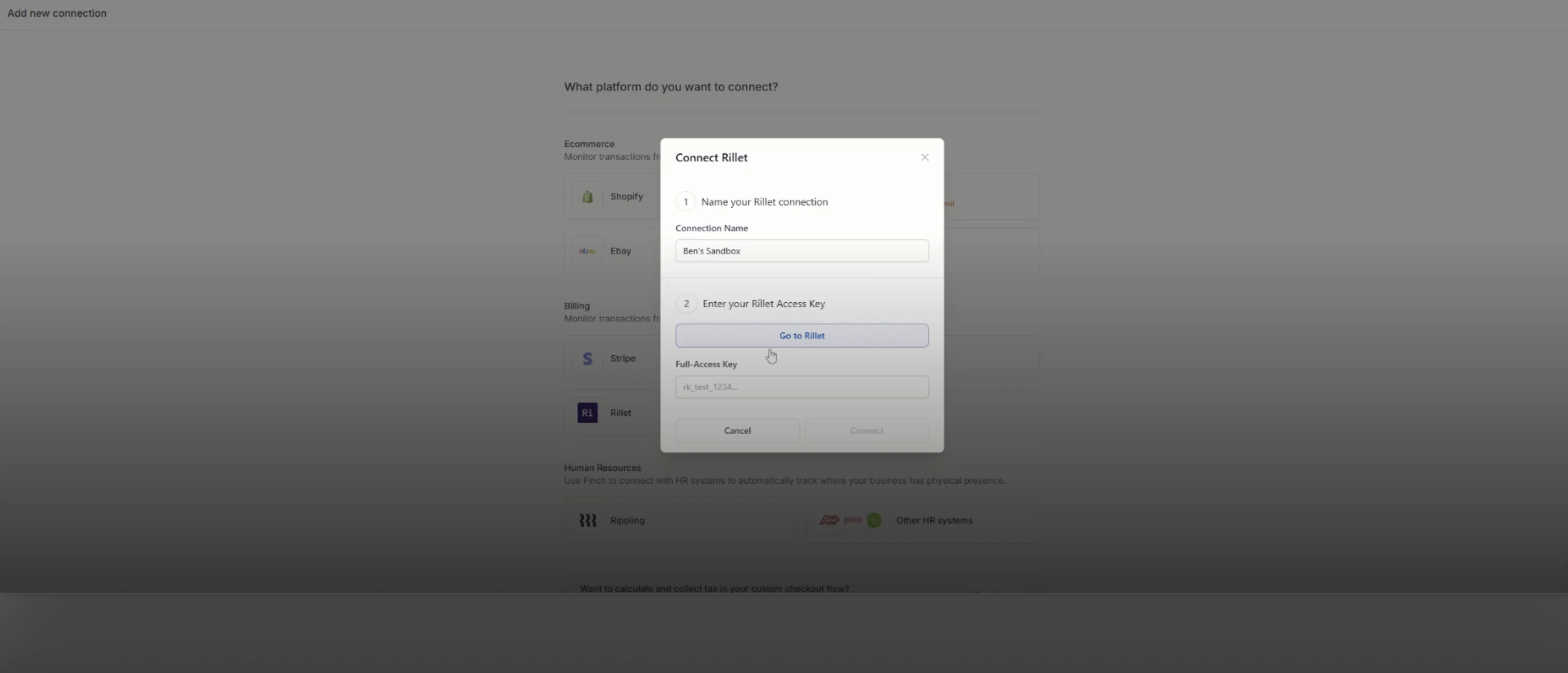
- In Numeral, open Connections and select Rillet.
- Give your connection a name (for example, name it after your Rillet sandbox or environment).
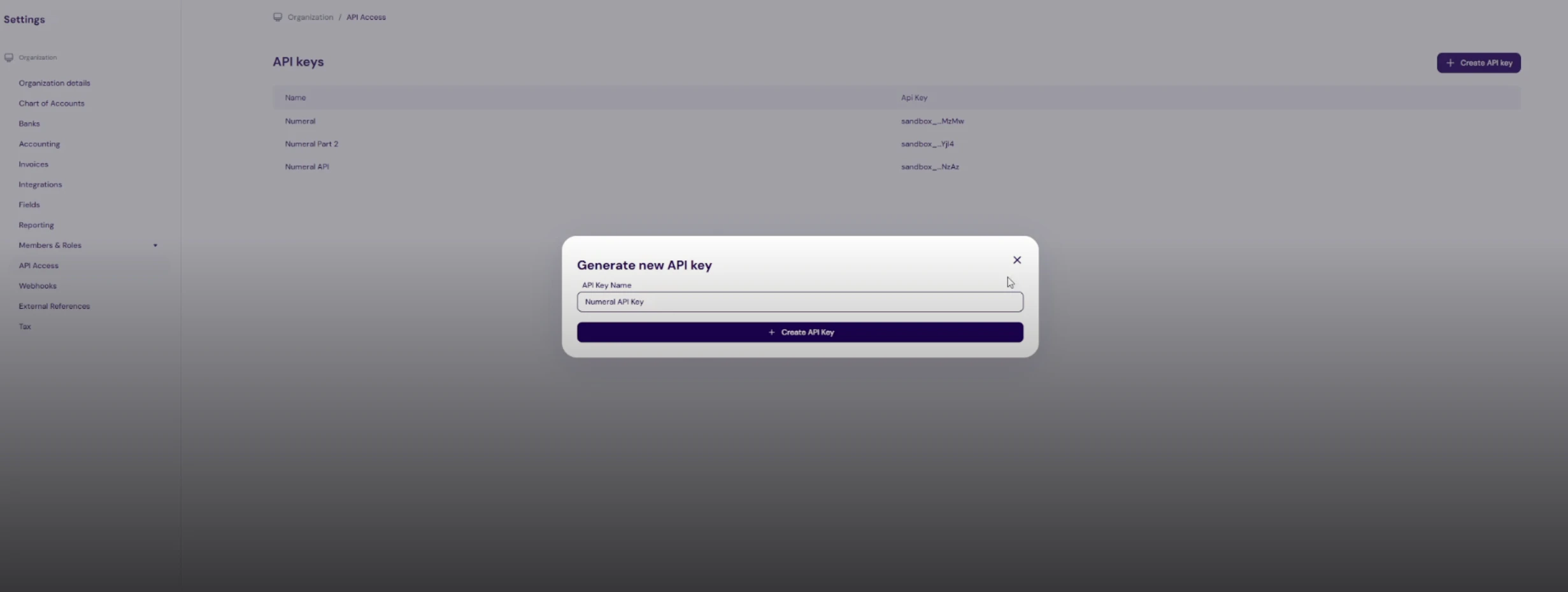
- In Rillet, generate a new API key and give it a name.
- Copy the API key and paste it into Numeral.
- Click Connect.
Step 2 — Set up the Numeral webhook
The webhook lets Rillet notify Numeral whenever an invoice or payment changes, so your tax data always stays in sync.- In Numeral, click Copy Numeral webhook URL.
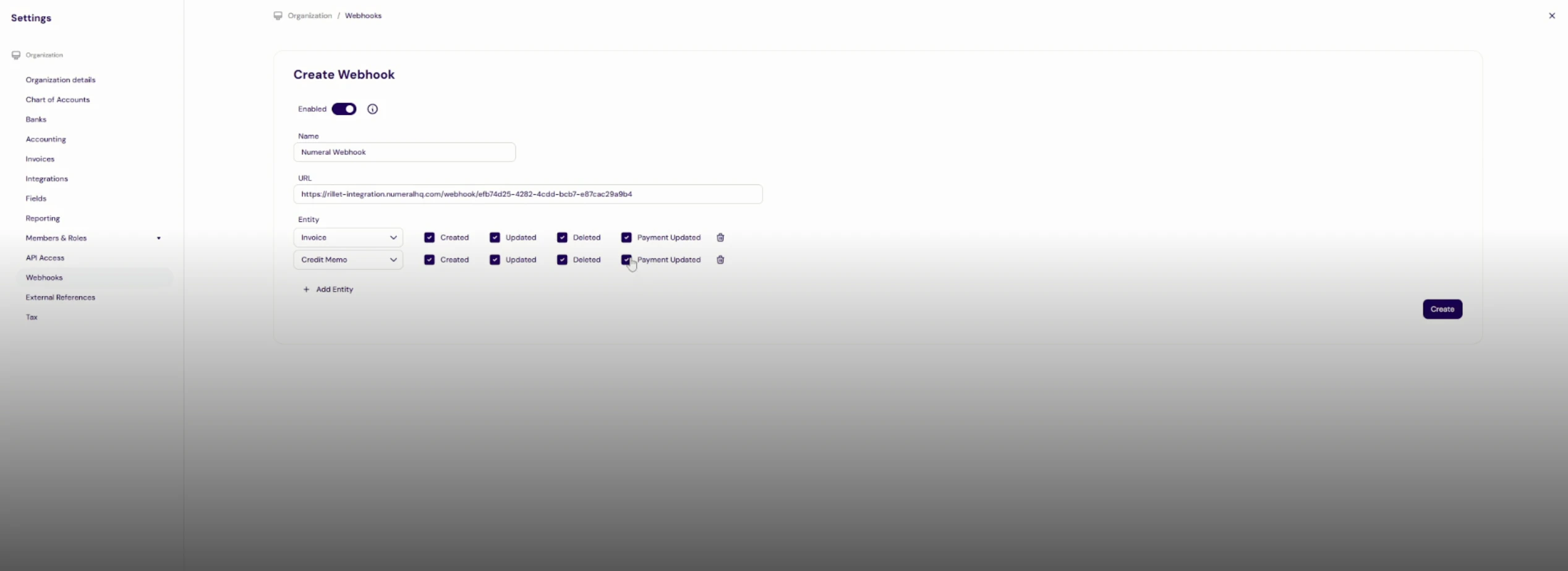
- In Rillet, open the Create webhook page.
- Name the webhook and paste in the Numeral webhook URL.
- Select the events to send for invoices: Created, Updated, Deleted, and Payment Updated.
- If there are other entities that you would also like Numeral to manage (like Credit Memos), add that entity, and add all four of the events as with invoices.
- Click Create.
- Open the webhook you just created and copy its signing token.
- Back in Numeral, paste the signing token and click Continue.
Step 3 — Automate sales tax on your invoices
- In Rillet, create a new invoice.
- Select your customer and your product, then click Save.
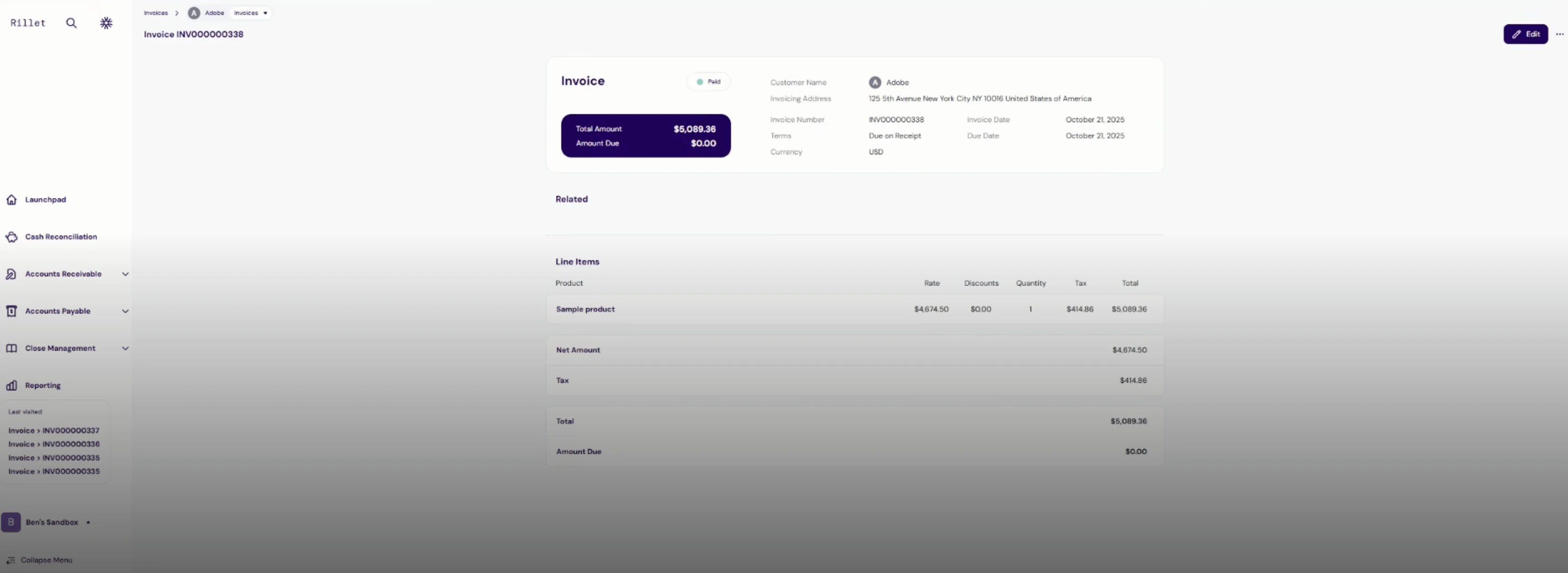
- Open the invoice — Numeral has automatically calculated and added the sales tax.
- When the invoice is marked Paid (amount due $0.00), the transaction is finalized and ready to sync.
Step 4 — View transactions in Numeral
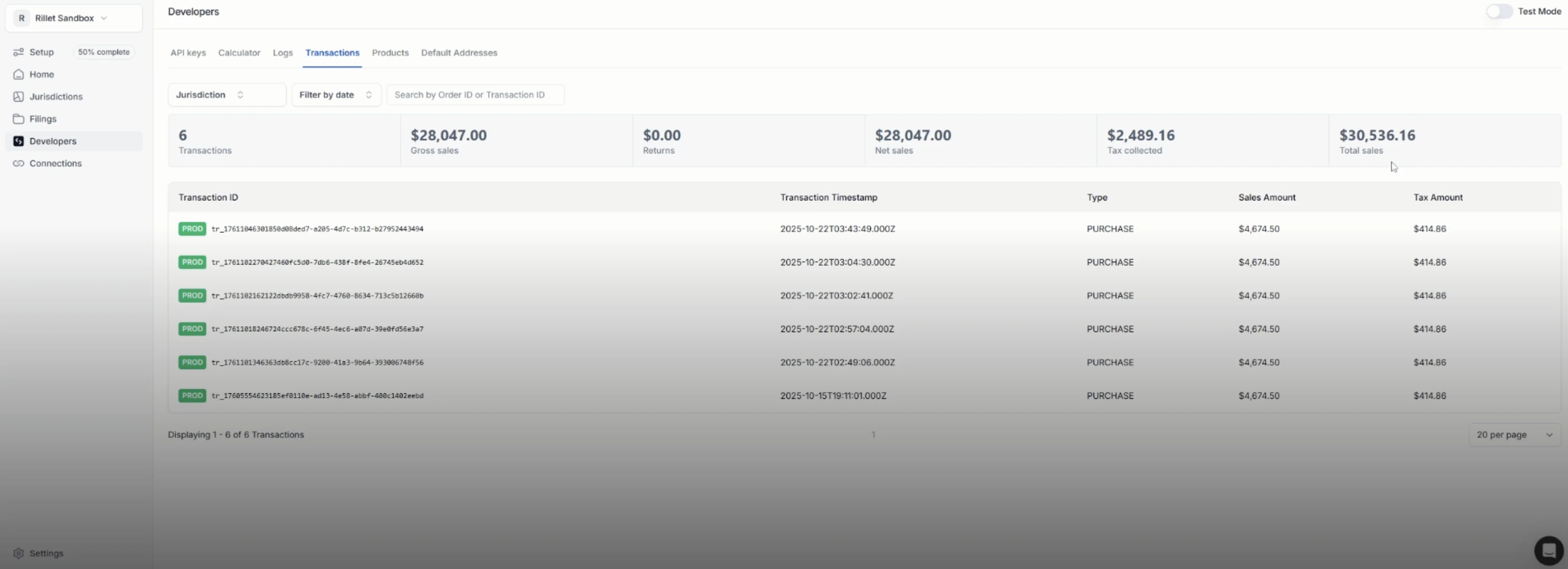
- In Numeral, open Transactions.
- Your Rillet transaction appears automatically — no manual upload required.
- Numeral tracks your total transactions, gross sales, net sales, tax collected, and total sales, which form the basis for your automated sales tax filing.
Step 5 — View your sales tax report in Rillet
You can review the same sales tax data directly inside Rillet.- In Rillet, go to Reporting → Sales tax report.
- Filter to the period you want to review.
- Review the tax amount, the transaction detail, and the underlying invoices.