

Installation Guide
System Requirements
Prerequisites
Before installing, ensure you have:- A Numeral account at dashboard.numeralhq.com
- An Adobe Commerce connection configured in the Numeral dashboard (Connections > Adobe Commerce)
- An API key generated from the connection above
- CLI access to your Magento installation (SSH or local terminal)
Installation via Composer (Recommended)
Composer Prerequisite: Configure Adobe Commerce Credentials
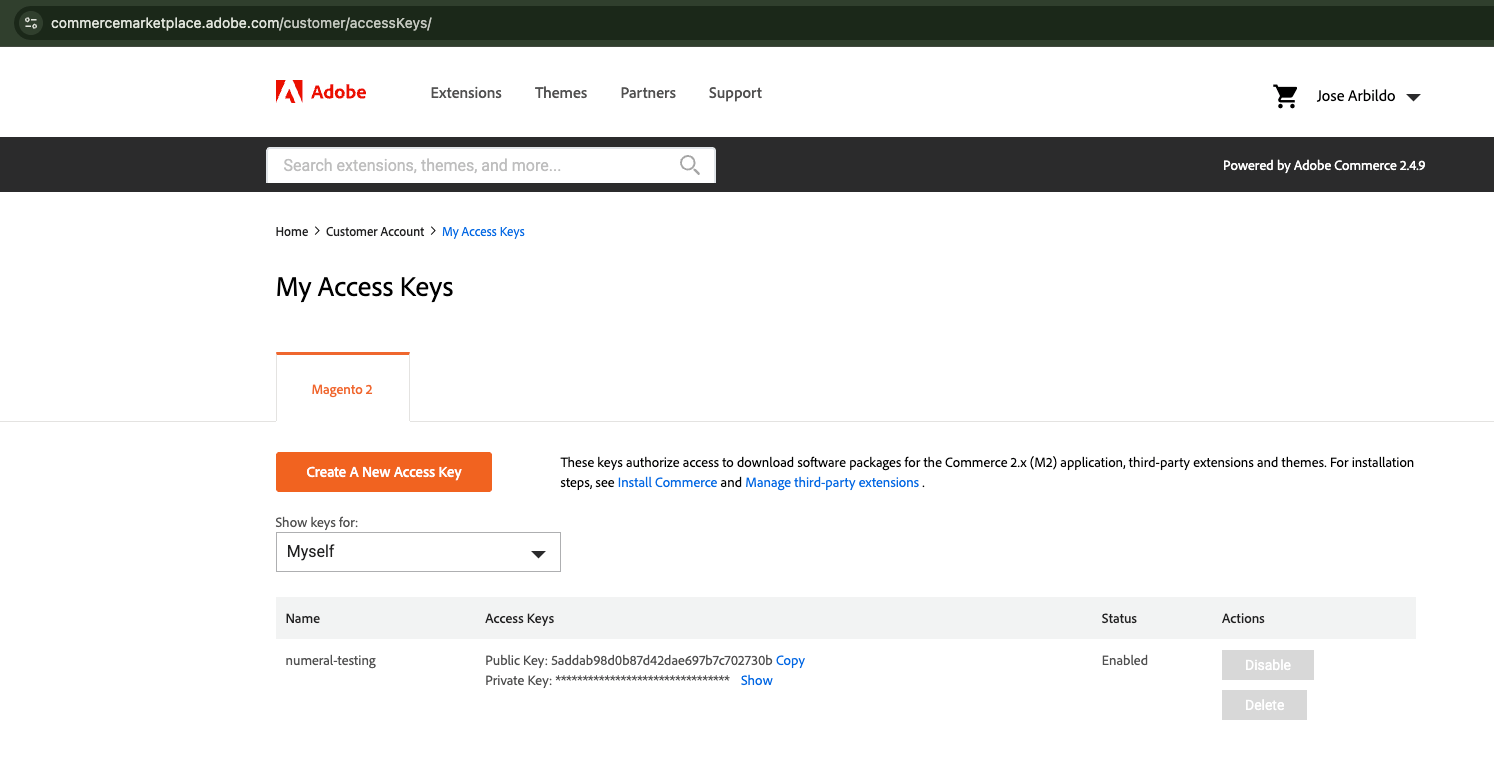
Composer must authenticate withrepo.magento.com to download Adobe Commerce and Magento packages. Adobe Commerce uses a pair of credentials:
- Public Key → Composer username
- Private Key → Composer password
- Log in to the Adobe Commerce Marketplace
- Open your account menu and select My Profile > Access Keys > Magento 2
- Click Create A New Access Key
- Assign a name that identifies where the key will be used, for example
production-server - Copy both the Public Key and Private Key
magento):
auth.json file for the user that ran the command. The --global flag prevents the credentials from being stored inside the Magento project. You can check the location of Composer’s global directory (where auth.json lives) with:
Install the Module
Run the following commands from your Magento root directory:Manual Installation
- Download the extension archive (
numeral-module-tax-X.Y.Z-app-code.zip) from the Adobe Commerce Marketplace or GitHub Releases - Extract the archive into your Magento
app/code/directory. The resulting path should beapp/code/Numeral/Tax/ - Run the following commands from the Magento root:
Verify Installation
Confirm the module is active:Module is enabled
Initial Configuration
- Log in to the Magento Admin Panel
- Navigate to Stores > Configuration > Numeral > Tax Settings
- Under General Settings, configure the following fields:
- Click Save Config
- Go to System > Cache Management and click Flush Magento Cache
Validate the Installation
After configuration, perform a test order to confirm the integration is working:- With Test Mode enabled, add a product to the cart in your storefront
- Proceed to checkout and enter a US shipping address
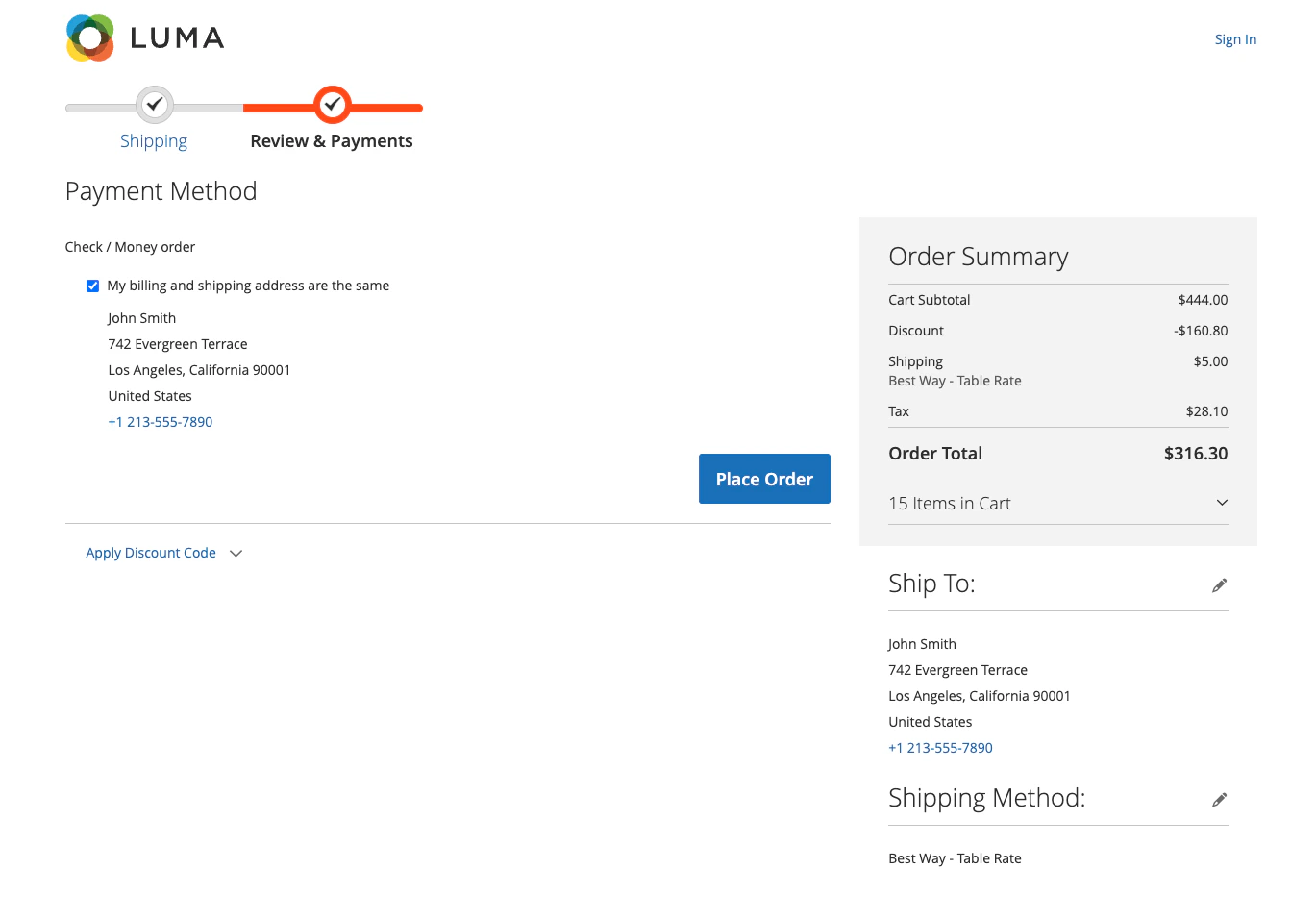
- At the shipping step, verify that tax amounts appear (calculated by Numeral)
- Complete the order
- In the Admin, navigate to Sales > Orders and open the test order
- Click Invoice to create an invoice — this triggers a tax commit to Numeral
- After invoicing, click Credit Memo to issue a refund — this triggers a tax void
- Check the Numeral dashboard to confirm the calculation, commit, and void were recorded
var/log/numeral_tax.log for API request and response details.
Disable Test Mode for Production
Once validation is complete:- Go to Stores > Configuration > Numeral > Tax Settings
- Set Test Mode to No
- Set Debug Logging to No
- Click Save Config and flush the cache
Uninstallation
numeral_calculation_id column added to the sales_order table will remain in the database but has no effect when the module is disabled.
User Guide
Configuration
Navigate to Stores > Configuration > Numeral > Tax Settings in the Magento Admin.Settings Reference
Scope Behavior
- Store View settings can be configured per store view, allowing different stores to enable or disable Numeral Tax independently.
- Website settings apply to all store views under a website. The API key and test mode are shared across store views within the same website.
- Default settings apply globally across the entire Magento installation.
How It Works
Checkout Tax Calculation
When a customer enters their shipping address at checkout, the module intercepts Magento’s tax calculation:- Cart line items, quantities, prices, discounts, and the shipping address are collected
- A request is sent to the Numeral API Gateway (
POST /order/calculate) - The API returns tax amounts per line item and for shipping
- Tax amounts are mapped back into Magento’s tax display at checkout
calculateTax() calls result in only one API call per unique cart state.
Invoice (Tax Commit)
When an invoice is created for an order, the module sends a commit request to the Numeral API. This finalizes the tax transaction and creates the fiscal record. This happens automatically — no manual action is required beyond creating the invoice through the normal Magento workflow.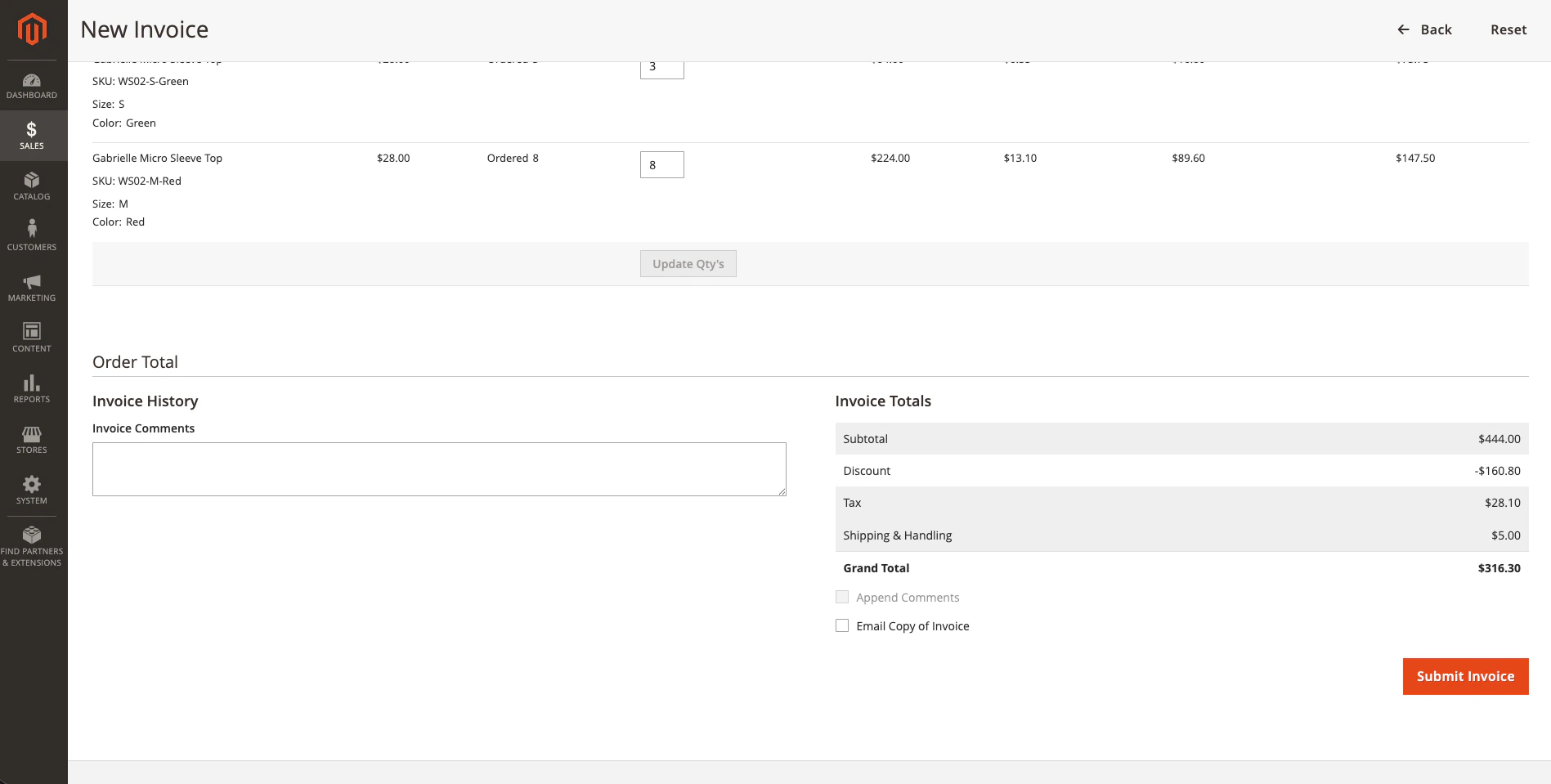
Credit Memo (Tax Void)
When a credit memo is created, the module sends a void request to reverse the tax transaction for the refunded amount. Both full and partial credit memos are supported.Product Sync
When a product is saved in the Magento Admin, the module sends the product data to Numeral so that product categorization and tax rules can be applied correctly.Fallback Behavior
If the Numeral API is unavailable (network error, timeout, server error), the module automatically falls back to Magento’s native tax engine. The order proceeds normally with native tax amounts. No manual intervention is needed. When fallback occurs, no tax transaction is recorded in Numeral. The order’snumeral_calculation_id field remains empty, and subsequent invoice/credit memo events are skipped for that order.
Testing Your Integration
Using Test Mode
- Enable Test Mode in the module configuration
- Place a test order through checkout
- Verify tax amounts appear at the checkout shipping step
- Create an invoice for the order
- Create a credit memo for the order
- Check the Numeral dashboard to confirm the test transactions
Verification Checklist
- Tax amounts display correctly at checkout
- Order total includes the calculated tax
- Invoice creation succeeds and commits the tax transaction
- Full credit memo reverses the tax transaction
- Partial credit memo sends the correct refund amount
- Disabling the module reverts to Magento’s native tax calculation
- API failure falls back to Magento’s native tax engine gracefully
Reviewing Logs
Enable Debug Logging and checkvar/log/numeral_tax.log for API request/response details:
Performance Optimization
Deferred Total Calculation
For US-focused stores where showing tax only at checkout is standard, enable Magento’s deferred total calculation to skip tax estimation on the cart page:In-Memory Cache
The module includes an in-memory payload-hash cache that deduplicates the 4–8 calls Magento makes tocalculateTax() per page load. Identical payloads within the same HTTP request reuse the cached response. No additional caching configuration is needed.
Performance Impact
Troubleshooting
Tax not appearing at checkout
Tax not appearing at checkout
- Confirm the module is enabled: Stores > Configuration > Numeral > Tax Settings > Enable Numeral Tax = Yes
- Verify the API Key is correct (check for leading/trailing spaces)
- Enable Debug Logging and review
var/log/numeral_tax.logfor errors - Flush the cache: System > Cache Management > Flush Magento Cache
"0.00" tax amounts
"0.00" tax amounts
- Verify the shipping address is in a taxable jurisdiction
- Check that products have the correct tax class assigned in Magento
- Review the Numeral dashboard for the calculation details — the API may have returned zero tax legitimately
API errors in logs
API errors in logs
Module conflicts
Module conflicts
If another tax extension is installed (Avalara, TaxJar, Vertex), disable it before enabling Numeral Tax. Only one tax calculation provider should be active at a time.
Cache issues
Cache issues
If configuration changes do not take effect:
- Go to System > Cache Management
- Click Flush Magento Cache
- If using a full-page cache (Varnish, Fastly), purge that cache as well
Support
- Dashboard: dashboard.numeralhq.com
- Email: support@numeralhq.com