

Before you begin, you need access to the M3 tax configuration and to Infor OS → API Gateway → Authorized Apps.
What you’ll do
- Start the connection in Numeral
- Create the application in Infor
- Download and upload the
.ionapifile - Save the credentials generated by Numeral
- Configure M3 to use Numeral
- Save and verify the connection
1. Start the connection in Numeral
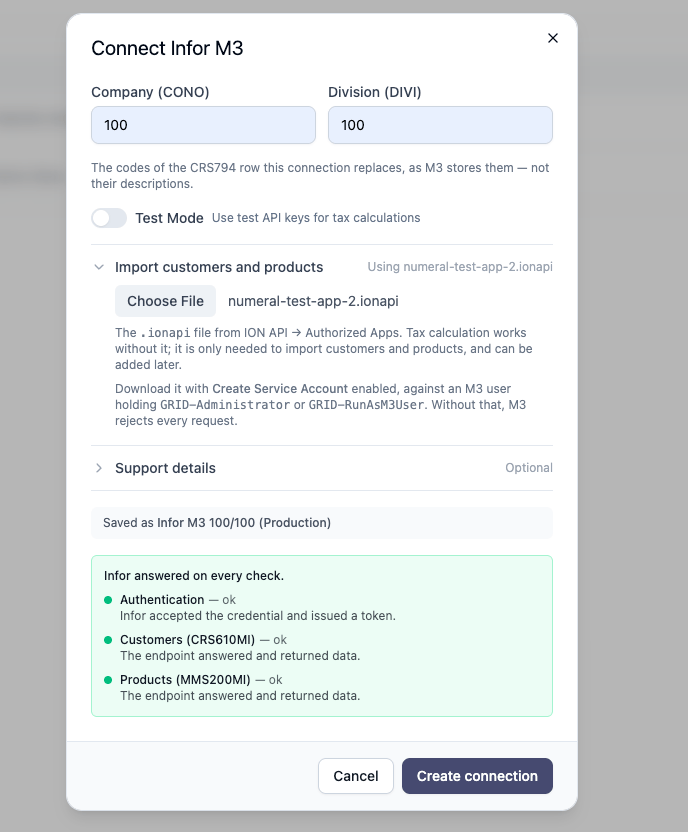
In Numeral, go to Connections → Add connection → Infor M3.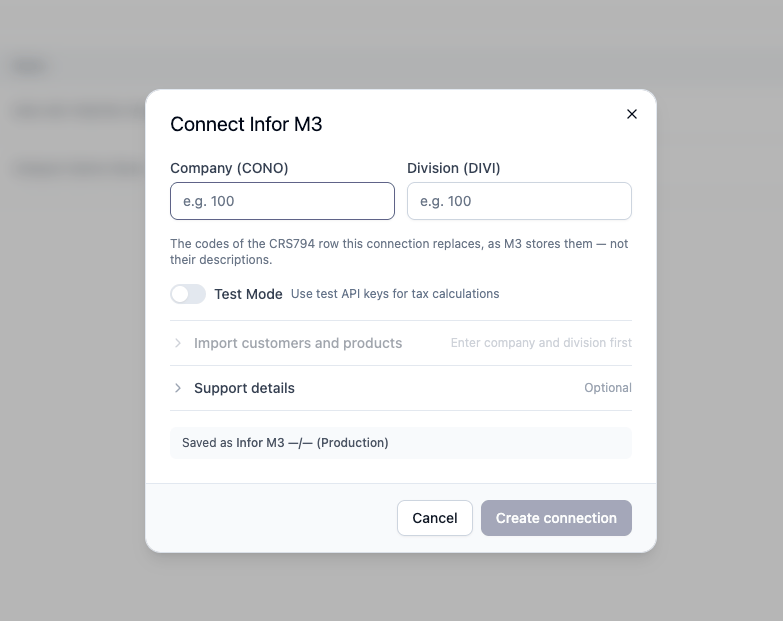
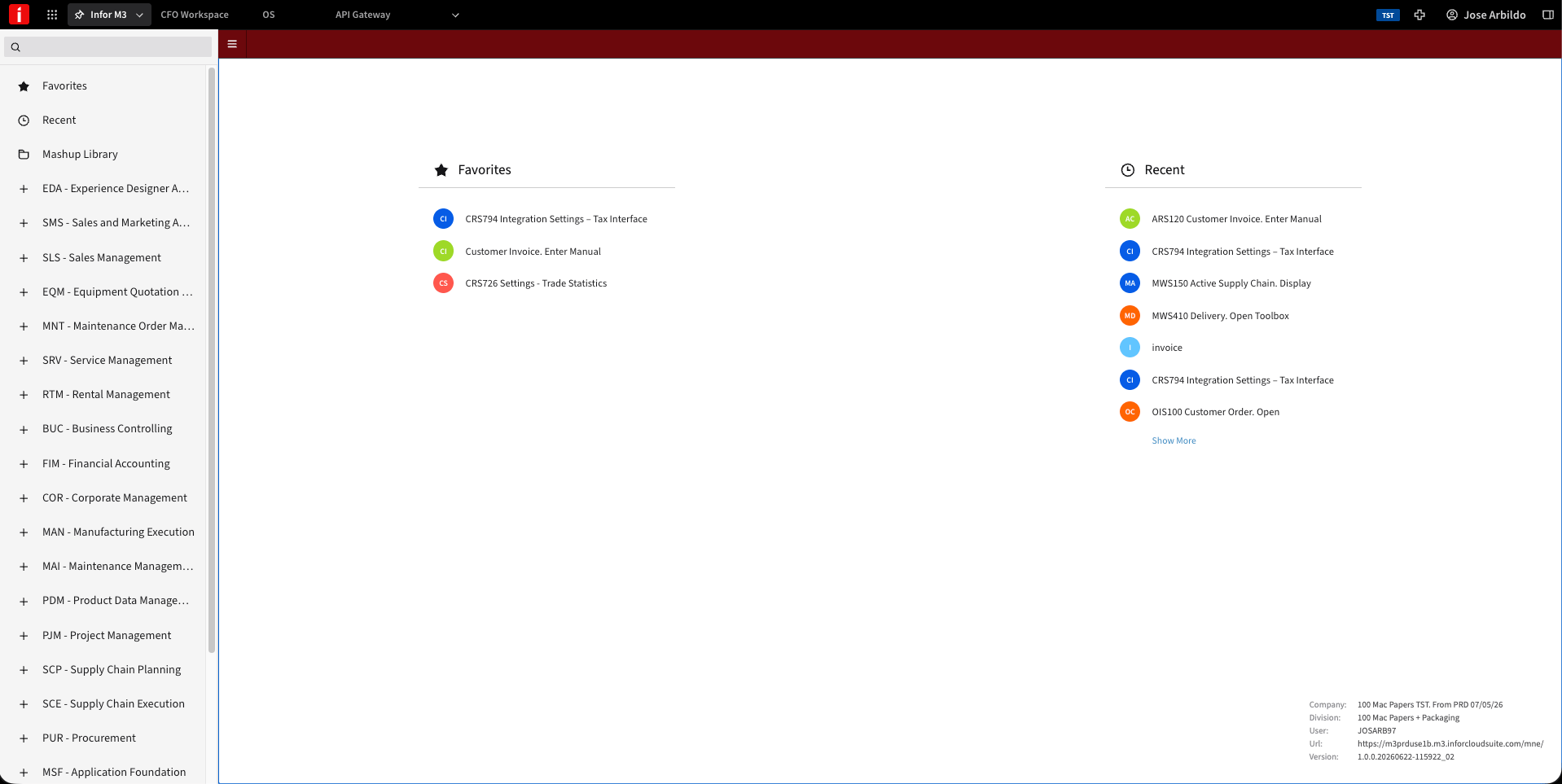
Use the company and division you want to connect. Each connection corresponds to one combination of these values.
- Enable Test Mode for testing.
- Leave it disabled to use Numeral in production.
2. Create the application in Infor
This step enables customer and product imports. Keep the Numeral form open and, in Infor, go to OS → API Gateway → Authorized Apps → Add. Configure the application with the following values: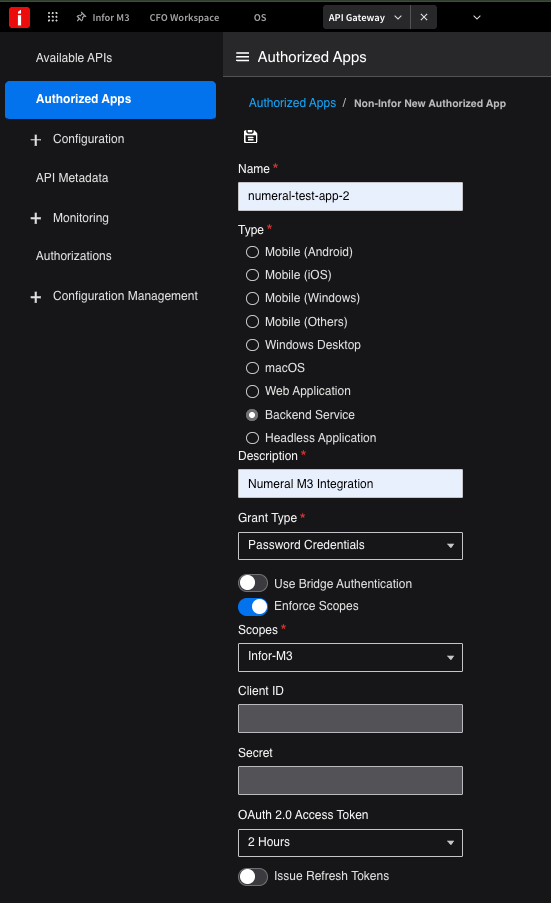
3. Download and upload the .ionapi file
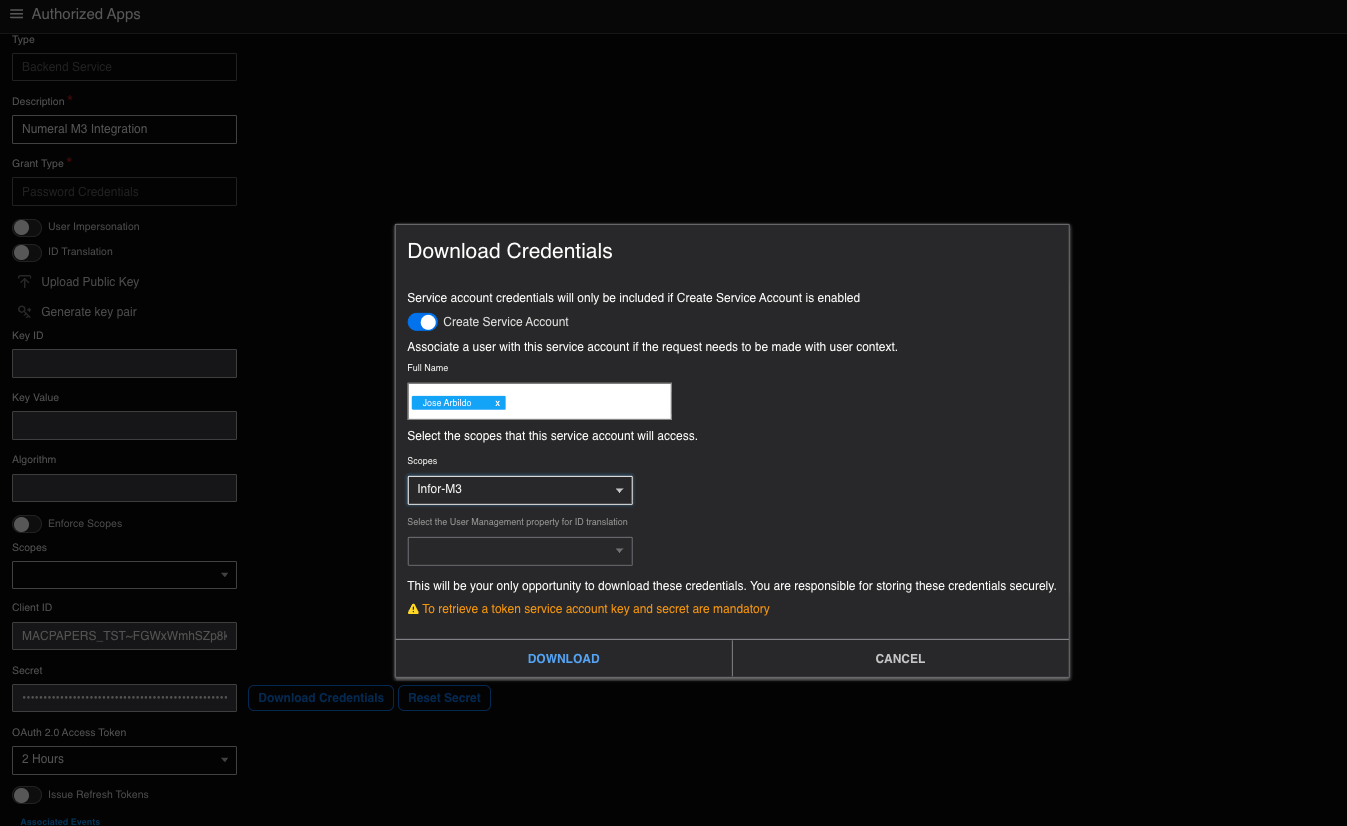
In the saved application, click Download Credentials. In the dialog:
- Enable Create Service Account.
- Under Full Name, search by name for a user authorized to access the M3 data and select the user from the results. Entering only their name or code is not enough.
- Under Scopes, select Infor-M3.
- Click Download and store the
.ionapifile securely.
- Expand Import customers and products.
- Click Choose File and select the downloaded file.
- Wait for Numeral to validate authentication and access to customers and products.
- When all checks pass, click Create connection.
4. Save the credentials generated by Numeral
Numeral will display three values: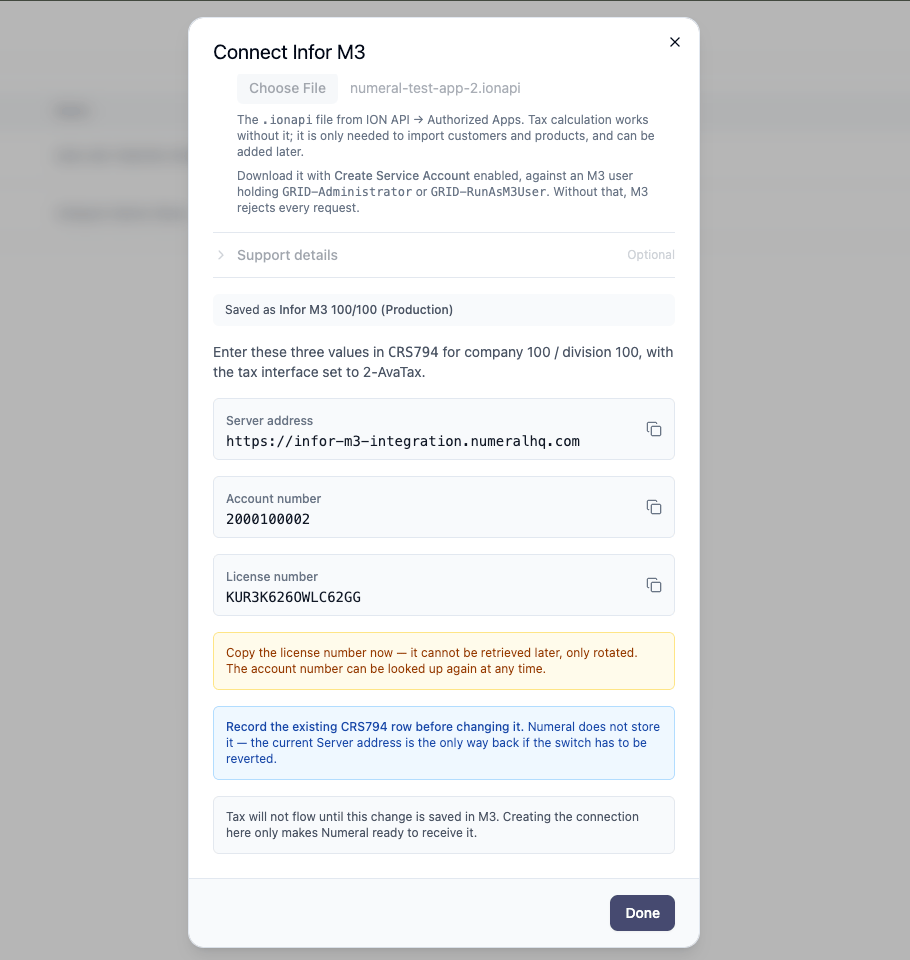
5. Configure M3 to use Numeral
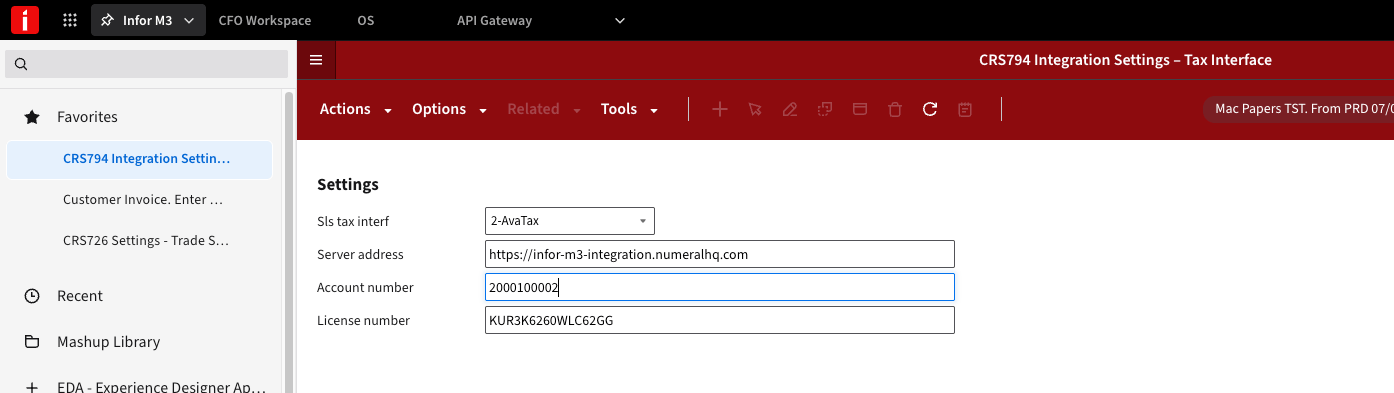
In Infor M3, openCRS794 — Integration Settings – Tax Interface and select the same company and division you entered in Numeral.
Complete the fields as follows:
Select 2-AvaTax, even though you are connecting Numeral. For the remaining fields, use the Numeral credentials, not those of the previous provider.
6. Save and verify the connection
- Click Next to save the changes in M3.
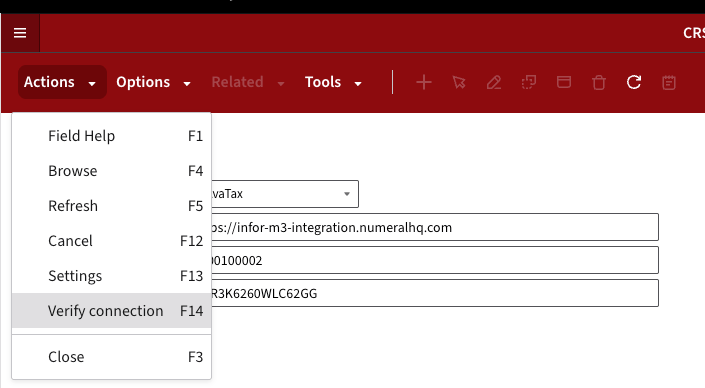
- Open Actions and select Verify connection.
- Confirm that the verification completes successfully.
Product Categorization
Correct product categorization is essential for accurate tax calculation. Product categories set in Infor M3 do not carry over to Numeral — categories must be set up directly within your Numeral account. During onboarding, your Onboarding Manager will help set up initial product categories in Numeral and show you how to manage them going forward.Final checklist
- Company and Division match in Numeral and M3.
- Test Mode is set appropriately for testing or production.
- The
.ionapifile was validated if imports were enabled. - Server address, Account number, and License number were stored securely.
-
CRS794uses 2-AvaTax with the Numeral credentials. - Verify connection completed successfully.