

Before you start
Work through this checklist; each item is needed by a later step:- A Numeral account with admin access
- You are a Super Admin in the HubSpot portal you want to connect (HubSpot requires this to install apps)
- Invoices are enabled in HubSpot if you bill from HubSpot (Settings → Objects → Invoices)
- Your deals’ associated company records carry a full US address (street, city, state, ZIP) — this address determines the taxing jurisdiction, and deals without it are skipped
Step 1 — Connect your HubSpot portal
- In Numeral, go to Connections in the left navigation
- Click Add a Connection
- Find and click the HubSpot card
- Enter a Connection Name (anything that helps you recognize the portal later), then click Continue
- Your browser goes to HubSpot. If you belong to several HubSpot accounts, an account chooser appears — pick the portal you want to connect
- Review the consent screen and click Connect app. If this portal authorized Numeral before, HubSpot skips the consent screen and shows “previously authorized, redirecting” — that is normal
You should now be back on the Numeral Connections page, with your HubSpot connection showing as connected. If you hit an error instead, jump to Troubleshooting.
Installing from the HubSpot marketplace insteadIf you start from the app’s HubSpot marketplace listing, the order flips: HubSpot authorizes first, then you sign in to Numeral and see a confirmation — “Connect HubSpot portal X to [account]?” — before anything is created. Check the account name on that screen; the portal attaches to whichever Numeral account you confirm. Both paths end at the same connected state.
Step 2 — Add the Numeral cards in HubSpot
HubSpot never shows app cards automatically; you add each card once, and it then appears for everyone in the portal.
Deal card
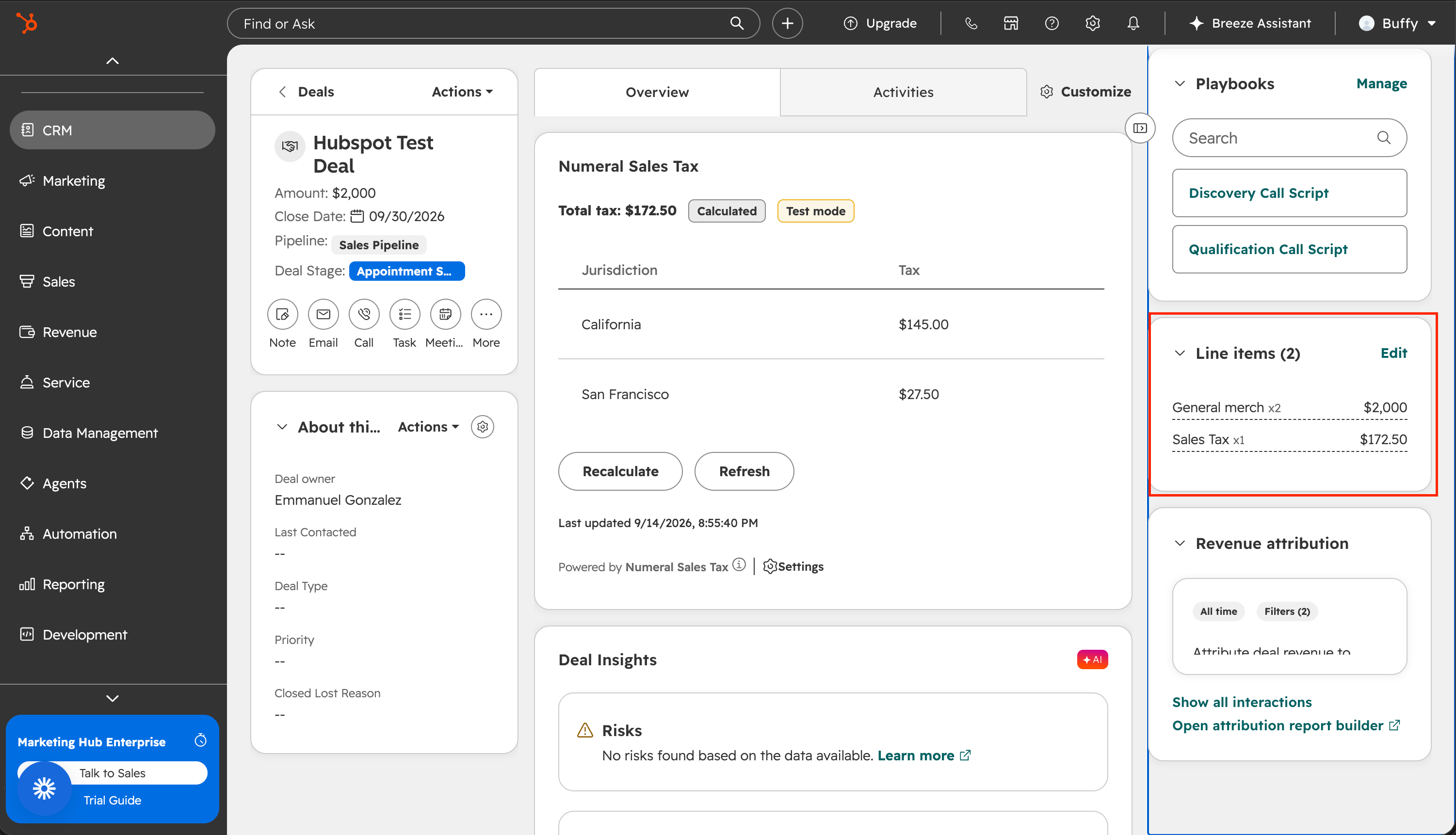
The deal card shows the tax total, a jurisdiction-by-jurisdiction table, and a Recalculate button.- Open any deal record in HubSpot
- In the middle column, click Customize tabs (also reachable via Settings → Objects → Deals → Record customization)
- Pick a tab (or add one), click Add cards, and select Numeral Sales Tax under Apps
- Save
Invoice card
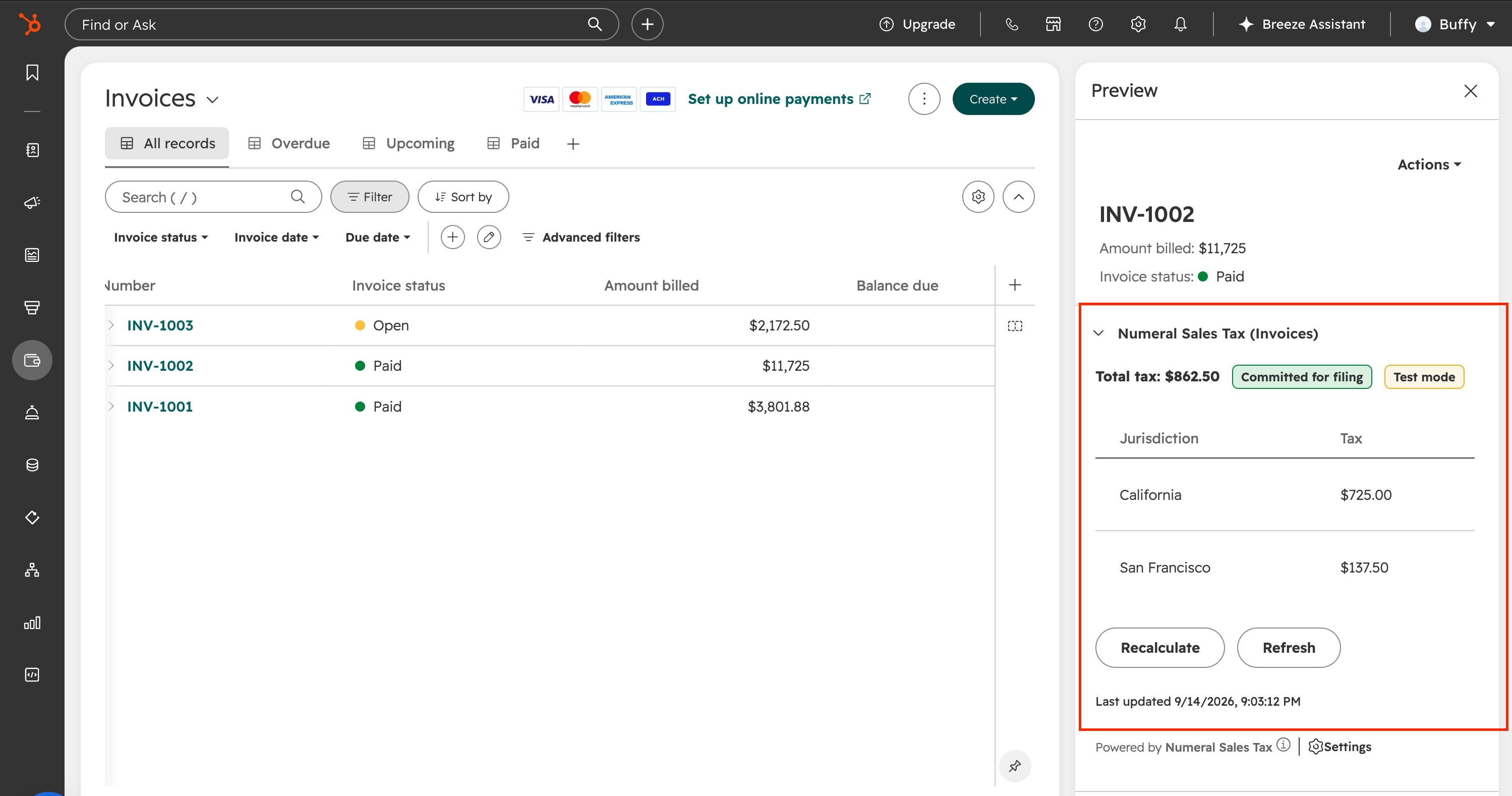
The invoice card shows when an invoice has been recorded for filing.
Invoices have no full record pages in HubSpot, so this card lives in the invoice preview panel.
- Open any record with an invoice (deal, contact, or company), find the invoice in the Invoices card in the right sidebar, and click it to open the preview
- In the preview, click the gear icon in the “About this invoice” section
- Add the Numeral Sales Tax (Invoices) card and save
You should now see the Numeral Sales Tax card on deal records (it reads “No tax calculated yet” until Step 3) and the invoices card in the preview panel.
Step 3 — Verify with a test deal
This is the proof the connection works end to end.
- In HubSpot, create a new deal (any pipeline)
- Associate a company that has a complete US address
- In the deal’s Line items section, add one or two products with prices
- Wait a few seconds and refresh the deal
A “Sales Tax” line item should appear among the deal’s line items, and the Numeral Sales Tax card should show the total with a jurisdiction breakdown (for a California address: a California row and a city or county row). Edit a line item’s price and watch both update.
Step 4 — Review your settings
Open the app’s settings in HubSpot: Settings (gear) → Integrations → Connected apps → Numeral Sales Tax → Settings tab.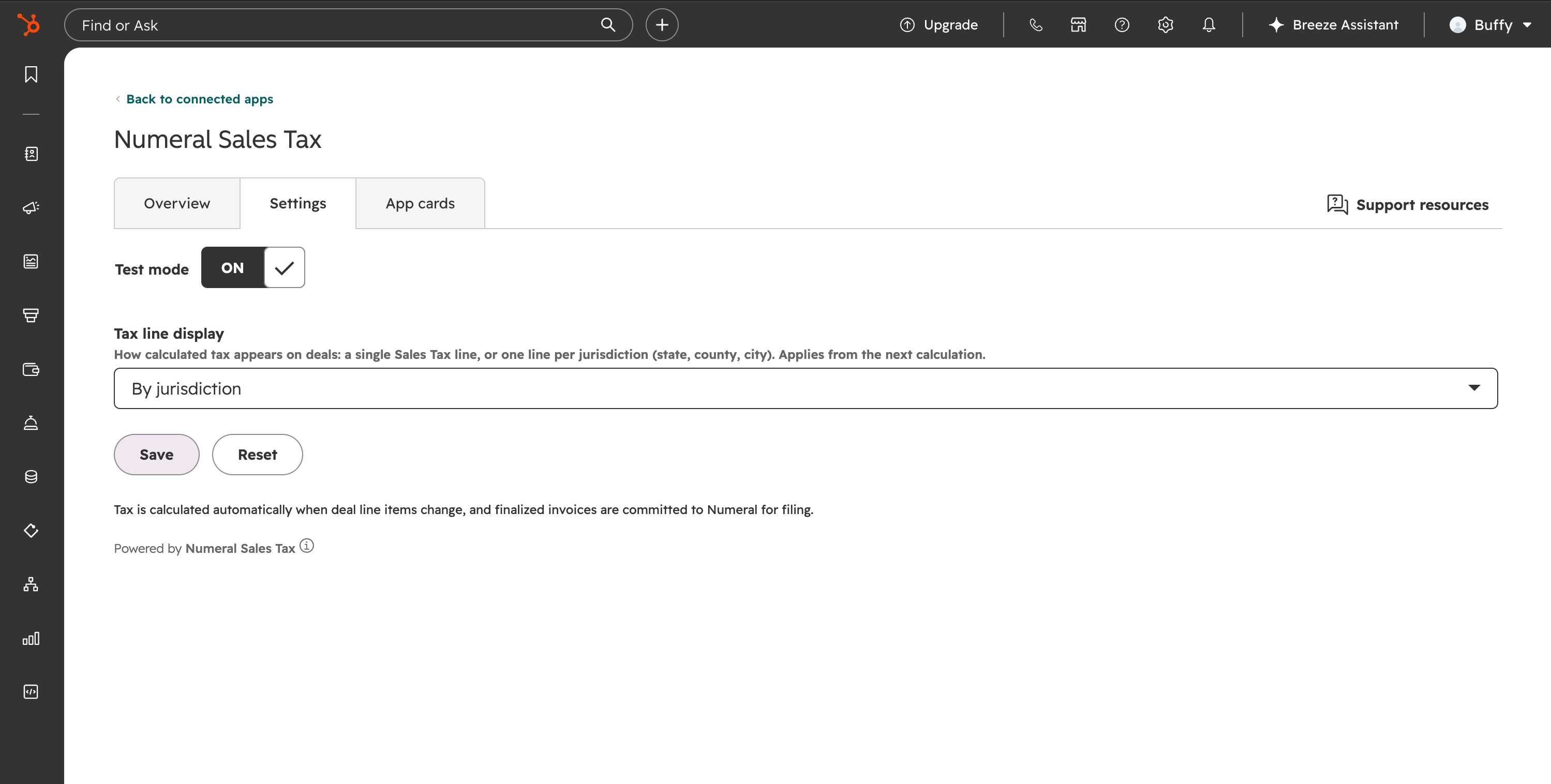
Setup is complete. From here, tax appears on deals automatically, finalized invoices are recorded for filing, and your invoice history imports in the background. The sections below are reference.
What Numeral accesses
The consent screen in Step 1 lists these scopes:
Your OAuth tokens are stored encrypted. Numeral never modifies your deals beyond the Sales Tax line item, and never deletes anything you created.
How the integration works
On deals: when line items change, Numeral waits a few seconds for the burst of edits to settle, calculates once from the associated company’s address, and creates or updates the Sales Tax line in place. The Sales Tax line is excluded from its own calculation; unpriced products are skipped; if nothing taxable remains, the line is removed. Deleting the line by hand is safe — it is restored on the next change or Recalculate. On quotes: creating a quote refreshes the deal’s tax first, so the quote’s snapshot includes the current Sales Tax line. On invoices: invoices created from a deal inherit its line items, including the Sales Tax line. When an invoice reaches Open (finalized) or Paid, Numeral records it for filing exactly once — marking it paid later, or delivery retries, never double-record it. Drafts are never recorded; voids and refunds after recording are reconciled by the background sync. In the background: the product catalog syncs at connect time and stays current; your invoice history imports so prior periods can be filed; a safety sweep retries any invoice whose recording failed transiently, so nothing is silently lost. At filing time: Numeral aggregates your HubSpot sales for the period and prepares the return for review on the Filings page.Troubleshooting
No Sales Tax line appears on my deal
No Sales Tax line appears on my deal
In order of likelihood:
- The deal has no associated company, or the company’s address is incomplete — a ZIP code, or city plus state, is the minimum. Fix the address, then edit any line item (or click Recalculate on the card).
- The deal has no priced line items — items without a price are skipped.
- The connection is disconnected or broken — check the Numeral Connections page.
The Sales Tax amount looks stale
The Sales Tax amount looks stale
It should update within seconds of any change. If it does not, open the deal’s Numeral card and click Recalculate.
Someone deleted the Sales Tax line item
Someone deleted the Sales Tax line item
It is restored automatically on the deal’s next change, or immediately via Recalculate.
The card shows "Last recalculation failed"
The card shows "Last recalculation failed"
The card keeps the last good amounts, and the message says what went wrong — most often a missing or unusable address. Fix the cause and click Recalculate.
The card shows "Could not load tax details"
The card shows "Could not load tax details"
The card could not reach Numeral. Retry; if it persists, check the connection on the Numeral Connections page and contact support.
An invoice is not showing "Committed for filing"
An invoice is not showing "Committed for filing"
Only Open or Paid invoices are recorded — drafts are not. If a finalized invoice still is not recorded after a few minutes, an automatic retry runs within the hour; if it still is not, contact support with the invoice number.
I connected the wrong HubSpot portal
I connected the wrong HubSpot portal
Disconnect from the Numeral Connections page, then connect again and pick the right portal at HubSpot’s account chooser. A portal can only be attached to one Numeral account at a time.
How do I disconnect HubSpot?
How do I disconnect HubSpot?
On the Numeral Connections page, click into the HubSpot connection and use Disconnect. Numeral uninstalls the app from your portal (HubSpot emails your super admins a confirmation), removing the cards and stopping all syncing. Sales Tax lines already on deals stay as they are. Your historical filing data is preserved.