Getting Started
-
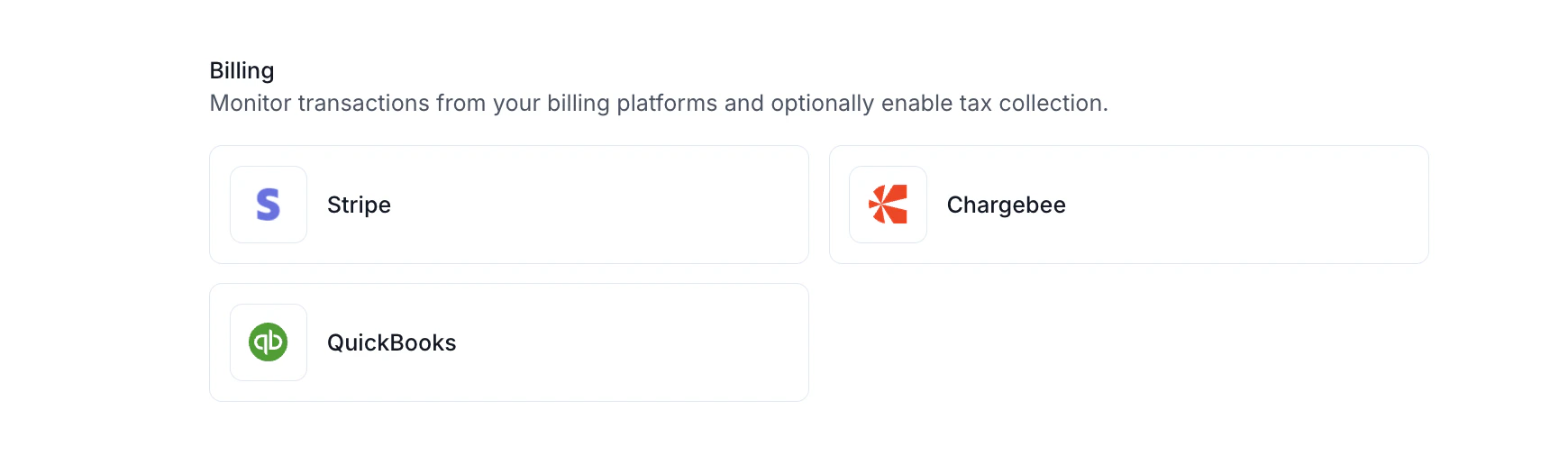
Connect your Stripe account to your Numeral dashboard — in your Numeral dashboard, click Connections on the left-hand menu, then select Stripe.
-
You will be prompted to add the Numeral app to your Stripe account. Once installed, click continue to app settings — Stripe will present you with API keys. Copy these keys and enter them into Numeral.
 If you cannot see your entire restricted key, click roll key on Stripe, then roll API key. Stripe will require a verification process. Once verified, your full restricted key will be visible.
 -
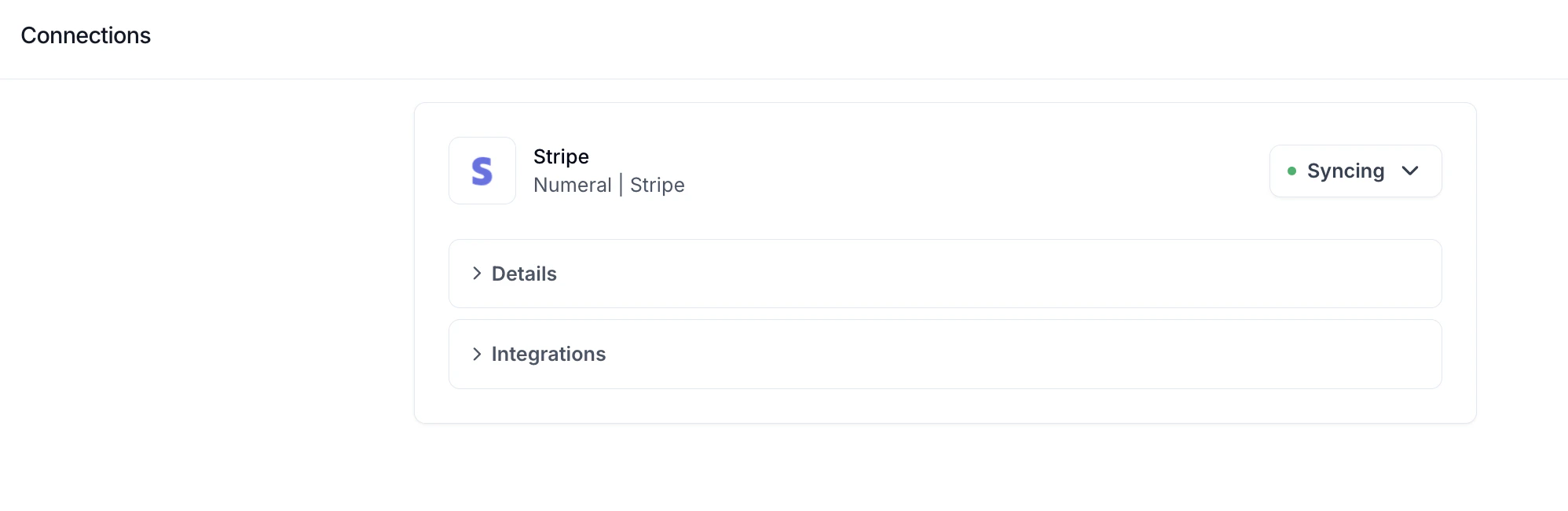
Once completed, you will see a dedicated Stripe section on your Connections page in Numeral. Status should show syncing with a green dot.
Timeline Considerations
If you are already using Stripe to apply tax rates to invoices, work with your Onboarding Manager to confirm your go-live date with Numeral. For example, if Numeral is taking over your existing sales tax registrations starting in August, meet with your Onboarding Manager on August 1 to turn off Stripe’s automatic tax calculator and turn on Numeral’s tax engine.If your start date with Numeral is August 1, the tax engine will not attempt to collect before this date. Numeral only attempts to collect tax in states where your company has a sales tax registration.To confirm your start dates and registered states, navigate to the Jurisdictions tab in your Numeral account.
Updating and Confirming Configurations
During your go-live call, your Onboarding Manager will confirm that:- Stripe’s automatic tax calculations are turned off
- Numeral’s tax engine is enabled
- Stripe’s tax behavior is set to exclusive
Disable Stripe's Automatic Calculations
Disable Stripe's Automatic Calculations
Log in to your Stripe account and go to Tax Settings > Integrations > toggle off Use automatic tax under Dashboard Transactions.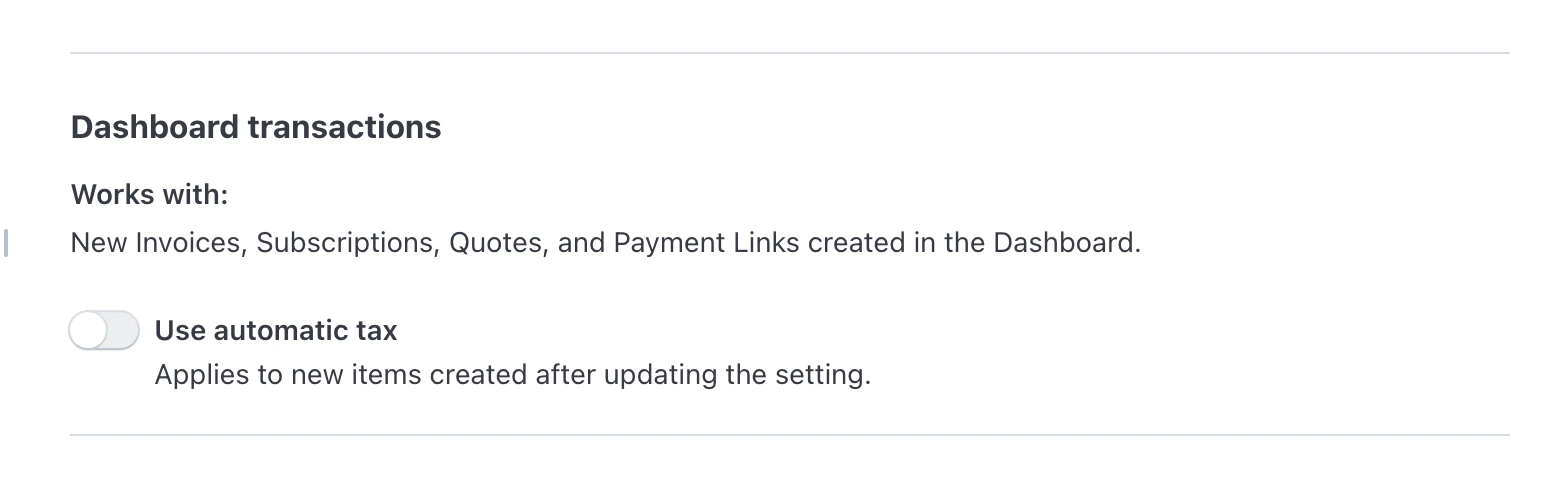
Confirm that Numeral's Tax Engine is Enabled
Confirm that Numeral's Tax Engine is Enabled
Go to Connections > Stripe, then open the Integrations dropdown within the Stripe section. You’ll see a row for Stripe Invoices — this should be toggled on.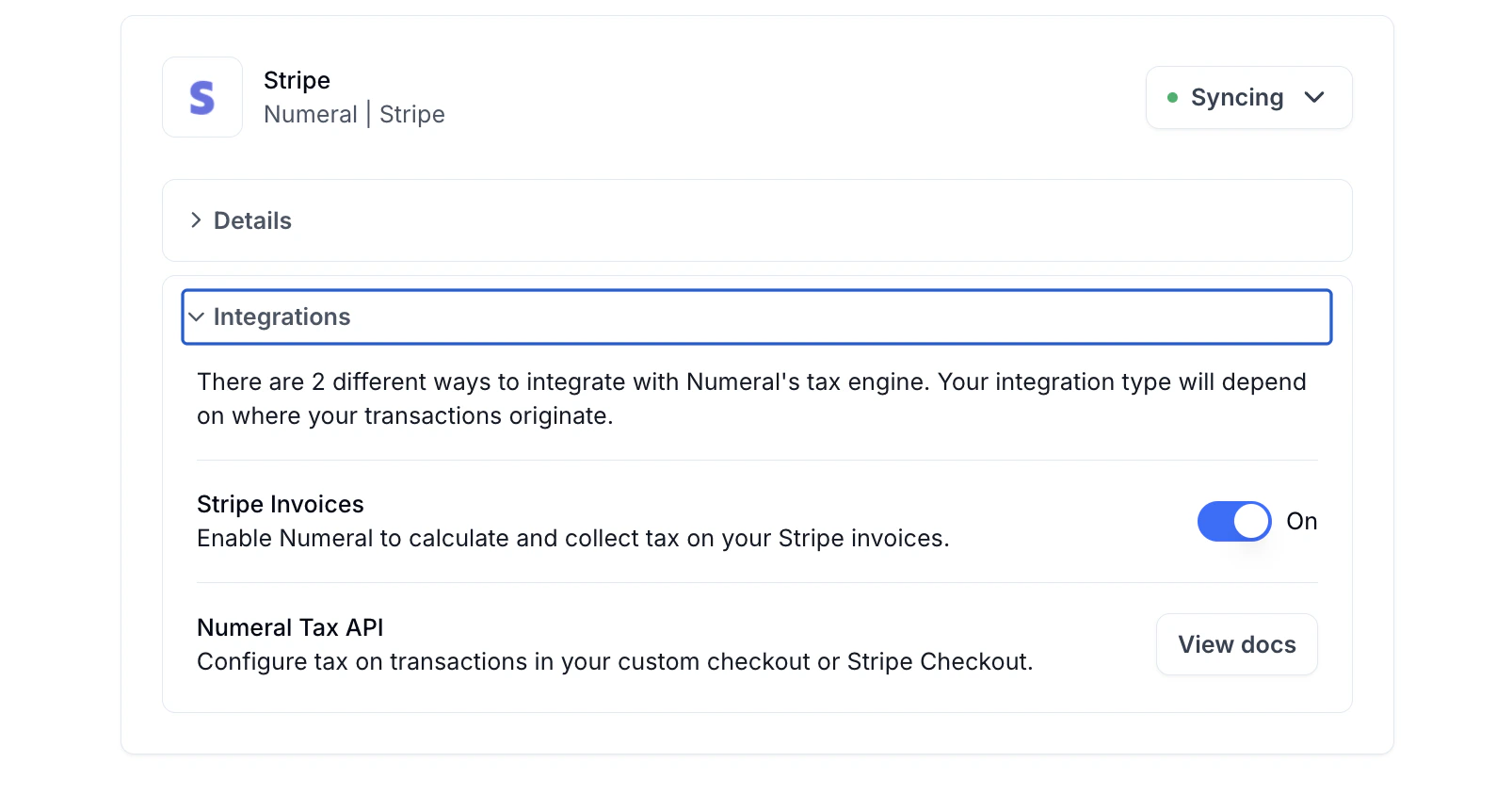
Set Your Default Tax Behavior to Exclusive
Set Your Default Tax Behavior to Exclusive
To ensure taxes are calculated correctly, your default tax behavior should be set to exclusive in Stripe. With exclusive tax, sales tax is added on top of the product price — for example, if a product is listed at 5.50 at checkout.If your products are set to inclusive tax, the correct tax cannot be applied.See Stripe’s step-by-step instructions for updating this setting.
Product Categorization
Correct product categorization is essential for accurate tax calculation. Product categories set in Stripe do not carry over to Numeral — categories must be set up directly within your Numeral account. During onboarding, your Onboarding Manager will help set up initial product categories in Numeral and show you how to manage them going forward. Numeral’s tax engine uses these categories to determine the correct taxability for each product.Edit an Existing Product
- Go to Developers → Products.
- Click the Edit icon next to the product you want to update.
- Search for and select the correct Product Category.
- Save your changes.
Add a New Product
- Navigate to Developers → Products → Create Product.
- Enter the Product ID (this should match the Product ID in your sales platform).
- Add the Product Name.
- Select or type the appropriate Product Category.
- Click Create Product to save.
Creating an Invoice within Stripe
Customers
- If your customer is not located in a state where you have an active registration set within Numeral, sales tax will not be applied.
- If your client has both a shipping and billing address, tax will default to the shipping address.
- If your client has a billing address but no shipping address, tax will be applied based on the billing address.
How Numeral determines the customer’s address
Numeral always starts with the shipping address on the invoice itself. If that address is complete, it is used to calculate tax. If the invoice’s shipping address is missing or incomplete, Numeral falls back through the following sources in order and uses the first complete address it finds. Any fields already present on the invoice’s shipping address are kept — only the missing fields are filled in from the fallback.- Customer shipping address on the invoice — the shipping address copied from the customer record onto the invoice when it was created.
- Customer billing address — the current billing address on the Stripe customer.
- Customer billing address on the invoice — the billing address as it was when the invoice was created. This is used when the customer record has been edited since the invoice was generated.
- Payment method on the invoice — the billing address on the payment method used to pay the invoice.
- Invoice custom fields — Numeral scans the invoice’s custom fields for a postal code and state.
- Customer’s saved payment methods — the billing address on the customer’s saved payment method.
An address is considered complete when it includes both a state or province and a postal code. For addresses outside the US and Canada, only the country is required, since many international addresses do not include a state or province.
- If the best available address has a country outside the US and Canada, Numeral uses that address as-is.
- If a US ZIP code was found in any of the sources, Numeral derives the state from the ZIP code and calculates tax based on it.
- If no usable address can be found at all, tax cannot be applied to the invoice.
California becomes CA.
If a customer should be exempt from sales tax, mark them as exempt in Stripe: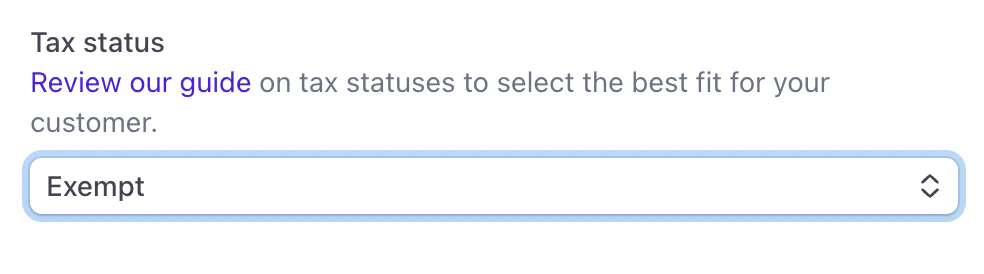
- In your Stripe account, go to Customers from the left-hand navigation.
- Select the customer’s name.
- On the right side, click the pencil icon next to Details.
- Scroll down to Tax Status and mark the customer as Exempt.
Items
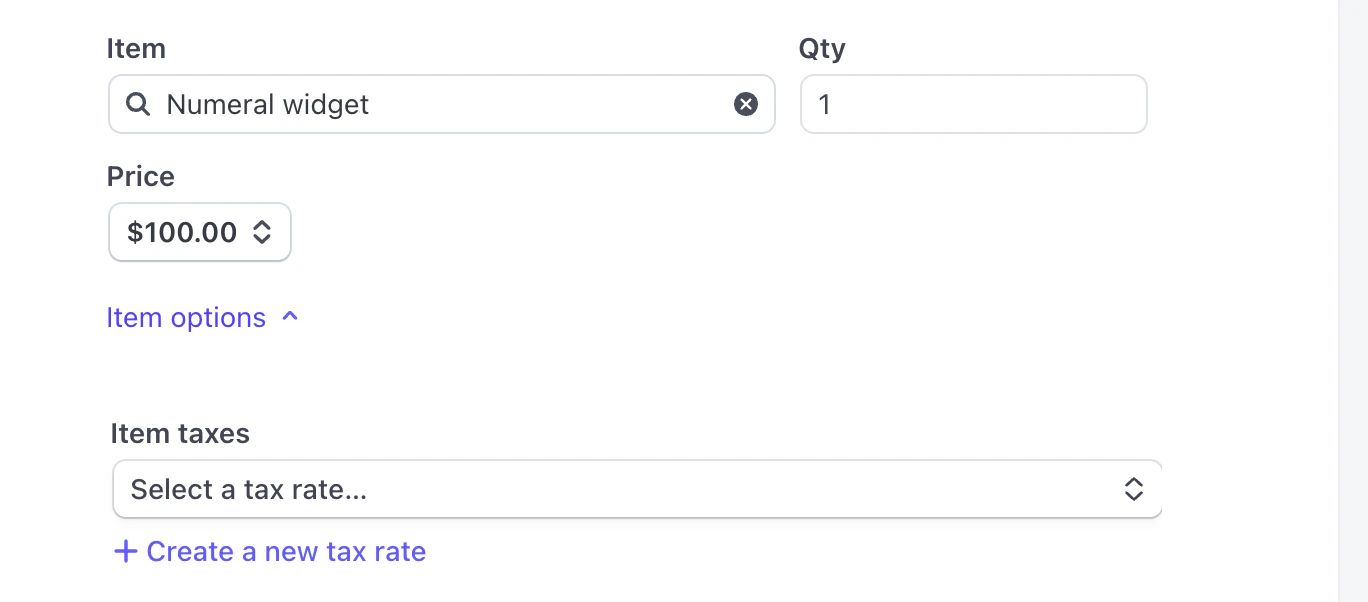
When adding items, Numeral will only apply a tax rate if the item’s product category is taxable within your customer’s jurisdiction. Confirm product categories with your Numeral Onboarding Manager — product categories within Stripe do not apply.Tax Rates
Numeral adds tax via webhook: when you save a draft invoice, Numeral receives a notification from Stripe, checks whether the customer is in a registered jurisdiction, and writes the correct tax rates back to the invoice. Stripe only allows invoices to be modified while they are in draft — once finalized, they can’t be changed. You must leave the invoice as a draft until Numeral has applied tax. To add tax to your invoices using Numeral’s Tax Engine in Stripe:- Add your customer and item information.
- Save the invoice as a draft — do not finalize it yet.
- Wait a few seconds for Numeral to apply tax (allow up to five minutes), then refresh your browser.
- If any items are taxable, Numeral will have automatically added a tax line to the invoice preview.
- Once the tax line appears, you can finalize and send the invoice.
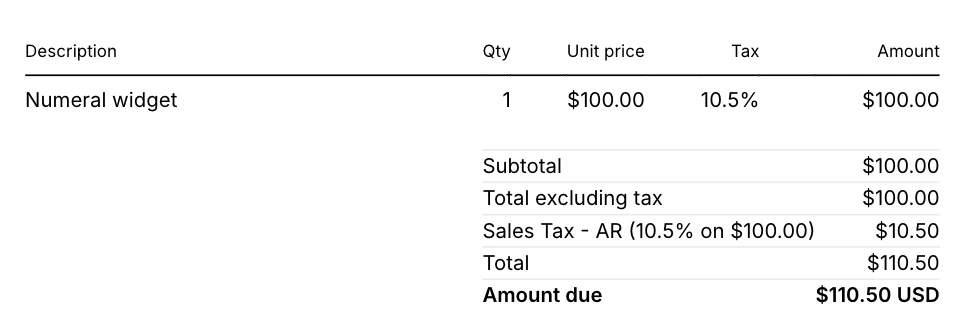
Don’t add a tax rate when Stripe prompts you after generating an invoice.With Stripe’s automatic tax collection turned off, you may see a prompt to select a tax rate on the invoice. Skip this step — Numeral will automatically apply the correct tax rate for any taxable items.