> ## Documentation Index
> Fetch the complete documentation index at: https://docs.numeral.com/llms.txt
> Use this file to discover all available pages before exploring further.
# BigCommerce
> Connect your BigCommerce store to Numeral for real-time US sales tax calculation at checkout.
Numeral calculates sales tax for your BigCommerce store in real time at checkout. You create a dedicated API account in BigCommerce, connect it to Numeral using those credentials, and Numeral takes over as your store's tax provider — calculating tax on every order and syncing completed transactions, refunds, and voids back automatically.
**Before you begin,** make sure you have:
* Admin access to your BigCommerce store's admin panel
* A Numeral account
Numeral offers two ways to connect a BigCommerce store: through the BigCommerce Marketplace app (OAuth), or by connecting directly with API credentials. This guide walks through the **API credentials** method.
***
## Part 1: Create your API credentials in BigCommerce
### Step 1 — Create an API account
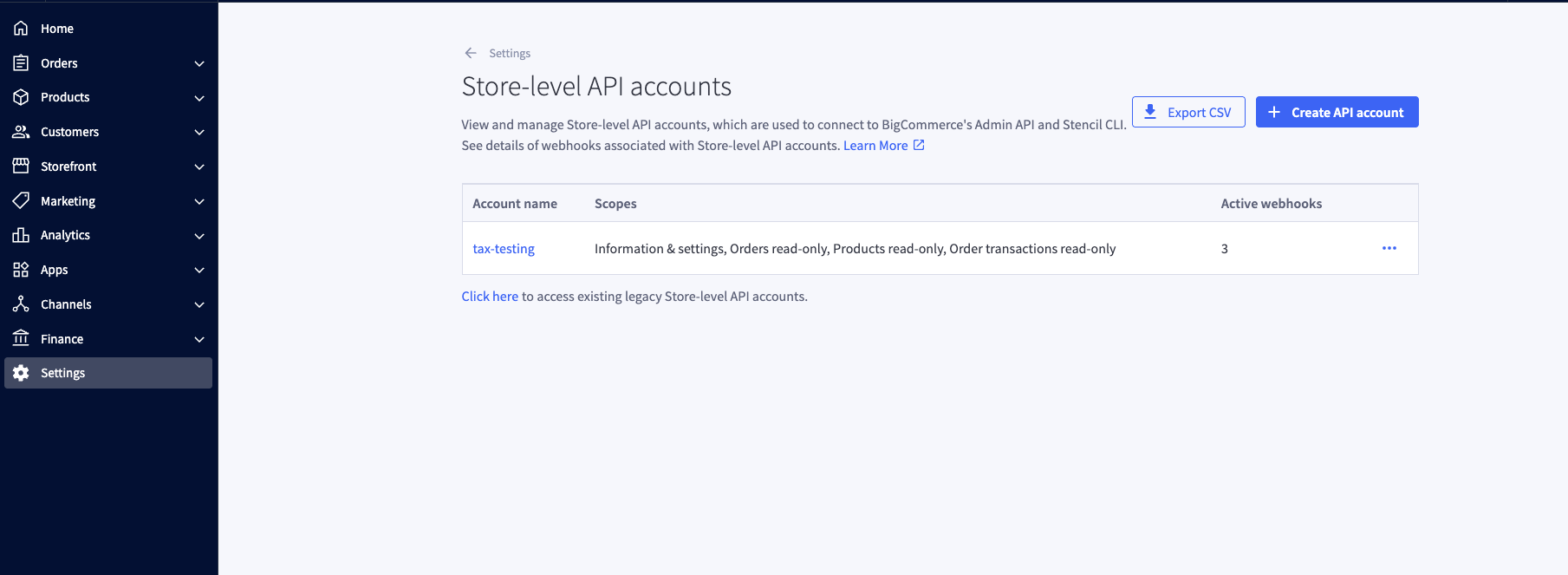
1. In your **BigCommerce Admin Panel**, go to **Settings → API → Store-level API accounts**.
2. Click **Create API Account**.
 ### Step 2 — Configure the API account
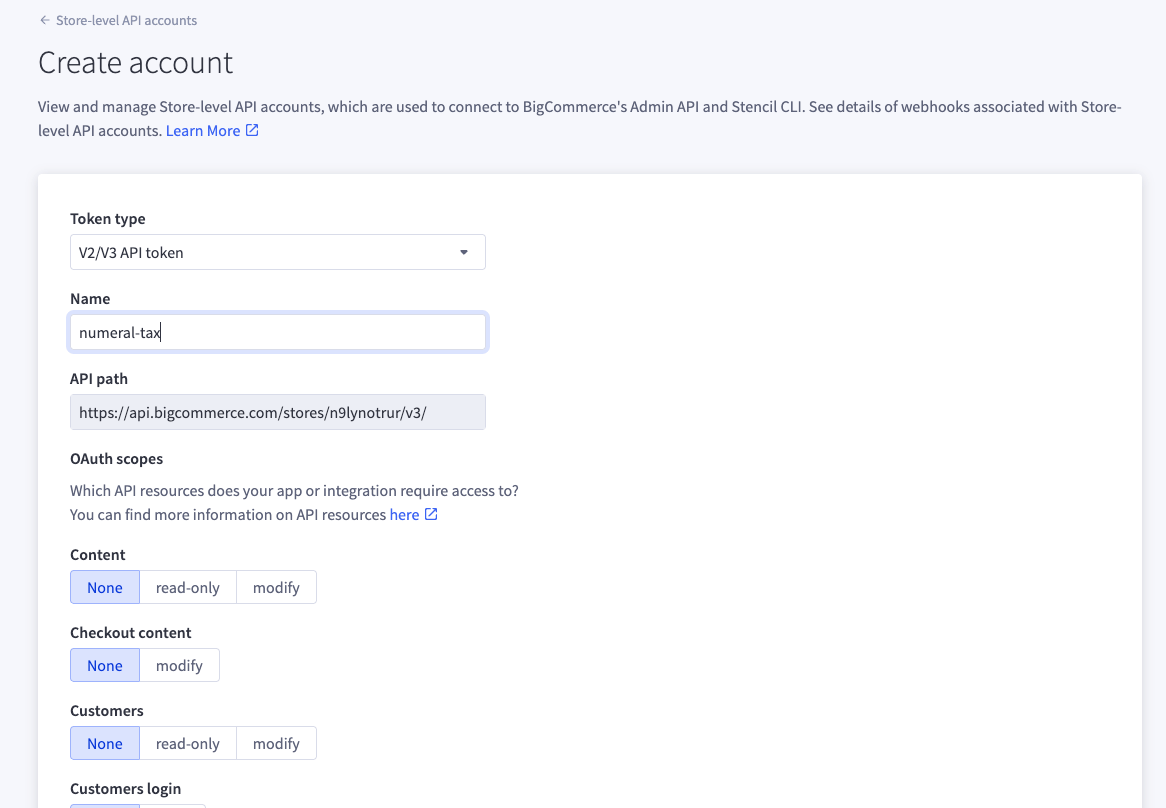
| Field | Value |
| -------------- | ----------------------------------------- |
| **Token type** | V2/V3 API token |
| **Name** | `numeral-tax` (or any descriptive name) |
| **API path** | Auto-generated (contains your store hash) |
### Step 2 — Configure the API account
| Field | Value |
| -------------- | ----------------------------------------- |
| **Token type** | V2/V3 API token |
| **Name** | `numeral-tax` (or any descriptive name) |
| **API path** | Auto-generated (contains your store hash) |
 ### Step 3 — Select the required scopes
Set **exactly** these scopes — everything else should be left as **None**:
| Scope | Level | Why Numeral needs it |
| -------------------------- | ------------- | -------------------------------------- |
| **Information & settings** | **modify** | Registers Numeral as your Tax Provider |
| **Products** | **read-only** | Product sync |
| **Customers** | **read-only** | Customer sync |
| **Orders** | **read-only** | Order sync |
| **Order transactions** | **read-only** | Transaction sync |
If any scope is missing, the connection may still be created, but some functionality will fail silently. For example, without **Products: read-only**, product sync won't work.
### Step 4 — Save and copy your credentials
1. Click **Save**.
2. BigCommerce displays your credentials — copy both before closing the window:
| Credential | Description |
| ---------------- | ----------------------------------------------- |
| **API path** | `https://api.bigcommerce.com/stores/{hash}/v3/` |
| **Access token** | Your API access token |
### Step 3 — Select the required scopes
Set **exactly** these scopes — everything else should be left as **None**:
| Scope | Level | Why Numeral needs it |
| -------------------------- | ------------- | -------------------------------------- |
| **Information & settings** | **modify** | Registers Numeral as your Tax Provider |
| **Products** | **read-only** | Product sync |
| **Customers** | **read-only** | Customer sync |
| **Orders** | **read-only** | Order sync |
| **Order transactions** | **read-only** | Transaction sync |
If any scope is missing, the connection may still be created, but some functionality will fail silently. For example, without **Products: read-only**, product sync won't work.
### Step 4 — Save and copy your credentials
1. Click **Save**.
2. BigCommerce displays your credentials — copy both before closing the window:
| Credential | Description |
| ---------------- | ----------------------------------------------- |
| **API path** | `https://api.bigcommerce.com/stores/{hash}/v3/` |
| **Access token** | Your API access token |
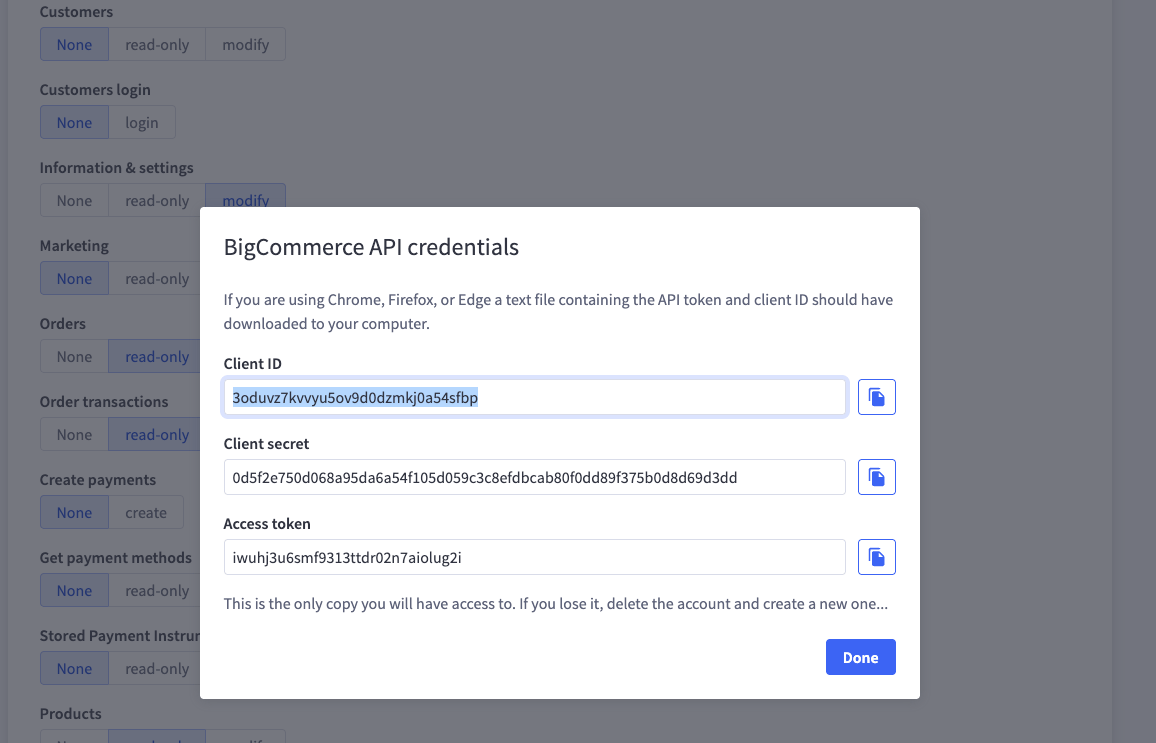 Credentials are shown **only once**. If you close the window without copying them, you'll need to delete this API account and create a new one.
***
## Part 2: Connect BigCommerce to Numeral
### Step 5 — Add a BigCommerce connection
1. In the Numeral dashboard, go to **Connections**.
2. Click **Add Connection** and select **BigCommerce**.
3. Choose **Connect with API credentials**.
Credentials are shown **only once**. If you close the window without copying them, you'll need to delete this API account and create a new one.
***
## Part 2: Connect BigCommerce to Numeral
### Step 5 — Add a BigCommerce connection
1. In the Numeral dashboard, go to **Connections**.
2. Click **Add Connection** and select **BigCommerce**.
3. Choose **Connect with API credentials**.
 ### Step 6 — Enter your credentials and connect
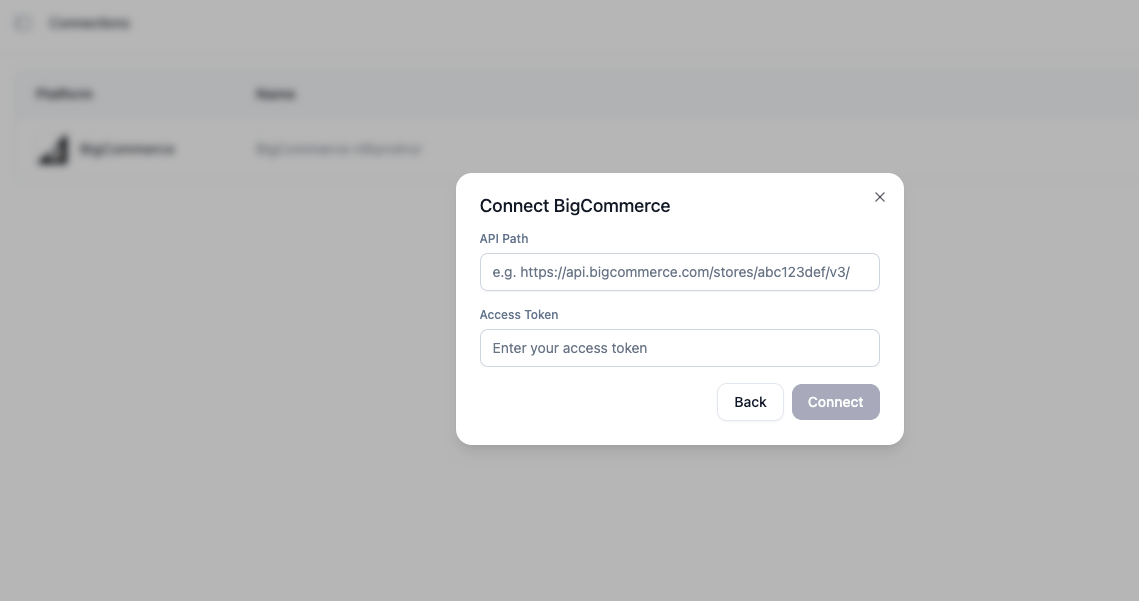
| Field | What to paste | Example |
| ---------------- | ----------------------------- | --------------------------------------------------- |
| **API Path** | The full API path from Step 4 | `https://api.bigcommerce.com/stores/n9lynotrur/v3/` |
| **Access Token** | The access token from Step 4 | `eyJhbGciOi...` |
Click **Connect**.
Numeral validates your credentials against BigCommerce, creates the connection, registers itself as your store's Tax Provider, and starts syncing your product catalog — all automatically. This can take a few minutes to finish.
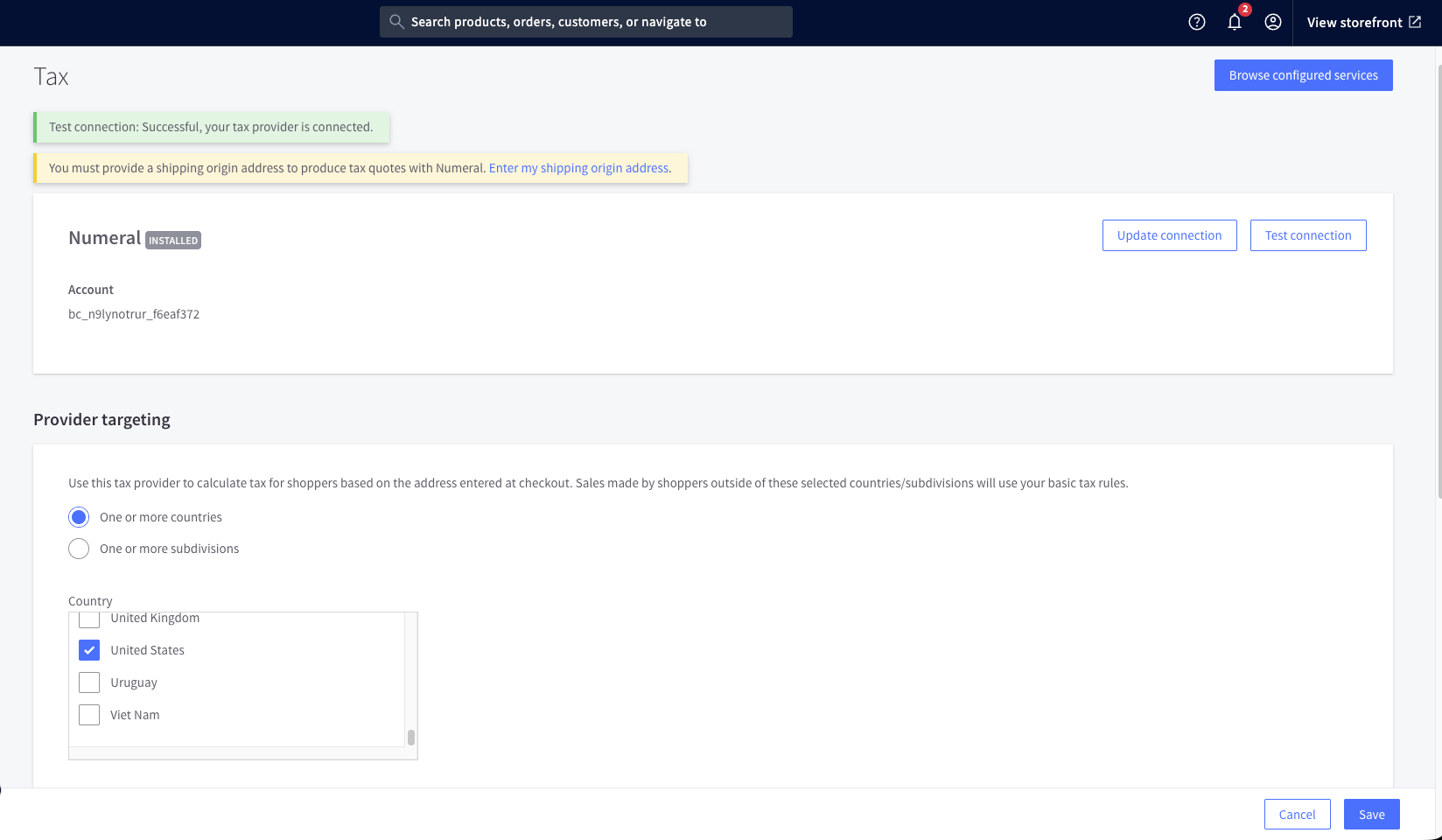
### Step 7 — Configure tax targeting in BigCommerce
Once connected, tell Numeral where it should calculate tax:
1. In **BigCommerce Admin**, go to **Settings → Tax**.
2. Next to **Numeral**, click **Edit**.
3. Under **Provider targeting**, select the countries and subdivisions where Numeral should apply.
### Step 6 — Enter your credentials and connect
| Field | What to paste | Example |
| ---------------- | ----------------------------- | --------------------------------------------------- |
| **API Path** | The full API path from Step 4 | `https://api.bigcommerce.com/stores/n9lynotrur/v3/` |
| **Access Token** | The access token from Step 4 | `eyJhbGciOi...` |
Click **Connect**.
Numeral validates your credentials against BigCommerce, creates the connection, registers itself as your store's Tax Provider, and starts syncing your product catalog — all automatically. This can take a few minutes to finish.
### Step 7 — Configure tax targeting in BigCommerce
Once connected, tell Numeral where it should calculate tax:
1. In **BigCommerce Admin**, go to **Settings → Tax**.
2. Next to **Numeral**, click **Edit**.
3. Under **Provider targeting**, select the countries and subdivisions where Numeral should apply.
 ***
## How it works
Once connected, Numeral acts as your BigCommerce store's tax provider:
1. A customer checks out in your BigCommerce store.
2. BigCommerce calls Numeral to calculate tax for the order.
3. Numeral returns the tax breakdown, which BigCommerce displays to the customer.
4. When the order completes, Numeral commits the transaction for filing.
5. Refunds and cancellations are automatically synced back to Numeral as adjustments or voids.
***
## Troubleshooting
### "Could not verify BigCommerce credentials"
| Cause | Fix |
| ------------------------------- | -------------------------------------------------------------------------- |
| Incorrect API path | Confirm the format matches `https://api.bigcommerce.com/stores/{hash}/v3/` |
| Incorrect access token | Re-copy it from BigCommerce, or create a new API account if it was lost |
| Access token expired or deleted | Create a new API account in BigCommerce and reconnect |
| Missing scopes | Confirm **Information & settings: modify** is selected |
### The connection was created, but tax isn't calculating
1. Confirm the Tax Provider registered successfully — check the connection status in your Numeral dashboard.
2. In BigCommerce, go to **Settings → Tax → Tax Services** and confirm Numeral is enabled.
3. Confirm the **Information & settings: modify** scope was selected when you created the API account.
***
## Need help?
Reach out to your Numeral implementation contact or email [support@numeralhq.com](mailto:support@numeralhq.com).
***
## How it works
Once connected, Numeral acts as your BigCommerce store's tax provider:
1. A customer checks out in your BigCommerce store.
2. BigCommerce calls Numeral to calculate tax for the order.
3. Numeral returns the tax breakdown, which BigCommerce displays to the customer.
4. When the order completes, Numeral commits the transaction for filing.
5. Refunds and cancellations are automatically synced back to Numeral as adjustments or voids.
***
## Troubleshooting
### "Could not verify BigCommerce credentials"
| Cause | Fix |
| ------------------------------- | -------------------------------------------------------------------------- |
| Incorrect API path | Confirm the format matches `https://api.bigcommerce.com/stores/{hash}/v3/` |
| Incorrect access token | Re-copy it from BigCommerce, or create a new API account if it was lost |
| Access token expired or deleted | Create a new API account in BigCommerce and reconnect |
| Missing scopes | Confirm **Information & settings: modify** is selected |
### The connection was created, but tax isn't calculating
1. Confirm the Tax Provider registered successfully — check the connection status in your Numeral dashboard.
2. In BigCommerce, go to **Settings → Tax → Tax Services** and confirm Numeral is enabled.
3. Confirm the **Information & settings: modify** scope was selected when you created the API account.
***
## Need help?
Reach out to your Numeral implementation contact or email [support@numeralhq.com](mailto:support@numeralhq.com).