> ## Documentation Index
> Fetch the complete documentation index at: https://docs.numeral.com/llms.txt
> Use this file to discover all available pages before exploring further.
# Quickstart
### Four steps to your first transaction
1. Get a TEST API key from your Numeral Dashboard
2. Create a product with a POST to `/tax/products`
3. Query a tax calculation with a POST to `/tax/calculations`
4. Record a transaction with a POST to `/tax/transactions`
## 1. Get your API credentials
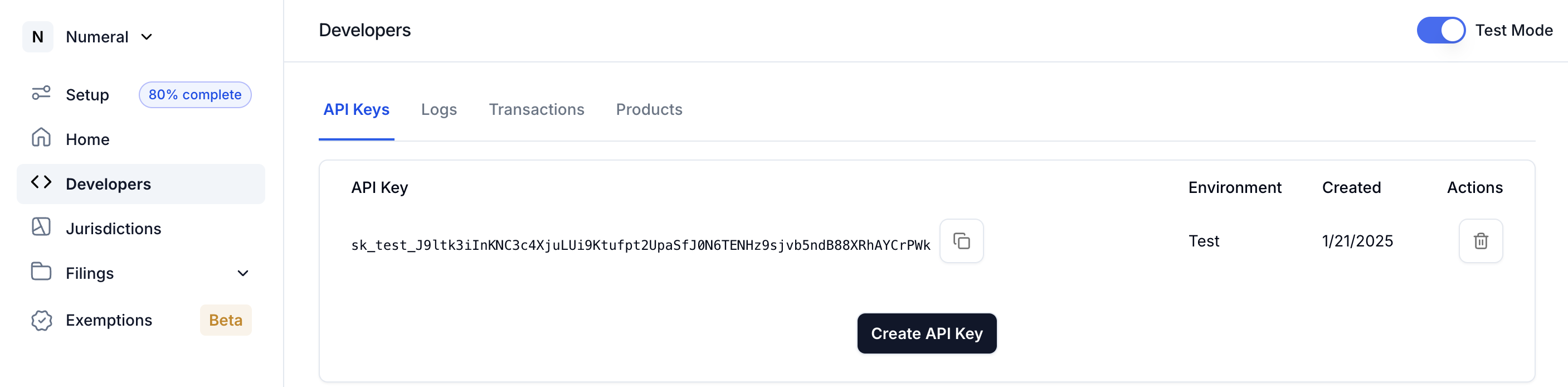
First, you need to create an key to access our API.
* Log into your [Numeral developer dashboard](https://dashboard.numeralhq.com/developers)
* Under the "API Keys" tab in your top ribbon, select the "Create API Key" button
* In the pop-up, ensure the toggle is set to "test," and push "Create API Key"
Copy that API key for use through this guide.
 ## 2. Get tax information through a `calculation`
Next, we'll get tax information for a product sale.
This example request represents a \$20 sale shipped to an address in California.
* Add the API key from step 1 to the below cURL snippet where it reads ``.
* Paste it into your terminal and execute the cURL request
* Take note of the response, especially the `total_tax_amount`, which you can find as the last field in the payload.
* Also, grab the `id` from the response. It's the first attribute returned, and we'll use it to record a transaction.
```cURL cURL theme={null}
curl --request POST \
--url https://api.numeralhq.com/tax/calculations \
--header 'Authorization: Bearer ' -H "X-PrettyPrint:1" \
--header 'Content-Type: application/json' \
--data '{
"customer": {
"address": {
"address_line_1": "798 Redwood Hwy",
"address_city": "Mill Valley",
"address_province": "CA",
"address_postal_code": "94941",
"address_country": "US",
"address_type": "shipping"
}
},
"order_details": {
"customer_currency_code": "USD",
"tax_included_in_amount": false,
"line_items": [
{
"reference_line_item_id": "line_123456789",
"product_category": "GENERAL_MERCHANDISE",
"amount": 2000,
"quantity": 1
}
]
}
}' | json_pp
```
```json theme={null}
{
//Grab this id from your response to use in the next step
"id": "calc_1723161922573fea429d8-f237-41f0-8467-bf860404d5a9",
"customer_currency_code": "USD",
"expires_at": 1723248322,
"line_items": [
{
"amount_excluding_tax": 2000,
"amount_including_tax": 2165,
"product": {
"product_tax_code": "GENERAL_MERCHANDISE",
"reference_line_item_id": "line_123456789"
},
"quantity": 1,
"tax_amount": 165,
"tax_jurisdictions": [
//This is an in depth breakdown of all applicable taxes
{
"fee_amount": 0,
"jurisdiction_name": "21",
"rate_type": "COUNTY SALES TAX",
"tax_rate": 0.0025
},
{
"fee_amount": 0,
"jurisdiction_name": "",
"rate_type": "STATE SALES TAX",
"tax_rate": 0.06
},
{
"fee_amount": 0,
"jurisdiction_name": "994",
"rate_type": "DISTRICT TAX (TAMC) (SMRT) (MPSF)",
"tax_rate": 0.01
},
{
"fee_amount": 0,
"jurisdiction_name": "21",
"rate_type": "LOCAL SALES TAX",
"tax_rate": 0.01
}
]
}
],
"object": "tax.calculation",
"tax_included_in_amount": false,
"testmode": true,
"total_amount_excluding_tax": 2000,
"total_amount_including_tax": 2165,
"total_tax_amount": 165 //Total amount of tax to charge on this calculation
}
```
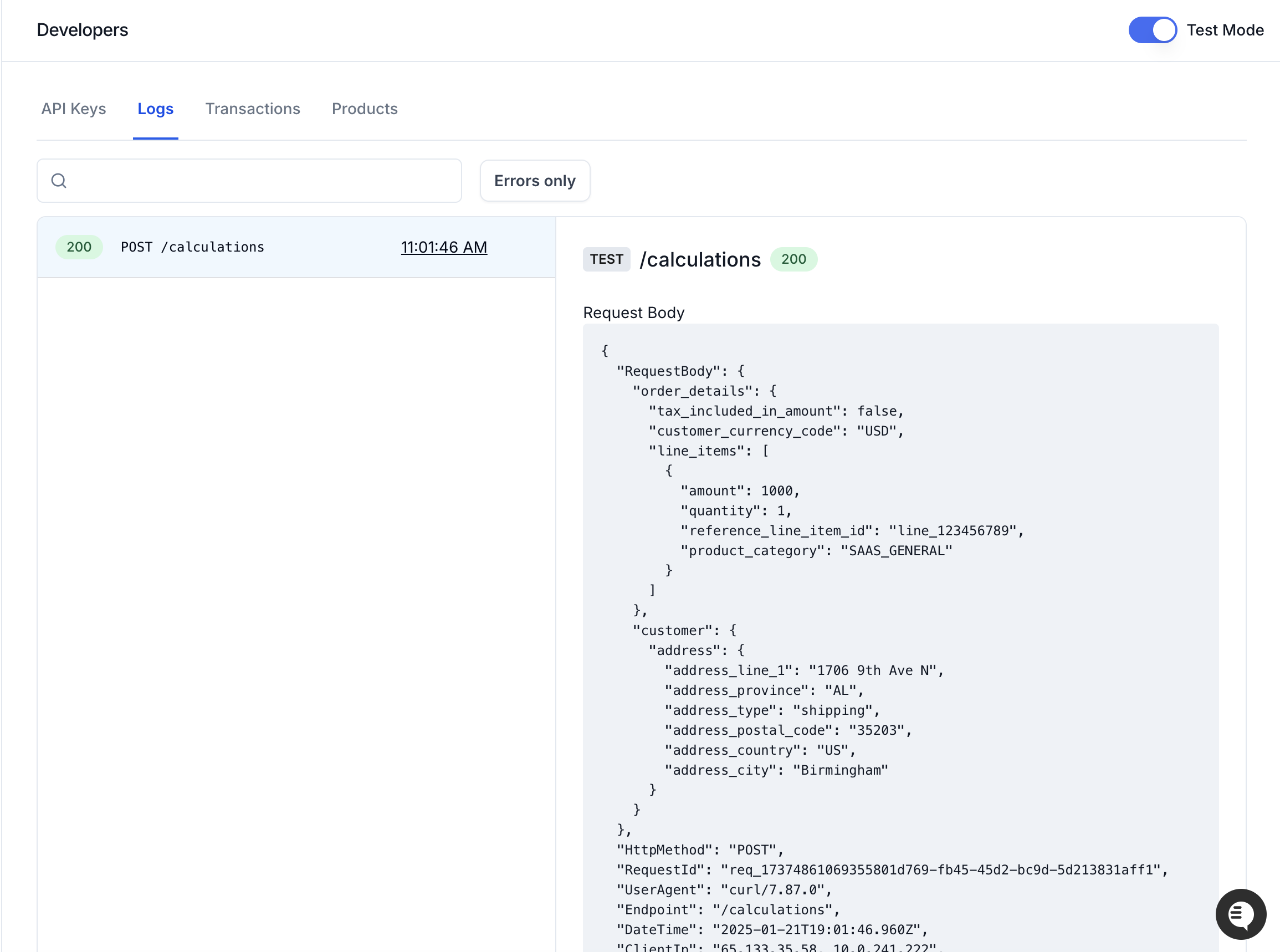
You can also find the complete calculation request and response in your developer dashboard under the `Logs` tab. If your calculation isn't showing up, make sure `Test Mode` in the top right is toggled on.
## 2. Get tax information through a `calculation`
Next, we'll get tax information for a product sale.
This example request represents a \$20 sale shipped to an address in California.
* Add the API key from step 1 to the below cURL snippet where it reads ``.
* Paste it into your terminal and execute the cURL request
* Take note of the response, especially the `total_tax_amount`, which you can find as the last field in the payload.
* Also, grab the `id` from the response. It's the first attribute returned, and we'll use it to record a transaction.
```cURL cURL theme={null}
curl --request POST \
--url https://api.numeralhq.com/tax/calculations \
--header 'Authorization: Bearer ' -H "X-PrettyPrint:1" \
--header 'Content-Type: application/json' \
--data '{
"customer": {
"address": {
"address_line_1": "798 Redwood Hwy",
"address_city": "Mill Valley",
"address_province": "CA",
"address_postal_code": "94941",
"address_country": "US",
"address_type": "shipping"
}
},
"order_details": {
"customer_currency_code": "USD",
"tax_included_in_amount": false,
"line_items": [
{
"reference_line_item_id": "line_123456789",
"product_category": "GENERAL_MERCHANDISE",
"amount": 2000,
"quantity": 1
}
]
}
}' | json_pp
```
```json theme={null}
{
//Grab this id from your response to use in the next step
"id": "calc_1723161922573fea429d8-f237-41f0-8467-bf860404d5a9",
"customer_currency_code": "USD",
"expires_at": 1723248322,
"line_items": [
{
"amount_excluding_tax": 2000,
"amount_including_tax": 2165,
"product": {
"product_tax_code": "GENERAL_MERCHANDISE",
"reference_line_item_id": "line_123456789"
},
"quantity": 1,
"tax_amount": 165,
"tax_jurisdictions": [
//This is an in depth breakdown of all applicable taxes
{
"fee_amount": 0,
"jurisdiction_name": "21",
"rate_type": "COUNTY SALES TAX",
"tax_rate": 0.0025
},
{
"fee_amount": 0,
"jurisdiction_name": "",
"rate_type": "STATE SALES TAX",
"tax_rate": 0.06
},
{
"fee_amount": 0,
"jurisdiction_name": "994",
"rate_type": "DISTRICT TAX (TAMC) (SMRT) (MPSF)",
"tax_rate": 0.01
},
{
"fee_amount": 0,
"jurisdiction_name": "21",
"rate_type": "LOCAL SALES TAX",
"tax_rate": 0.01
}
]
}
],
"object": "tax.calculation",
"tax_included_in_amount": false,
"testmode": true,
"total_amount_excluding_tax": 2000,
"total_amount_including_tax": 2165,
"total_tax_amount": 165 //Total amount of tax to charge on this calculation
}
```
You can also find the complete calculation request and response in your developer dashboard under the `Logs` tab. If your calculation isn't showing up, make sure `Test Mode` in the top right is toggled on.
 ## 3. Record a completed `transaction`
Once you've queried a calculation for tax information, you can record that calculation as a successful and completed sale.
In production, Numeral will use these recorded transactions complete your tax filings and monitor your nexus exposure.
* Add your API key to the below snippet
* Replace `` with the calculation id you grabbed in step 2.
* execute the cURL request
```cURL cURL theme={null}
curl --request POST \
--url https://api.numeralhq.com/tax/transactions \
--header 'Authorization: Bearer ' \
--header 'Content-Type: application/json' \
--data '{
"calculation_id": "",
"reference_order_id": "test_order_1"
}' | json_pp
```
```json theme={null}
{
"testmode": true,
"id": "tr_1723163605154d1c0eae5-704e-402b-bcb8-35067739ed47",
"object": "tax.transaction",
"calculation_id": "",
"filing_currency_code": "USD",
"customer_currency_code": "USD",
"line_items": [
{
"product": {
"reference_line_item_id": "625",
"reference_product_id": "test-p-01",
"reference_product_name": "Test Product",
"product_tax_code": "GENERAL_MERCHANDISE"
},
"tax_jurisdictions": [
{
"tax_rate": 0.0025,
"rate_type": "COUNTY SALES TAX",
"jurisdiction_name": "21",
"fee_amount": 0
},
{
"tax_rate": 0.06,
"rate_type": "STATE SALES TAX",
"jurisdiction_name": "",
"fee_amount": 0
},
{
"tax_rate": 0.01,
"rate_type": "DISTRICT TAX (TAMC) (SMRT) (MPSF)",
"jurisdiction_name": "994",
"fee_amount": 0
},
{
"tax_rate": 0.01,
"rate_type": "LOCAL SALES TAX",
"jurisdiction_name": "21",
"fee_amount": 0
}
],
"tax_amount": 165,
"amount_excluding_tax": 2000,
"amount_including_tax": 2165,
"quantity": 1
}
],
"reference_order_id": "order_test_1",
"transaction_processed_at": 1714787673
}
```
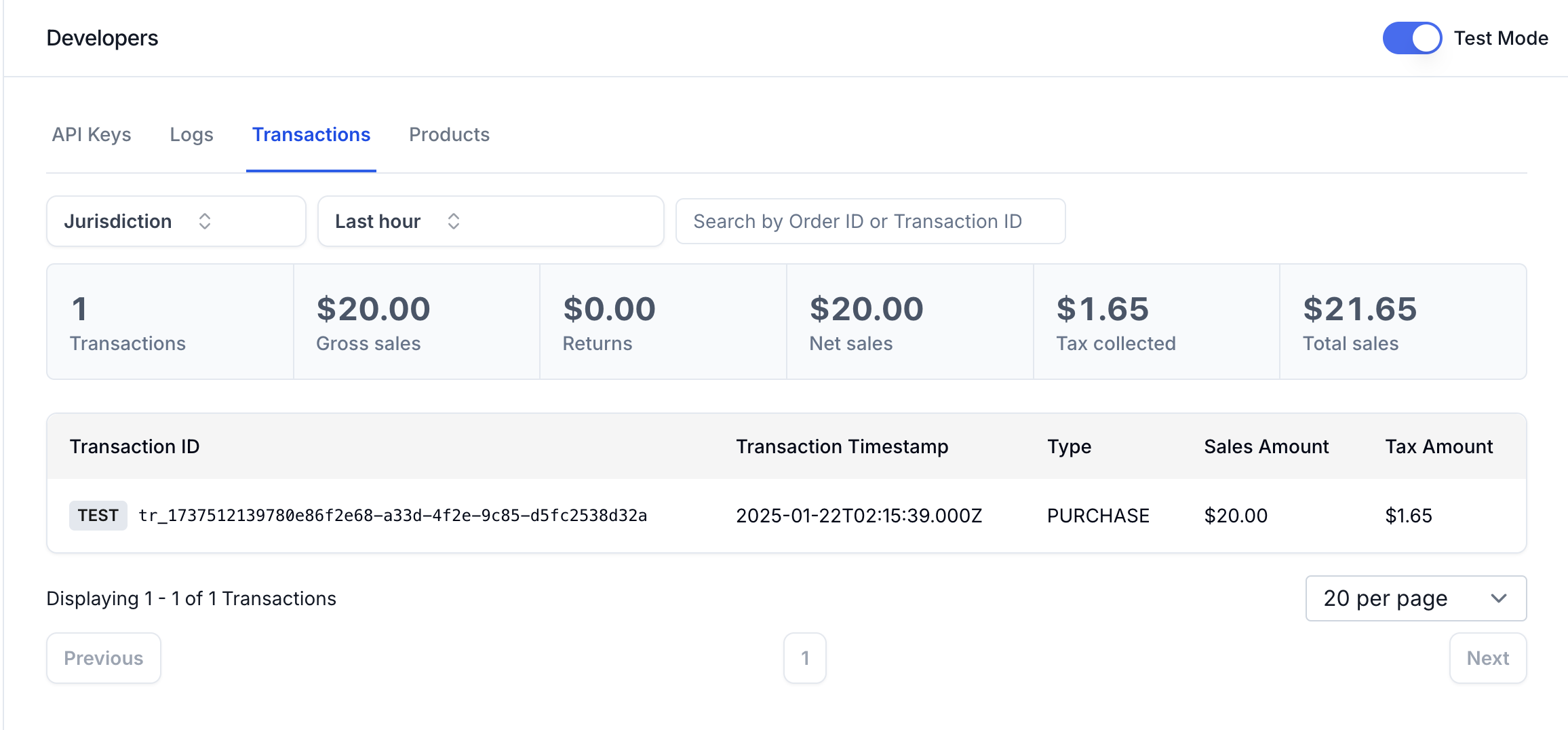
You'll then be able to see the transaction populate in the dashboard's `Transactions` tab. Make sure your filters and `Test Mode` toggle are set correctly.
## 3. Record a completed `transaction`
Once you've queried a calculation for tax information, you can record that calculation as a successful and completed sale.
In production, Numeral will use these recorded transactions complete your tax filings and monitor your nexus exposure.
* Add your API key to the below snippet
* Replace `` with the calculation id you grabbed in step 2.
* execute the cURL request
```cURL cURL theme={null}
curl --request POST \
--url https://api.numeralhq.com/tax/transactions \
--header 'Authorization: Bearer ' \
--header 'Content-Type: application/json' \
--data '{
"calculation_id": "",
"reference_order_id": "test_order_1"
}' | json_pp
```
```json theme={null}
{
"testmode": true,
"id": "tr_1723163605154d1c0eae5-704e-402b-bcb8-35067739ed47",
"object": "tax.transaction",
"calculation_id": "",
"filing_currency_code": "USD",
"customer_currency_code": "USD",
"line_items": [
{
"product": {
"reference_line_item_id": "625",
"reference_product_id": "test-p-01",
"reference_product_name": "Test Product",
"product_tax_code": "GENERAL_MERCHANDISE"
},
"tax_jurisdictions": [
{
"tax_rate": 0.0025,
"rate_type": "COUNTY SALES TAX",
"jurisdiction_name": "21",
"fee_amount": 0
},
{
"tax_rate": 0.06,
"rate_type": "STATE SALES TAX",
"jurisdiction_name": "",
"fee_amount": 0
},
{
"tax_rate": 0.01,
"rate_type": "DISTRICT TAX (TAMC) (SMRT) (MPSF)",
"jurisdiction_name": "994",
"fee_amount": 0
},
{
"tax_rate": 0.01,
"rate_type": "LOCAL SALES TAX",
"jurisdiction_name": "21",
"fee_amount": 0
}
],
"tax_amount": 165,
"amount_excluding_tax": 2000,
"amount_including_tax": 2165,
"quantity": 1
}
],
"reference_order_id": "order_test_1",
"transaction_processed_at": 1714787673
}
```
You'll then be able to see the transaction populate in the dashboard's `Transactions` tab. Make sure your filters and `Test Mode` toggle are set correctly.
 With that, you've walked through the core sales flow to collect and remit sales tax with Numeral.
When you're ready to integrate further, check out our integration guides to learn more about creating products, managing exempt customers, processing refunds, and more.
With that, you've walked through the core sales flow to collect and remit sales tax with Numeral.
When you're ready to integrate further, check out our integration guides to learn more about creating products, managing exempt customers, processing refunds, and more.